Every day, your team pours priceless context into Zendesk: tickets, tags, custom fields, SLAs, even CSAT signals. Left inside the help desk, that data mostly powers support ops. Exported into Google Sheets, it suddenly serves marketing, sales, finance, and leadership as a shared, lightweight warehouse.With exports you can slice ticket volume by campaign, spot failing onboarding flows, track churn-risk conversations, or hand sales a live list of “hot” accounts with repeated issues. Zendesk’s native JSON, CSV, XML and Explore dataset exports give you the raw material; Sheets turns it into fast, flexible models and dashboards.Now imagine you never again log into Admin Center to request a CSV, wait for an email, download a ZIP, unzip files, clean columns, and paste into Sheets. That entire loop is perfect work for an AI computer agent: it can follow your rules, run exports on a schedule, normalize fields, push data into Google Sheets, and alert you if something looks off—freeing your humans to act on the insight instead of wrangling the data.
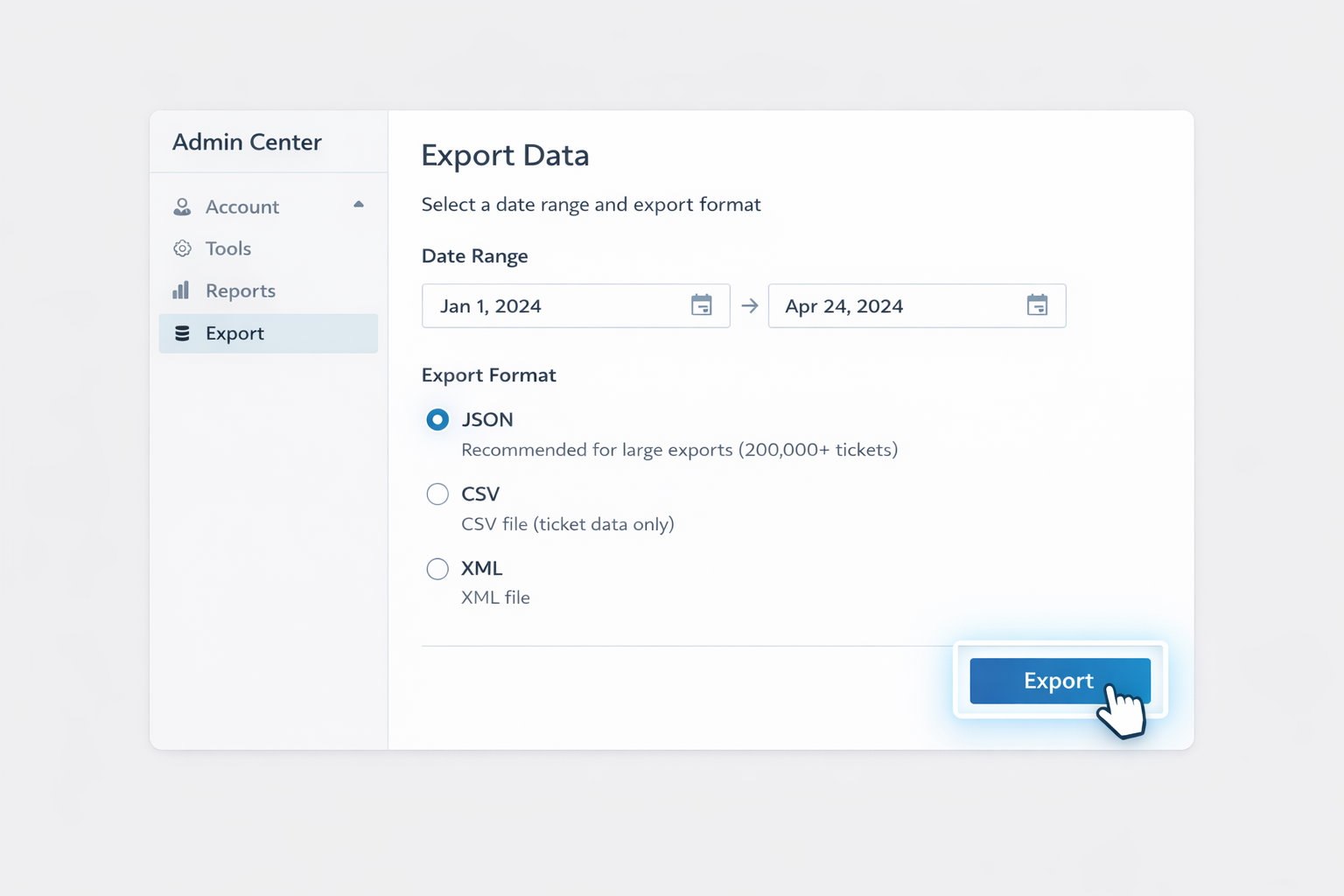
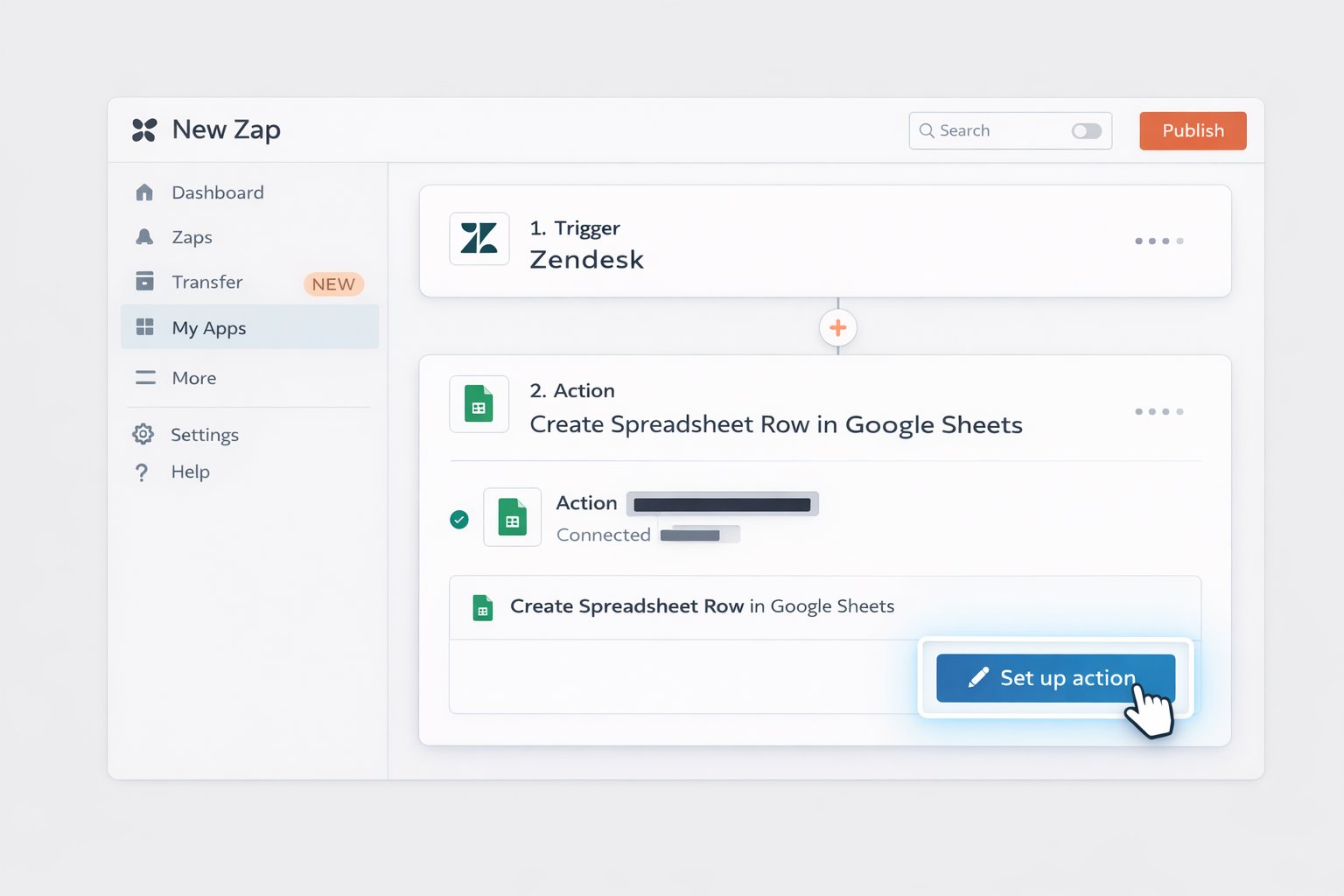
# Top Ways to Export Zendesk Data to Google Sheets (and Then Let an AI Agent Run It)You don’t want your best people babysitting CSVs. You want them acting on insights. Let’s walk through the main ways to get Zendesk data into Google Sheets—from fully manual, to no-code automation, to letting an AI computer agent handle the whole workflow end-to-end.---## 1. Manual & Traditional Methods### 1.1 Native JSON/CSV/XML export from Zendesk Admin CenterBest for: one-off historical exports, audits, migrations.1. Make sure exports are enabled. The Zendesk account owner must contact Zendesk Support to enable exports, as described in the official guide: [Exporting ticket, user, or organization data](https://support.zendesk.com/hc/en-us/articles/4408886165402-Exporting-ticket-user-or-organization-data-from-your-account).2. In **Admin Center**, go to **Account → Tools → Reports → Export**.3. Choose your format: - **JSON export** (recommended for >200k tickets; supports tickets, users, organizations). - **CSV export** (ticket data only; no comments/descriptions). - **XML export** (full or user XML).4. Set a **date range** (for JSON/CSV) and select **tickets / users / organizations** if applicable.5. Click **Export**. Zendesk will email you a download link once the ZIP is ready.6. Download and unzip the file, then open the CSV (or convert JSON/XML using a script/tool).7. In **Google Sheets**, go to **File → Import → Upload** and upload your CSV. See Google’s help: [Import data into Google Sheets](https://support.google.com/docs/answer/3094975).**Pros**- Directly supported by Zendesk.- Good for full historical snapshots.**Cons**- Manual, slow, and easy to forget.- No fine-grained filtering before export.- Not ideal for near real-time reporting.### 1.2 Exporting datasets via Zendesk ExploreBest for: analytics-ready ticket data on a schedule.If you use Explore Professional or Enterprise, you can export datasets as CSV regularly.1. Open **Zendesk Explore**.2. Click the **Dataset exports** icon in the left sidebar.3. For a one-time export, choose **Create one-time export**. For ongoing, choose **Create recurring export**.4. Pick your dataset, for example **Support – Tickets** or **Support – Updates History**.5. Select the **time window** (last 7 days, 30 days, 12 months, etc.).6. Confirm and create. Zendesk will generate a CSV and email you when it’s ready. See: [Exporting datasets from Explore](https://support.zendesk.com/hc/en-us/articles/5411234991258-Exporting-datasets-from-Explore).7. Download the CSV and import to Google Sheets via **File → Import**.**Pros**- Data is already modeled for analytics.- Built-in one-time and recurring schedules.**Cons**- Still requires you to manually download/upload to Sheets.- Export files expire after 7 days in Explore.### 1.3 Bulk export with the Zendesk APIBest for: engineers who want total control.Zendesk’s Incremental Export API can stream tickets, including comments, in near real-time. See: [Incremental ticket events API](https://developer.zendesk.com/api-reference/ticketing/ticket-management/incremental_exports/).High-level flow:1. Have a developer call the **Incremental Ticket Events** endpoint with a starting timestamp.2. Store results in a database or directly transform them into CSV.3. Use a script (Python, Node, Apps Script) to push the processed data into Google Sheets via the [Google Sheets API](https://developers.google.com/sheets/api).**Pros**- Fine-grained, continuous export.- Includes comments when side-loaded correctly.**Cons**- Requires engineering effort and monitoring.- Overkill for many small teams.---## 2. No-Code Automation into Google SheetsIf you want to avoid code but still keep data fresh, automation platforms are the middle ground.### 2.1 Zapier/Make workflows: Zendesk → Google SheetsTools like Zapier or Make (Integromat) provide native Zendesk and Google Sheets connectors.Typical workflow:1. In Zapier, create a new **Zap**.2. Set **Zendesk** as the trigger app. - Choose a trigger such as **New Ticket**, **Updated Ticket**, or **New Ticket in View**.3. Authenticate Zendesk using an admin or API token.4. Add **Google Sheets** as the action. - Action: **Create Spreadsheet Row** or **Update Spreadsheet Row**.5. Map fields: ticket ID, subject, requester, tags, status, custom fields, etc.6. Test the Zap and turn it on.**Pros**- Near real-time updates without code.- Easy for ops, marketing, and success teams to own.**Cons**- Priced per task/operation.- Complex mappings can get messy.### 2.2 Google Apps Script for simple scheduled pullsIf you’re slightly technical, Google Apps Script can pull from Zendesk’s API on a schedule and fill a Sheet.High-level:1. In your target Google Sheet, go to **Extensions → Apps Script**.2. Write a script that: - Calls Zendesk’s search or incremental export APIs. - Parses the JSON and writes it into the active sheet.3. Use **Triggers → Add Trigger** to run the script daily or hourly.Reference: [Apps Script overview](https://developers.google.com/apps-script/guides/clasp).**Pros**- Runs inside Google’s environment; no external server.- Fully customizable transformations.**Cons**- You still maintain code.- Harder to debug for non-engineers.---## 3. Scaling with an AI Agent (Simular) Handling the Entire WorkflowManual exports and no-code flows solve parts of the problem. But when you’re running a serious sales, marketing, or agency operation, the work around the export becomes the bottleneck: logging in, adjusting filters, downloading ZIPs, fixing headers, deduping, pasting into the right tab, and notifying stakeholders.A Simular AI computer agent can act like a tireless operations assistant who lives in your browser and desktop.### 3.1 Agent-driven Admin Center export → Google SheetsStory: Every Monday at 7 a.m., your Simular agent wakes up before your team does.It:1. Opens your browser, logs into Zendesk Admin Center.2. Navigates to **Account → Tools → Reports → Export**.3. Requests a **CSV export** of tickets updated in the last 7 days.4. Waits for the email, opens the download link, and saves the ZIP.5. Unzips the CSV, cleans headers, standardizes date/time formats.6. Opens your master Google Sheet, imports the latest CSV into a staging tab, and uses formulas or recorded steps to: - Deduplicate by ticket ID. - Normalize statuses to your internal taxonomy. - Append to a historical log tab.7. Finally, it posts a summary in Slack or email: “New Zendesk → Sheets export completed. 4,872 tickets synced.”**Pros**- Zero human clicks after setup.- Works with Zendesk’s native, supported export flow.- Transparent execution: you can see and adjust every step the agent runs.**Cons**- Requires an initial configuration and testing period.### 3.2 Agent-powered Explore dataset export managementFor analytic datasets, your agent can:1. Open Zendesk Explore and navigate to **Dataset exports**.2. Create or adjust recurring export schedules (for example, weekly exports of **Support – SLAs** and **Support – Updates History**).3. Download the CSVs before they expire.4. Push each dataset into a dedicated tab or separate Sheet, preserving schema.5. Maintain links between tables (tickets, SLAs, updates) so your dashboards and Looker Studio reports stay intact.**Pros**- Uses Explore’s curated datasets.- Keeps multi-table reporting in sync without a data engineer.**Cons**- Still bound by Explore’s export frequency and row limits.### 3.3 Hybrid: Agent orchestrating APIs and no-code toolsIf you already use Zapier/Make or Apps Script, your Simular agent can orchestrate:- Turning Zaps on/off for specific campaigns.- Adjusting filters or Views in Zendesk before exports.- Copying sample rows into QA sheets for human review.In other words, the AI agent doesn’t replace your stack; it *operates* your stack. It clicks buttons, changes configs, and stitches the last mile of work humans usually hate doing.**Pros**- Leverages what you’ve already built.- Great for complex, multi-app workflows.**Cons**- Needs clear checklists and guardrails so the agent knows exactly what “success” looks like.Once configured, you’re no longer “doing exports”—you’re simply deciding what questions you want the data to answer, and your AI agent keeps the pipelines humming in the background.
Lorem ipsum dolor sit amet, consectetur adipiscing elit, sed do eiusmod tempor incididunt ut labore et dolore magna aliqua. Ut enim ad minim veniam, quis nostrud exercitation ullamco laboris nisi ut aliquip ex ea commodo consequat. Duis aute irure dolor in reprehenderit in voluptate velit esse cillum dolore eu fugiat nulla pariatur.
Block quote
Ordered list
Unordered list
Bold text
Emphasis
Superscript
Subscript
If you just need a quick snapshot, use Zendesk’s native export feature.1. Ask your account owner to enable exports by contacting Zendesk Support, as described here: https://support.zendesk.com/hc/en-us/articles/4408886165402-Exporting-ticket-user-or-organization-data-from-your-account.2. In **Admin Center**, go to **Account → Tools → Reports → Export**.3. Choose your format: - **CSV** if you want a straightforward table of tickets. - **JSON** if you have a lot of tickets or plan to process them with scripts. - **XML** for full-structure exports.4. For CSV/JSON, set the **date range** and (for JSON) choose **tickets / users / organizations**.5. Click **Export** and wait for the email from Zendesk.6. Download the ZIP, extract it, then open the CSV file directly in Excel or upload it to Google Sheets via **File → Import → Upload**.This route is best for one-off analyses, audits, or when you’re just starting to explore what’s in your Zendesk data.
To automate recurring exports, the most robust native option is Zendesk Explore dataset exports.1. Confirm you’re on a plan with Explore Professional or Enterprise.2. Open **Zendesk Explore** and click the **Dataset exports** icon in the left sidebar.3. Choose **Create recurring export**.4. Select the dataset, such as **Support – Tickets**, **Support – SLAs**, or **Support – Updates History**.5. Set **Frequency** to *Daily, Weekly, or Monthly*, then choose the exact **day/time** you want it to run.6. Save the export. Zendesk will generate CSV files on that schedule and keep them available for seven days.7. You can then: - Manually download the latest CSV and import into Google Sheets, or - Use a Simular AI agent to log in, download each fresh CSV before it expires, and push it into the right Sheets tab.This gives you a stable, recurring pipeline from Zendesk to your analytics stack without engineering heavy lifting.
If you want Zendesk tickets to land directly in Google Sheets with minimal friction, a no-code integration is usually best.Using Zapier as an example:1. Create a new **Zap** and choose **Zendesk** as the trigger app.2. Pick a trigger like **New Ticket**, **Updated Ticket**, or **New Ticket in View** if you only care about tickets filtered by a saved View.3. Connect your Zendesk account with an admin user or API token.4. Add **Google Sheets** as the action with **Create Spreadsheet Row**.5. Choose your spreadsheet and worksheet.6. Map Zendesk fields (ticket ID, subject, requester, tags, status, assignee, custom fields) to the appropriate columns.7. Test the Zap with a real ticket and check that the row appears correctly.8. Turn the Zap on.From now on, every new or updated ticket that matches the trigger will automatically append to your Google Sheet. You can later add a Simular AI agent to maintain Sheets structure, clean fields, or roll data into aggregated dashboards.
When you have hundreds of thousands or millions of tickets, you need to respect Zendesk’s scalability limits and choose the right export path.Options:1. **JSON exports for big volumes** - Use the native **JSON export** from Admin Center, recommended for >200k tickets. - Zendesk will split very large exports into 31-day chunks and provide Newline Delimited JSON (NDJSON) files. - You can then load this into a database or transform it into CSV before importing to Google Sheets.2. **Incremental Export API** - Use the **Incremental Ticket Events** API with side-loaded comment events: https://developer.zendesk.com/api-reference/ticketing/ticket-management/incremental_exports/. - This lets you stream changes over time instead of trying to export everything at once.3. **AI agent orchestration** - Configure a Simular AI computer agent to run multiple smaller exports by date range, download and merge them, then push only the fields you care about into Google Sheets.By chunking data, using JSON/NDJSON, and letting an agent orchestrate the process, you avoid timeouts and file size issues while still keeping your reporting layer fresh.
An AI agent like Simular shines when you want to automate the *process* around exports without compromising control.A safe setup looks like this:1. **Least-privilege access** Create a dedicated Zendesk admin or reporting user just for exports. Limit its permissions to what’s needed for Admin Center and Explore.2. **Document the workflow** Write a clear checklist describing every step: where to click in Admin Center, which export type and date range to select, where to save files locally or in the cloud, and which Google Sheets file and tab to update.3. **Train the agent transparently** In Simular, you walk the agent through the actual clicks once. Because execution is transparent and editable, you can inspect each step and tweak it without code.4. **Start with small ranges** Have the agent export a single day of tickets into a staging Sheet. Verify every column and formula.5. **Add schedules and alerts** Once stable, let the agent run on a schedule (for example, daily at 6 a.m.), then notify your team in Slack or email when the export completes or if it hits an error.This way, the AI agent does the boring work—while you keep human-in-the-loop oversight and clear auditability.