Guide: How to Automate Zendesk Marketplace with AI

Scale support by pairing Zendesk Marketplace apps with an AI computer agent that navigates tickets, triggers workflows, and keeps every customer fast 24/7!
Advanced computer use agent
Production-grade reliability
Transparent Execution

Why Zendesk + AI agents

Zendesk Marketplace is where your support stack quietly compounds in value. Nearly every workflow your team touches—support, sales assist, billing, reviews, campaigns—already has a purpose‑built app waiting there. Instead of custom‑coding integrations from scratch, you mix and match apps for AI and bots, agent productivity, CRM and marketing, analytics, and more, then plug them straight into your Zendesk workspace. Ratings, reviews, and categories make it easy to validate vendors and de‑risk choices, while themes and partner services help you shape a help center and operation that actually fits your brand and scale.Now imagine an AI computer agent walking that marketplace for you. While your team handles strategy, the agent can log into Zendesk, compare apps, install trials, configure test workflows, and capture before‑and‑after metrics. It becomes your tireless operations assistant: spinning up experiments at night, rolling back losers, scaling winners, and documenting every click. You stop firefighting integrations and start orchestrating a constantly improving CX machine.

Guide: How to Automate Zendesk Marketplace with AI

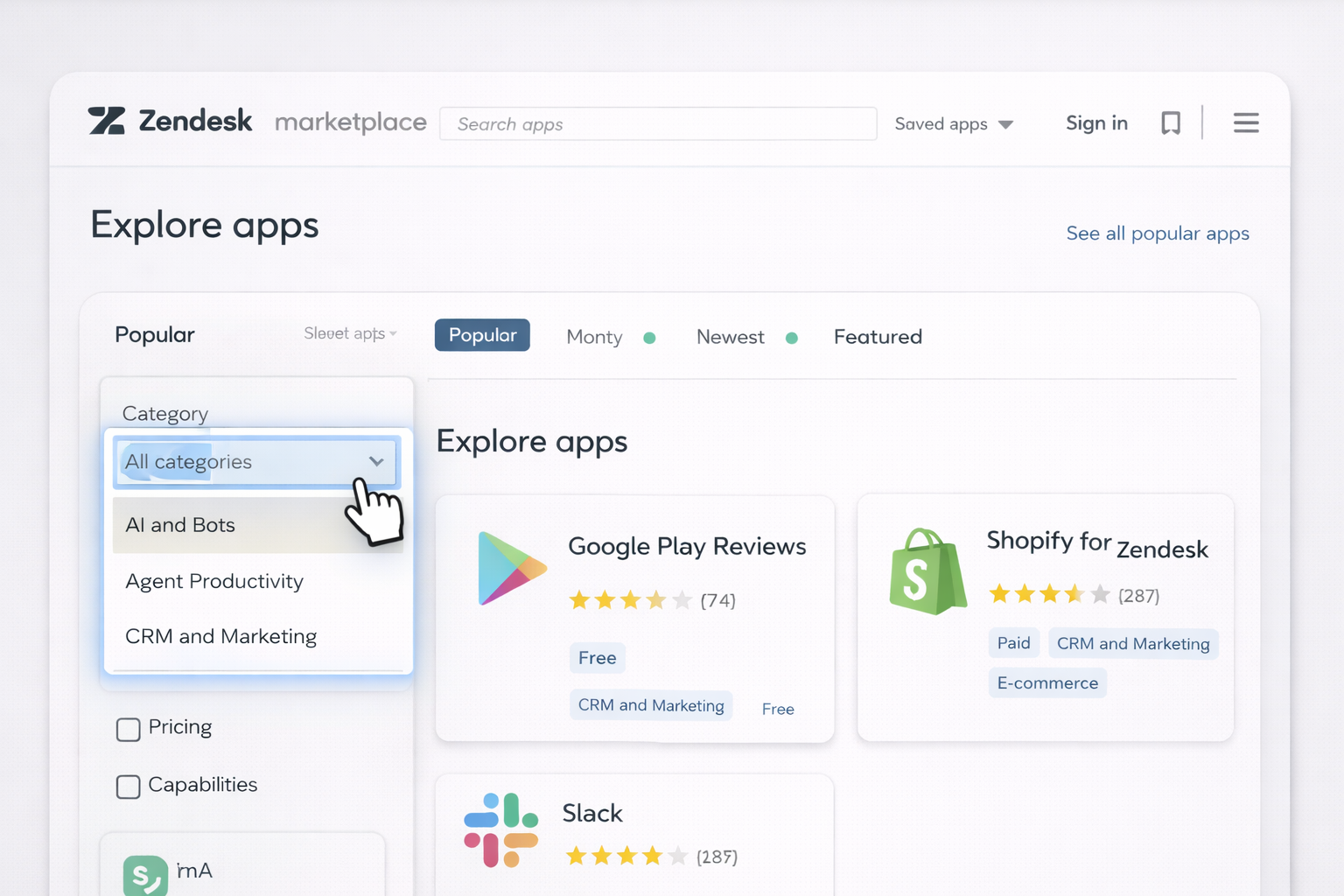
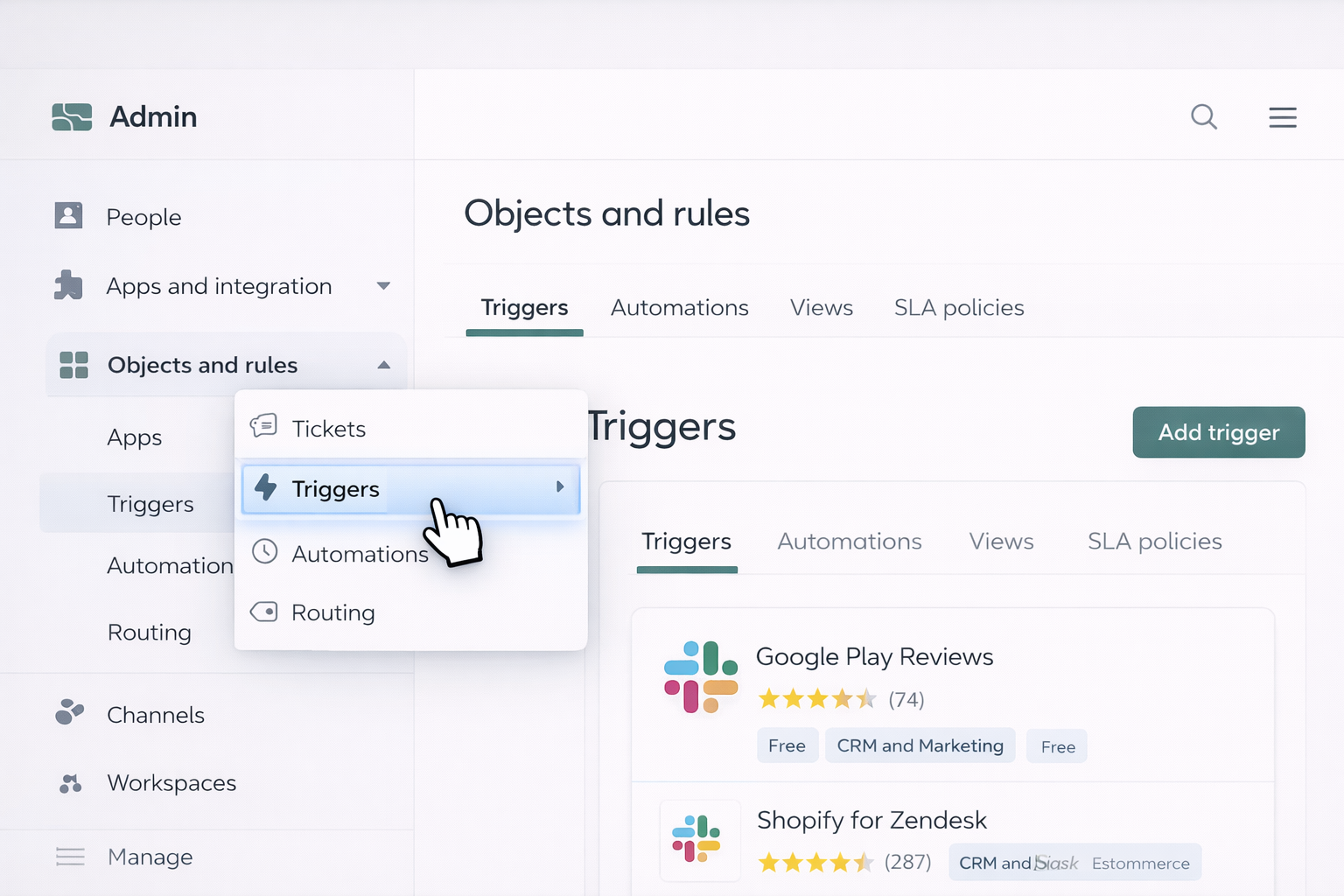
## How to Use Zendesk Marketplace at Scale (and When to Bring in AI Agents)You don’t need to be a developer to turn Zendesk into a powerful, automated customer hub. Between the Zendesk Marketplace, built‑in automation, and an AI computer agent like Simular, you can go from manual chaos to a self‑optimizing support stack.Below is a practical playbook, from traditional methods all the way to AI‑driven automation.---### 1. Traditional, Manual Ways to Work With Zendesk Marketplace#### 1. Manually discover and evaluate apps1. Go to the Zendesk Marketplace: https://www.zendesk.com/marketplace/apps/2. Filter by category (e.g. **AI and Bots**, **Agent Productivity**, **CRM and Marketing**).3. Sort by **Popular apps** or **Featured apps** to see what other teams actually use.4. Open 3–5 candidate apps in new tabs (for example Google Play Reviews, Shopify for Zendesk, or Slack).5. Read ratings, reviews, and pricing.6. Cross‑check with your own use cases: “Will this reduce handling time?”, “Will this remove a copy‑paste step?”This is slow but gives you intuition about the ecosystem and what’s possible.#### 2. Manually install and configure an appLet’s say you pick **Shopify for Zendesk** to give agents instant order context.1. From the app page in the Marketplace, click **Install**.2. Choose the Zendesk account (subdomain) where you want it installed.3. Follow the on‑screen instructions to connect your Shopify store (API keys or OAuth).4. In Zendesk Support, open **Admin Center → Apps and integrations → Apps** to confirm the app is enabled.5. Open a ticket from a known Shopify customer and verify you see order details in the app sidebar.Docs hub: https://support.zendesk.com/hc/en-usPros: high control and understanding. Cons: consumes founder/manager time.#### 3. Wire apps into your workflows with triggers and macrosMany Marketplace apps expose actions or fields that work best when paired with Zendesk’s own automation.Example: automatically tag tickets that contain Trustpilot review links.1. In Zendesk Admin Center, go to **Objects and rules → Triggers**.2. Create a new trigger: give it a clear name like “Tag Trustpilot review tickets”.3. Conditions: `Ticket is Created` and `Comment text contains 'trustpilot.com'`.4. Actions: `Add tags` → `trustpilot_review`.5. Save and test by creating a dummy ticket.6. Then configure your Trustpilot Reviews app (from the Marketplace) to look for that tag and surface the right context.This is still manual but gets you to consistent behavior.#### 4. Manually audit your app stackEvery quarter:1. Visit **Admin Center → Apps and integrations → Apps**.2. Export or list all installed apps.3. For each, check: - Is the team still using it? - Is there overlap with a newer app from the Marketplace? - Are there better‑rated alternatives?4. Uninstall unused apps to reduce clutter and cost.This works, but as your operation grows, the reviews, experiments, and audits become too heavy to do by hand.---### 2. No‑Code Automation With Built‑In and External ToolsWhen manual steps start burning hours, layer in no‑code automation.#### 1. Use Zendesk Triggers and Automations as your logic layerZendesk’s native rules engine can orchestrate behavior across many Marketplace apps.Example: auto‑route VIP tickets to a dedicated Slack channel using the **Slack** app.1. Install the Slack app from the Marketplace and connect your workspace.2. In Zendesk, create a **user field** or use tags to mark VIP customers.3. Go to **Objects and rules → Triggers**.4. Create a trigger: “Send VIP ticket to Slack”.5. Conditions: `Ticket is Created` and `Tags contain vip`.6. Actions: use the Slack app action (if exposed) or email the Slack channel’s email bridge with ticket details.This gives you if/then routing without writing code.#### 2. Use Flow Builder and AI/Bot apps from the MarketplaceFor messaging channels, combine Zendesk bots with Marketplace apps under **AI and Bots**.1. In Admin Center, go to **Bots and automation → Bots**.2. Open **Flow Builder** to design a conversation flow.3. Add steps that: - Capture customer details. - Check knowledge base articles. - Hand off to agents when needed.4. Extend with Marketplace bot apps (for example, specialized FAQ or multilingual bots) to improve coverage.5. Publish and monitor performance via Zendesk’s analytics.Reference: https://support.zendesk.com/hc/en-us for bot and Flow Builder documentation.#### 3. Connect external tools with Zapier/Make and Marketplace appsSometimes you want Zendesk to sync with CRMs, billing, or marketing tools that also live in the Marketplace.Example: push post‑support NPS survey results into your CRM.1. In the Marketplace, ensure your survey tool (e.g. Simplesat) and CRM (e.g. Pipedrive) apps are installed in Zendesk.2. In Simplesat, configure the integration to tag tickets with survey responses.3. In Pipedrive’s Zendesk app, map fields so survey scores land on the right deal or contact.4. Optionally, in an external no‑code tool (Zapier/Make), create a workflow: - Trigger: new NPS survey submitted. - Actions: update the CRM record, post to Slack via its Marketplace app, or create a follow‑up task.Pros of no‑code: faster than custom engineering, friendly to ops and CX leaders. Cons: you still design and maintain every rule.---### 3. Scaling With an AI Computer Agent (Simular)At some point, the bottleneck isn’t Zendesk—it's your human time. This is where a Simular AI computer agent becomes your operations teammate, not just a script.Simular Pro (https://www.simular.ai/simular-pro) can operate like a power user across desktop, browser, and cloud, including Zendesk and its Marketplace. Every click, scroll, and configuration step is transparent and inspectable.#### Method 1: Let the agent run your “Marketplace research desk”Use case: you’re a marketing agency or growing brand wanting the best AI, reviews, and CRM apps without spending weekends in the Marketplace.Workflow:1. You define a brief: “Find three AI and Bots apps that reduce average handle time for email tickets, support native Zendesk integration, and have 4.5+ rating.”2. The Simular agent opens https://www.zendesk.com/marketplace/apps/ and filters by **AI and Bots**.3. It scans listings, opens each candidate, reads descriptions, pricing, and reviews.4. It logs results into a Google Sheet: app name, link, category, rating, price, pros/cons.5. Optionally, it drafts a short internal recommendation doc for your team.Pros: research that used to take a manager half a day now runs in the background. Cons: you still decide what to install, which is usually what you want for governance.#### Method 2: Agent‑assisted app rollout and configurationUse case: a sales team wants Zendesk + Shopify + Slack wired together for launch week, without an ops engineer.Workflow:1. You record or describe the setup steps once (Simular supports transparent, editable workflows).2. The AI agent: - Logs into Zendesk Admin Center. - Installs the Shopify for Zendesk app and the Slack app from your pre‑approved list. - Connects your Shopify store and Slack workspace. - Creates standard triggers (for example, send VIP Shopify issues to a #vip-support channel). - Tests the setup by creating sample tickets.3. You review the log of every step (no black box) and make edits if needed.Pros: repeatable rollouts across multiple brands or clients; ideal for agencies. Cons: requires initial workflow design, and you’ll want guardrails for permissions.#### Method 3: Continuous hygiene and optimizationUse case: you run a support org with dozens of Marketplace apps and no one has time to prune or optimize.Workflow:1. Schedule the Simular agent to run weekly.2. It logs into Zendesk, exports a list of installed apps, and cross‑references usage signals (ticket volume by channel, tags, macros).3. It flags: - Unused apps. - Overlapping apps (e.g., multiple survey tools). - Opportunities where an AI/Bots app could replace manual triage.4. It writes a short report and posts it to your team’s Slack (also via the Slack app) with recommended actions.Pros: ongoing savings and performance improvements without manual audits. Cons: you need a human owner to approve changes and keep a strategic view.---### Comparing Approaches- **Manual:** Maximum control, best for learning and small setups; slow and error‑prone at scale.- **No‑code automation:** Great balance of speed and governance; still requires humans to design and maintain logic.- **AI computer agent (Simular):** Automates the work *around* Zendesk Marketplace—research, setup, testing, hygiene—while you stay in charge of strategy. Ideal for agencies, sales and marketing teams, and business owners who want their tools to evolve without babysitting every click.For official documentation, always start from the Zendesk Help Center at https://support.zendesk.com/hc/en-us and explore Simular Pro’s capabilities at https://www.simular.ai/simular-pro.

Heading 1

Heading 2

Heading 3

Heading 4

Heading 5
Heading 6

Lorem ipsum dolor sit amet, consectetur adipiscing elit, sed do eiusmod tempor incididunt ut labore et dolore magna aliqua. Ut enim ad minim veniam, quis nostrud exercitation ullamco laboris nisi ut aliquip ex ea commodo consequat. Duis aute irure dolor in reprehenderit in voluptate velit esse cillum dolore eu fugiat nulla pariatur.

Block quote

Ordered list

  1. Item 1
  2. Item 2
  3. Item 3

Unordered list

  • Item A
  • Item B
  • Item C

Text link

Bold text

Emphasis

Superscript

Subscript

How to scale Zendesk Marketplace with AI agents now

Onboard Simular in ZD
Connect Simular Pro to your Zendesk account, define your Marketplace goals, and let the AI agent learn by walking through installs, settings, and test tickets with you.
Test and refine agent
Use Simular’s transparent execution logs to review how the agent installs and configures Zendesk apps, then tweak steps so your first full Marketplace run succeeds cleanly.
Scale Zendesk with Simular
Once trusted, delegate recurring Zendesk Marketplace tasks—research, installs, cleanups—to the Simular AI agent so it maintains, scales, and documents your app stack for you.

FAQS