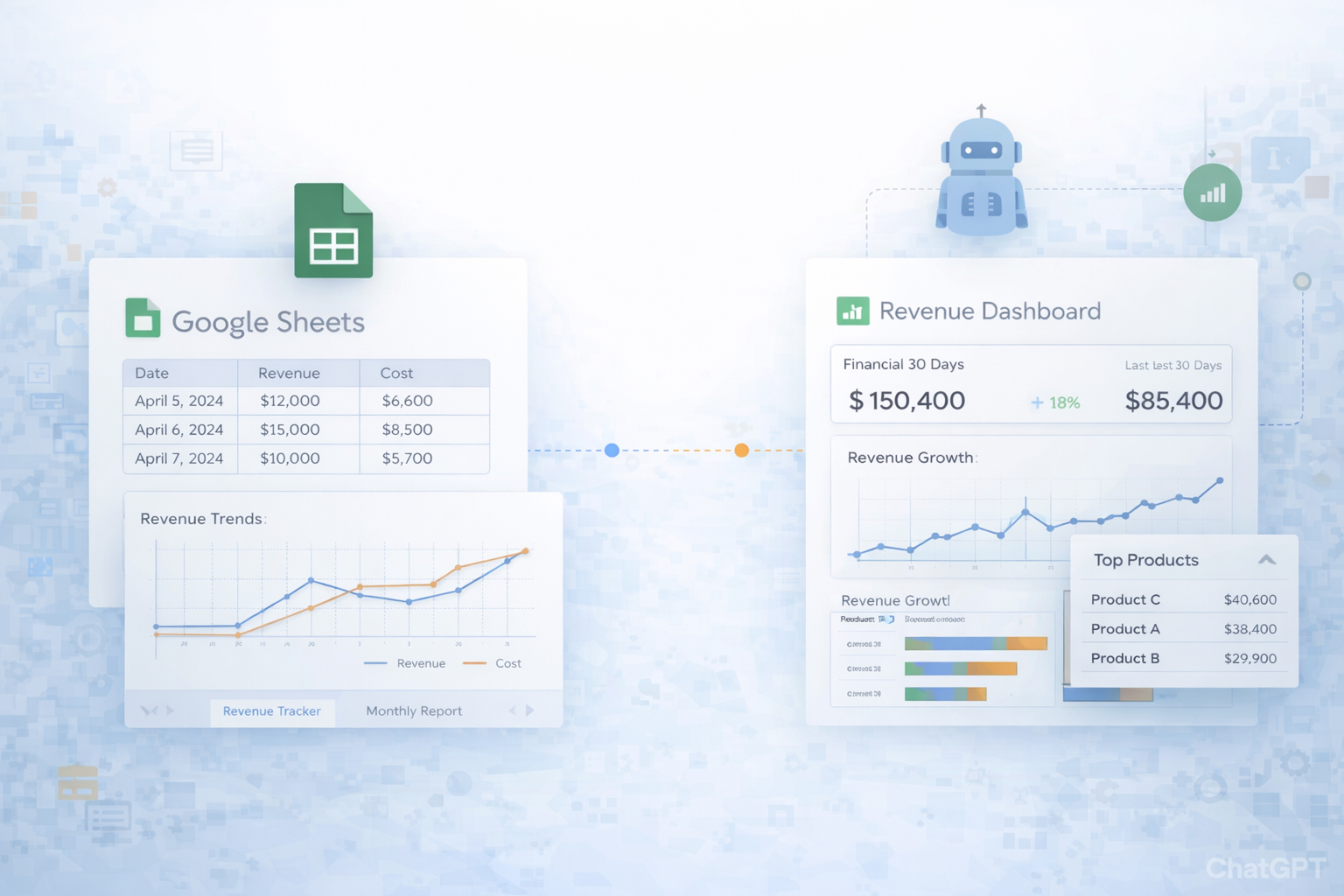
Before they automated, most teams I work with were flying blind. Revenue lived in five tools, three spreadsheets, and one heroic finance person’s head. Month-end meant exporting CSVs from Stripe, PayPal, ad platforms, then spending a whole afternoon reconciling formulas in Google Sheets.
A dedicated revenue tracker gives you a single source of truth. Like Striven or Coefficient’s templates, you get real-time reporting, multi-channel consolidation, and trend analysis that tells you not just what you made, but why. You can segment by product, region, or campaign, spot seasonality, and protect cash flow instead of reacting once the damage is done.
The real leap, though, is delegating this to an AI computer agent. Instead of you refreshing dashboards and pasting numbers, the agent logs into dashboards, downloads reports, cleans data, and updates Google Sheets on schedule. Imagine starting each day with a fresh revenue snapshot in your Sheet and Slack, while you focus on pricing, offers, and growth experiments. The agent becomes your quiet financial ops teammate, handling the click-heavy work so you can run the business, not the spreadsheets.
These are the approaches most founders, agencies, and marketing teams start with. They are simple, but time consuming.
Pros: Full control, no setup complexity. Cons: Easy to forget, error prone, scales poorly once you add more channels.
Pros: Better aggregation and visibility. Cons: Still manual copy paste, no realtime view.
Pros: Great for marketers tying revenue to channels. Cons: Manual mapping, lots of repetitive data hygiene.
Pros: Strategic view for founders. Cons: Requires discipline to keep the raw data current.
Pros: Catches obvious issues. Cons: Always reactive and time intensive.
Once you feel the pain of manual updates, it is time to stop copying CSVs. No-code tools can push data into Google Sheets for you.
Pros: Relatively simple, lives inside Sheets. Cons: Some add-ons are paid or limited, mappings can be rigid.
Pros: Real-time tracking, flexible, no engineering required. Cons: Can get expensive at scale, complex zaps are hard to maintain.
Pros: Holistic top-of-funnel to revenue view. Cons: Multiple integrations to keep in sync, schema changes can break reports.
Pros: Everyone sees the same numbers in one place. Cons: Still requires someone to babysit integrations and adjust formulas as the business evolves.
At some point, even no-code tools feel like duct tape. You still log in to dashboards, fix broken imports, and massage CSVs. This is where AI computer agents such as Simular shine: they behave like a human operator across desktop, browser, and cloud, but run 24/7.
Workflow example:
Pros: No reliance on APIs or brittle integrations, works across almost any web tool. You get production grade reliability with thousands of UI steps. Cons: Requires careful onboarding instructions and initial testing.
Pros: Turns retroactive reconciliations into a continuous control. Great for agencies handling client accounts and wanting auditability. Cons: Needs clear rules for what counts as an error to avoid excessive noise.
Pros: Elevates analysts and founders from reporting to decision making. Cons: Forecasts are only as good as the underlying data; you still need human judgment for big calls.
For more on Simular Pro’s capabilities as a computer use agent, see: https://www.simular.ai/simular-pro. For Sheets fundamentals and best practices, start at the Google Docs Help Center: https://support.google.com/docs/.
Start by designing your tracker around the questions you actually ask each week: How much did we make, from where, and at what cost. In Google Sheets, create a new spreadsheet and label the first tab Raw Data. Add columns: Date, Source (Stripe, PayPal, Shopify, client invoices), Customer, Product or Service, Quantity, Gross revenue, Discounts, Fees, Net revenue, and Notes.
Next, standardize how you enter data. Decide whether you will paste line items from your tools or only daily totals by source. Use data validation drop downs for Source and Product to prevent typos (Data > Data validation). Then, on a second tab called Summary, use SUMIFS to calculate totals by date range and source. For example, sum Net revenue where Date is in the current month and Source equals Stripe.
Finally, add a chart for weekly or monthly revenue and freeze the top row so headers stay visible. Document the process in a short note so anyone on your team can add entries the same way you do.
You have three main options. The fastest manual method is to log into Stripe, export a CSV of payments for your chosen date range, then import it into your Raw Data tab (File > Import in Sheets). Map Stripe’s columns (created, amount, fees, etc.) to your own headers and use formulas to convert amounts from cents to dollars.
To avoid repetitive exporting, use a no code automation tool such as Zapier or Make. Configure a trigger like New Payment in Stripe and an action Create spreadsheet row in Google Sheets, mapping each Stripe field to your columns. This will add new payments in real time.
If your team is ready for an AI computer agent, instruct your Simular agent to sign into Stripe, navigate to the Payments page, download a daily report, and paste the cleaned data into your tracker. Because Simular operates through the browser like a human, you are not limited by public APIs, and you can adapt whenever Stripe’s UI changes by editing the agent’s workflow instead of rewriting code.
Once your Raw Data tab is consistently populated, build a Dashboard tab that only references, never edits, raw rows. Start with a table summarizing revenue by month and source. Use QUERY or SUMIFS to aggregate: for example, SUMIFS of Net revenue where Date is between the first and last day of each month, grouped by Source.
Add key KPIs: total monthly revenue, average revenue per customer, top 5 products, and revenue by campaign if you track it. Create charts for MRR or monthly recurring revenue, channel mix (pie or stacked bar), and a simple line chart showing revenue over the last 12 months. Use conditional formatting to highlight negative trends, such as months where revenue drops more than 10 percent.
For clarity, place your KPI numbers at the top, charts in the middle, and a short narrative section at the bottom. Here, your AI agent can paste a weekly or monthly summary so stakeholders get context with the numbers. Protect the Dashboard sheet so formulas and layouts are safe while still allowing the team to view and comment.
To automate updates, think in three layers: data ingestion, transformation, and reporting. For ingestion, use connectors, add ons, or tools like Zapier to push new transactions from payment processors, ecommerce platforms, or your CRM straight into Google Sheets. Each automation should append rows to a dedicated Raw Data tab, including a Source column and timestamps.
For transformation, write formulas or use pivot tables that reference the entire data range, not fixed row numbers. Functions like ARRAYFORMULA, QUERY, and SUMIFS let your calculations expand automatically as new rows arrive. Place these formulas on separate Summary and Dashboard tabs so you keep raw and derived data isolated.
To go further, delegate recurring tasks to a Simular AI agent. Give it the job of checking whether imports ran correctly, backfilling missing days by exporting from tools, normalizing inconsistent values (for example, fixing currency codes), and emailing you if something looks off. This turns your tracker into a living system that quietly maintains itself instead of relying on you to remember every tiny update.
An AI computer agent can play two advanced roles: quality assurance and storyteller forecaster. For QA, configure a Simular agent to open your accounting system or bank portal, export monthly revenue or deposit reports, and compare them with your Google Sheets dashboard. The agent can add discrepancies to a separate Issues tab, grouping by source and date, so you see exactly where numbers diverge.
For forecasting, the agent can copy recent revenue history (for example, the last 12–24 months) into a temporary analysis sheet, calculate growth rates and seasonality, and project forward under different scenarios. It can then generate a narrative summary, highlighting risks like churn trends or cash flow dips, and paste that summary next to your charts or into a Google Doc for leadership.
The key is to give precise instructions: which Sheet and ranges to use, how to treat one time spikes, and how often to run. You stay in control of decisions, while the agent does the heavy lifting of checking, calculating, and explaining what the numbers mean.