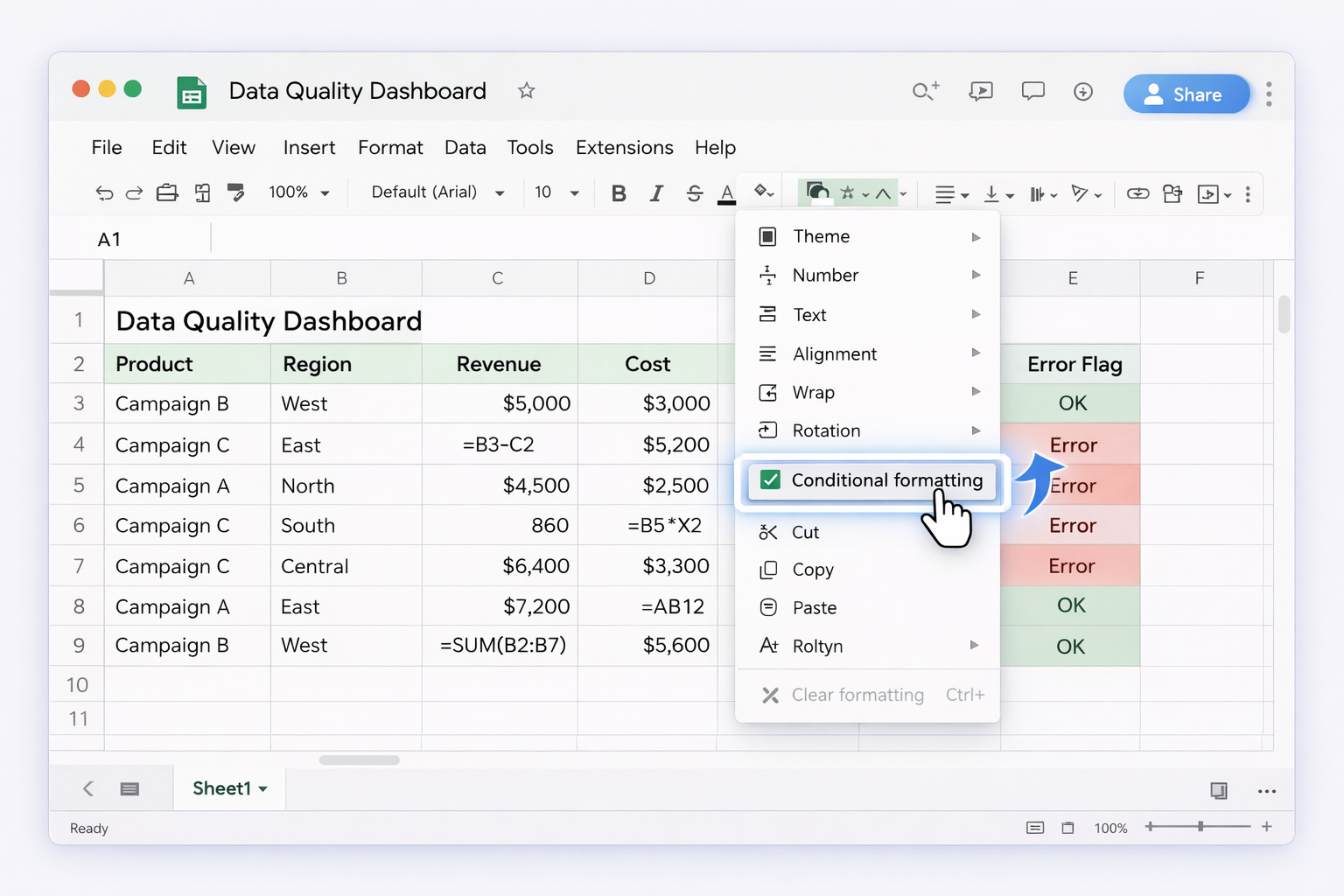
Every business lives or dies by the truth of its spreadsheets. Forecasts, media plans, commission reports, cash runway models – they all hide inside cells that can be broken by a single mistyped range or missing parenthesis. Studies show that the vast majority of spreadsheets contain errors, yet busy teams rarely have the time or discipline to audit every formula. Google Sheets and Excel try to help with green triangles, error messages, and auditing tools, but they still rely on a human patiently clicking through each warning.
At small scale that’s fine. Once you are running dozens of linked workbooks or campaign sheets, manual checks turn into an exhausting ritual that always happens too late. This is exactly where an AI computer agent shines: it can open each file, follow every formula path, apply consistent rules, and log issues before numbers hit a board deck. Instead of hunting for #DIV/0! at midnight, you review a clean exception report and decide what matters.
How to audit formulas in Google Sheets and Excel fast
Overview
If you manage forecasts, ad spend, or client reports, you already know the sinking feeling of spotting a formula error after a meeting. The good news: Google Sheets and Excel both ship with serious error-checking power. Layer in automation and an AI computer agent, and you can turn error checking from a chore into an invisible background process.
Below are three tiers of tactics: manual, no-code automation, and AI-agent driven.
1. Manual and traditional methods (Google Sheets and Excel)
1.1 Turn on background error checking (Excel)
Open your workbook in Excel.
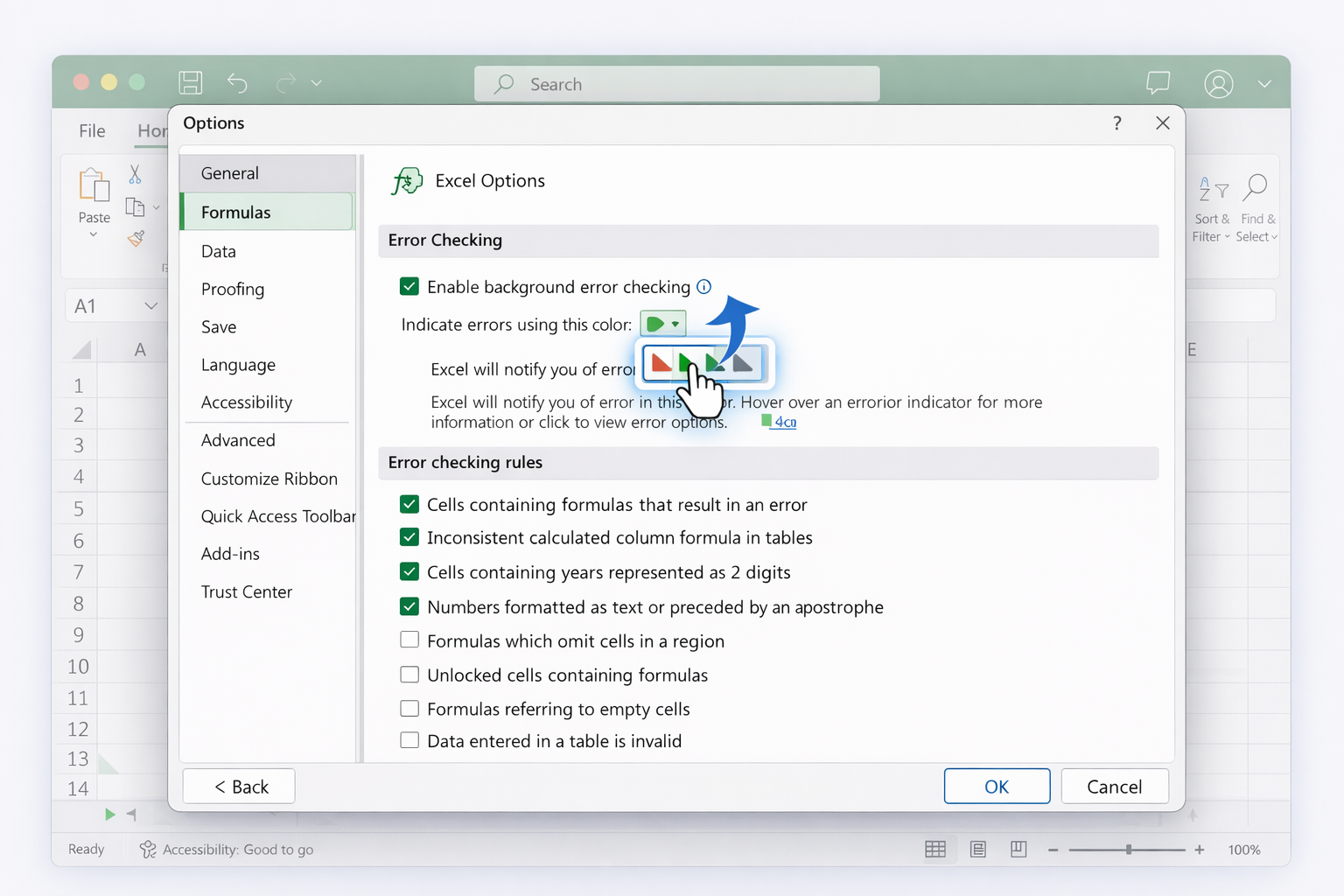
Go to File → Options → Formulas.
Under Error checking, ensure Enable background error checking is checked.
Choose a triangle color if you like.
Under Error checking rules, keep the key ones enabled:
Cells containing formulas that result in an error
Inconsistent calculated column formula in tables
Formulas omitting adjacent cells, referring to empty cells, etc.
Now, as you work, Excel marks suspicious cells with a small green triangle. Hover to see the message, click the warning icon, and choose Help on this error or Edit in Formula Bar.
Action: Google Sheets → Lookup Spreadsheet Row(s).
Use filters to find rows where status is blank or values look wrong.
Send a Slack DM or email with a list of rows to fix.
Pros:
No engineers required.
Centralized alerts instead of ad-hoc hunting.
Cons:
Limited to patterns you predefine.
Still not fully aware of cross-sheet formulas or complex dependencies.
3. At-scale and AI-agent workflows
Manual and no-code methods keep you safe up to a point. When you are juggling many Excel and Google Sheets files for clients or internal teams, you need something that works like a tireless analyst.
3.1 Let an AI computer agent perform nightly spreadsheet audits
Using a computer-use AI agent like Simular Pro, you can:
Have the agent open your Google Drive or OneDrive.
Traverse key tabs, inspect formulas, and note any #DIV/0!, #VALUE!, #N/A, #REF!, or inconsistent formulas.
Export a summary of issues into a central Google Sheet or Excel log.
Simular’s transparent execution means every click and formula inspection is logged; you can replay the session to see why something was flagged.
Pros:
Offloads repetitive, mechanical review.
Works across dozens of files without human supervision.
Perfect for agencies managing many client reports.
Cons:
Requires initial setup and onboarding of the agent.
Best suited to structured, repeatable checks.
3.2 Use AI to cross-check logic, not just syntax
Beyond spotting obvious error codes, an AI agent can reason about whether formulas make business sense:
Train the agent with examples of correct models: e.g., standard CAC, ROAS, and LTV calculations.
Provide a checklist: revenue should never be negative, margins should stay within certain bands, totals should match pivot summaries.
The agent opens your Sheets/Excel, evaluates not only syntax errors but also suspicious patterns (e.g., a campaign with 400% CTR).
It then writes comments directly in the sheet and sends you a narrative summary.
Pros:
Catches logic errors humans might miss.
Gives narrative explanations stakeholders can understand.
Cons:
Requires thoughtful definition of business rules.
You still make the final business judgment; the agent surfaces candidates.
3.3 Integrate error checks into your production pipeline
If you export data from CRMs, ad platforms, or billing tools into Sheets/Excel, you can place an AI agent between export and reporting:
Upstream system exports CSV or XLSX on a schedule.
A webhook triggers Simular Pro.
The agent imports data into a template workbook, runs all manual-style checks automatically, and only then publishes fresh numbers to a reporting file.
If serious issues are detected, it posts to Slack or email instead of updating dashboards.
Pros:
Prevents bad data from ever hitting stakeholder reports.
Production-grade: designed for thousands of steps with high reliability.
Cons:
Requires slightly more engineering-like setup at the beginning.
By combining strong manual hygiene, light no-code workflows, and an AI computer agent that behaves like a meticulous analyst, you turn Google Sheets and Excel from fragile spreadsheets into dependable infrastructure.
Scale Excel checks with an AI spreadsheet co-pilot!
Simular setup for QA
Install Simular Pro, then record a few real Google Sheets and Excel review sessions: which tabs you scan, how you use Error Checking, and what you consider a critical issue.
Simular testing loop
Run the Simular AI agent on a copy of your key spreadsheets first. Inspect its transparent action log, tweak prompts and rules until it reliably flags the same errors you would.
Simular handles checks
Once Simular matches your judgment, connect it via webhook or schedule. Let the agent audit every new Excel and Google Sheets file, log issues, and notify owners automatically.
Learn how to automate Google Sheets
Cloud spreadsheets with live collaboration and formula suggestions, perfect for catching and resolving formula errors across fast-moving teams.


.svg)