Every serious marketer reaches a moment where YouTube stops feeling like "just another channel" and starts feeling like a trading desk. Budgets move fast, CPM swings with every targeting tweak, and you’re stuck in spreadsheets trying to answer one question: "Is this actually profitable?" A YouTube ad calculator turns chaos into a model. By combining views, CPC, conversion rate and RPM/CPM, you can estimate revenue, cost-per-conversion and margin before you scale. Tools inspired by SocialBlade, Aux Mode and ROI calculators like Rows give you a consistent way to sanity‑check results instead of guessing from gut feel.Now imagine that calculator isn’t something you open once a week, but a living system an AI computer agent checks for you every morning. The agent logs into YouTube, pulls fresh metrics, updates your calculator, flags ad sets whose RPM or cost-per-conversion drift past your thresholds, and drops a one‑page summary into your inbox or CRM. Instead of babysitting numbers, you wake up to decisions: pause, scale, or test a new creative—while the agent quietly runs the math in the background.
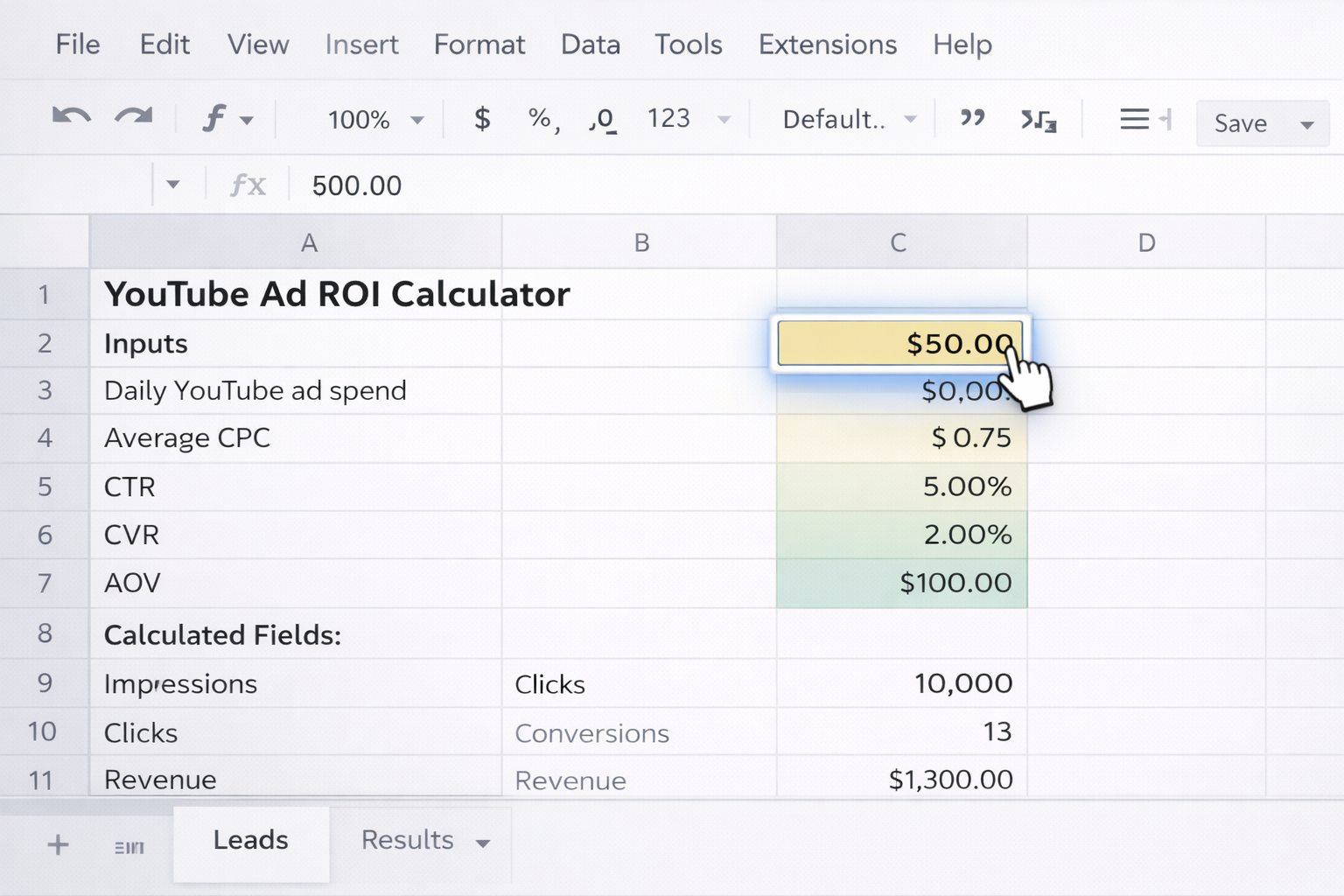
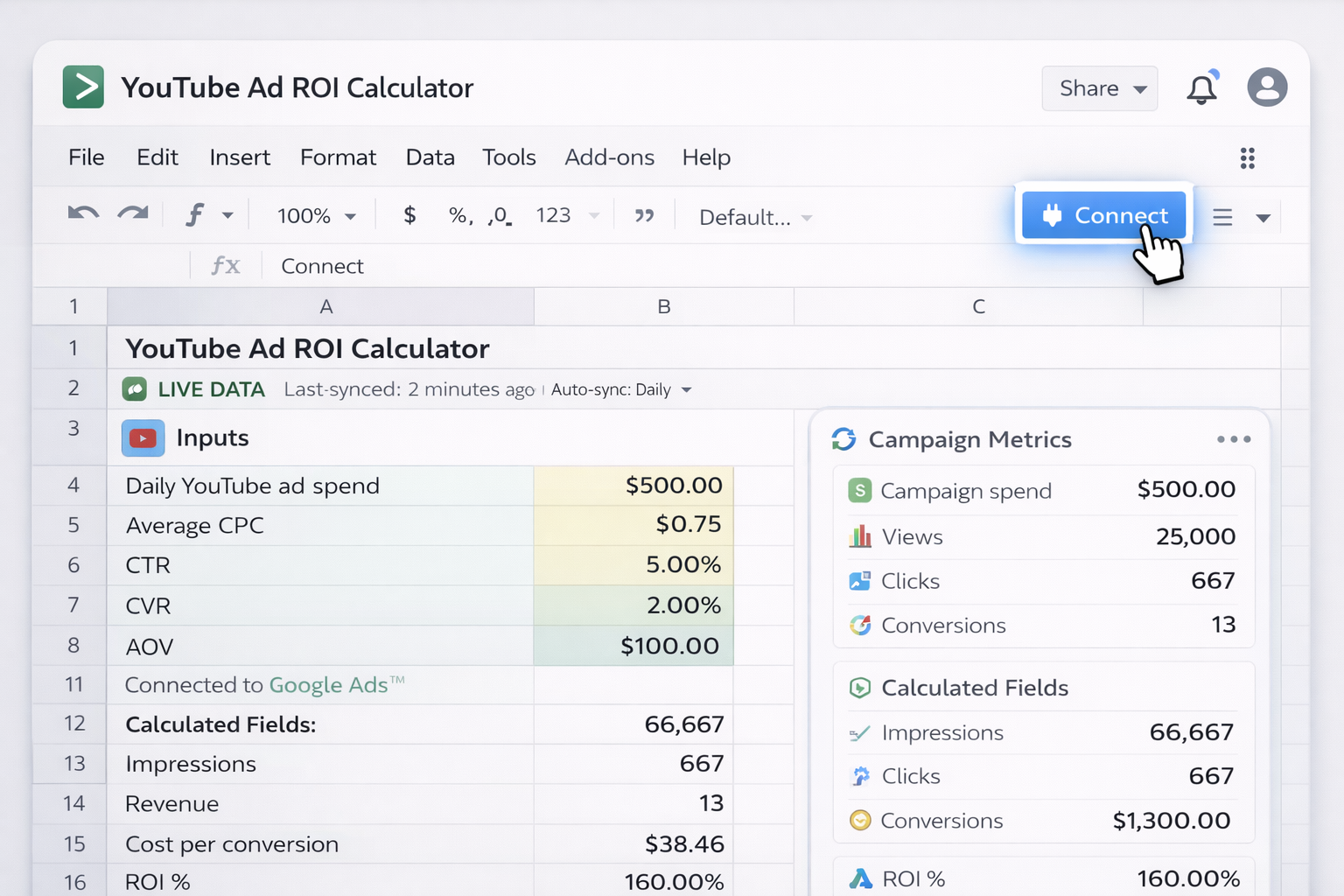
In this guide, you’ll walk through the top ways to build and use a YouTube ad calculator—from simple manual methods to fully automated AI agent workflows—so you can stop guessing and start scaling with confidence.### 1. Manual methods: building a YouTube ad calculator by hand**Method 1: Use a Google Sheets ROI template**1. In your browser, open Google Sheets and create a new sheet.2. Create input cells for: - Daily YouTube ad spend - Average CPC (cost per click) - Click‑through rate (CTR) - Conversion rate (CVR) - Average order value (AOV) or revenue per lead3. Add calculated fields: - `Impressions = Clicks / (CTR)` - `Clicks = Spend / CPC` - `Conversions = Clicks * CVR` - `Revenue = Conversions * AOV` - `Cost per conversion = Spend / Conversions` - `ROI % = (Revenue - Spend) / Spend`4. Each day, open **YouTube Studio** and **Google Ads** to pull metrics: - For campaign performance, use YouTube’s Analytics & Google Ads reporting (see the official YouTube Help Center: https://support.google.com/youtube).5. Paste metrics into your sheet. Your formulas will instantly show whether campaigns are profitable.**Pros:** Free, fully transparent, easy to customize.**Cons:** Time‑consuming, error‑prone copy‑paste, no alerts.---**Method 2: Build a CPM/RPM‑focused calculator**1. In the same or a new sheet, create inputs for: - Total views - RPM range (e.g., $0.25–$4.00 as used by tools like SocialBlade)2. Formulas: - `Low Earnings = Views / 1000 * Low RPM` - `High Earnings = Views / 1000 * High RPM`3. Use this for top‑of‑funnel forecasts: "If this video hits 500k views, what might we make from ads alone?"**Pros:** Great for revenue projection and benchmarking.**Cons:** Ignores conversion value and downstream revenue.---**Method 3: Campaign planner in Excel**1. Create a tab per campaign or per creative.2. Add columns: Date, Campaign, Impressions, Views, Clicks, CPC, Spend, Conversions, CPA, Revenue, Profit, ROI.3. At the end of each day, export CSV reports from YouTube / Google Ads and paste them in.4. Use pivot tables to see ROI by: - Country - Device - Creative ID**Pros:** Powerful analysis, flexible.**Cons:** Heavy manual work; becomes brittle at scale.---**Method 4: Quick‑and‑dirty calculator in a slide deck**1. In Google Slides or PowerPoint, build a single calculator slide.2. Use embedded table formulas (or link a live Google Sheet) to show only the 3–5 KPIs your team cares about.3. Update before weekly performance reviews.**Pros:** Great for leadership storytelling.**Cons:** Not meant for daily decision‑making.---### 2. No‑code automation: making the YouTube ad calculator update itselfManual calculators break the moment you’re running more than a few campaigns. Here’s how to automate with no‑code tools.**Method 5: Use a spreadsheet‑based ROI template with live data (Rows, Sheets + connectors)**1. Start from a YouTube Ad Cost or ROI template in a tool like **Rows** or a Google Sheets add‑on that connects to YouTube / Google Ads.2. Connect your Google account so the template can pull: - Campaign spend - Views, clicks - Conversions (from Google Ads or imported offline conversions)3. Map fields into a prebuilt calculator that already computes: - Total visitors = Spend / CPC - Total conversions = Visitors * Conversion rate - Cost per conversion = Spend / Conversions4. Schedule the sync to run daily or hourly.5. Share the live sheet with your team, so they always see fresh ROI numbers without touching formulas.**Pros:** Minimal setup, automatic data sync, familiar spreadsheet UI.**Cons:** Still limited by spreadsheet performance; complex multi‑account setups can get messy.---**Method 6: Zapier/Make + Google Sheets pipeline**1. Create a **Google Sheet** structured as your calculator (as in Method 1).2. In **Zapier** or **Make**, use a Google Ads or YouTube connector (or a CSV export emailed to yourself as a fallback).3. Build a workflow: - Trigger: New daily report file available or scheduled time. - Action 1: Fetch the latest campaign metrics. - Action 2: Append a new row into your calculator sheet for each campaign/day.4. Add another step to send a **daily email or Slack summary** with: - Top 5 campaigns by ROI - Any ad set with CPA above your target**Pros:** Data flows automatically; you only look at summaries.**Cons:** Requires maintaining zaps/scenarios; errors can silently break the data chain.---**Method 7: Embed a YouTube ROI form for non‑technical users**1. Build a simple internal form (Typeform, Tally, Google Form) that asks for: - Spend - CPC or CPM - Views or clicks - Conversion rate & AOV2. Connect the form to a backend calculator sheet using native integrations or no‑code tools.3. Show the ROI result on the "Thank you" screen or via email.**Pros:** Sales, creators, or clients can run their own calculations safely.**Cons:** Still requires someone to maintain the underlying logic.---### 3. Scaling with AI agents: delegating the YouTube ad calculatorNo‑code removes some friction, but you’re still orchestrating tools. An AI computer agent like **Simular Pro** can operate across your full desktop, browser, and cloud stack—just like a human analyst, but on autopilot.**Method 8: Simular AI agent as your daily YouTube ad analyst**1. **Design the workflow:** - Open browser → go to YouTube Studio / Google Ads. - Navigate to campaign reports. - Export or copy performance metrics. - Open your ROI calculator (Sheets, Rows, or Excel). - Paste in fresh data; let formulas recalc. - Generate a summary page or chart. - Post the summary to Slack/Email/Notion.2. In **Simular Pro** (https://www.simular.ai/simular-pro), you describe this workflow in natural language and let the agent practice it across your desktop.3. Thanks to Simular’s neuro‑symbolic approach, the agent combines LLM flexibility with precise, repeatable actions—even over thousands of steps.4. Schedule the agent or trigger it via webhook from your production pipelines.**Pros:** End‑to‑end automation across web + desktop; production‑grade reliability; no need for brittle one‑off scripts.**Cons:** Requires initial design and testing of the workflow; best for teams ready to standardize their reporting process.---**Method 9: Scenario planning and alerts with a Simular AI computer agent**1. Extend your calculator with scenario inputs: target CPM, target CPA, stretch ROI goal.2. Configure your Simular agent to: - Pull historical data from YouTube/Google Ads. - Run "what‑if" calculations in your sheet (e.g., "What if CPM rises 20%? What if CVR improves by 15%?"). - Compare results against thresholds.3. If any KPI drifts outside your guardrails, the agent: - Writes a short narrative summary ("Campaign A: CPM up 18%, CPA up 27%, recommend pausing low‑view‑through ad sets."). - Sends it to your chosen channel.4. Because Simular’s execution is transparent and inspectable, you can see each click, copy, and paste the agent made and adjust the logic when your strategy evolves.**Pros:** Turns the calculator into a real decision engine; proactive alerts, not just passive reporting.**Cons:** Needs a bit more upfront thinking about thresholds and scenarios.---**Method 10: Multi‑client, multi‑channel agency cockpit**1. Agencies often juggle dozens of YouTube accounts. Use Simular Pro to: - Log into each client’s YouTube/Google Ads account. - Standardize exports into a master ROI workbook. - Tag each row with client name, channel, and campaign objective.2. The agent can run this mega‑workflow nightly, handling thousands to millions of steps with production‑grade reliability.3. Your team gets one clean, up‑to‑date dashboard showing YouTube performance across all clients.**Pros:** Huge time savings, consistent reporting, easy to productize as a service.**Cons:** Requires careful credential management and clear client onboarding.For YouTube’s current reporting options and metrics definitions, always refer to the official **YouTube Help Center** at https://support.google.com/youtube. For designing robust, cross‑tool workflows with agents, explore **Simular Pro** at https://www.simular.ai/simular-pro.
Lorem ipsum dolor sit amet, consectetur adipiscing elit, sed do eiusmod tempor incididunt ut labore et dolore magna aliqua. Ut enim ad minim veniam, quis nostrud exercitation ullamco laboris nisi ut aliquip ex ea commodo consequat. Duis aute irure dolor in reprehenderit in voluptate velit esse cillum dolore eu fugiat nulla pariatur.
Block quote
Ordered list
Unordered list
Bold text
Emphasis
Superscript
Subscript
To manually calculate YouTube ad ROI, start by pulling core metrics from YouTube Studio and Google Ads: total spend, impressions, views, clicks, conversions, and revenue. In a spreadsheet, create input cells for Spend, Clicks, Conversions, and Revenue.Then add these formulas:- CPC = Spend / Clicks- CPA (cost per acquisition) = Spend / Conversions- Profit = Revenue – Spend- ROI % = (Revenue – Spend) / SpendNext, segment by campaign or ad group. For each row, enter the daily or weekly figures and let formulas recompute automatically. Use filters to quickly find campaigns with CPA above your target or ROI below zero. To keep data consistent, always use the same date range in YouTube and Google Ads and document your assumptions (e.g., attribution window). When you’re ready, turn this sheet into a simple calculator by adding a small input section where you can plug in hypothetical CPC, conversion rate, and AOV to forecast ROI before launching.
Open Google Sheets and create a tab named "YouTube Ad Calculator". Reserve the top left area (e.g., cells B2–B8) for inputs: Daily Spend, Average CPC, Click‑Through Rate (CTR), Conversion Rate (CVR), and Average Order Value (AOV). In the column next to each label, leave a blank cell for values.Below, build your formulas:- Estimated Clicks = Spend / CPC- Estimated Impressions = Clicks / CTR- Estimated Conversions = Clicks * CVR- Estimated Revenue = Conversions * AOV- Cost per Conversion = Spend / Conversions- ROI % = (Revenue – Spend) / SpendFormat the calculator so users know which cells they can edit (e.g., color inputs light yellow, lock formula cells). Optionally, add a second section for RPM/CPM estimates using Views and an assumed RPM range. Finally, test the sheet with real YouTube campaign data and adjust default assumptions so results resemble your historic performance. Share the sheet with your team and protect formulas to prevent accidental edits.
To estimate earnings with RPM/CPM, you only need two things: the number of views and an assumed revenue per thousand views (RPM) or cost per thousand impressions (CPM). In a sheet or calculator, add inputs for Total Views and a Low/High RPM range—for example, $0.25–$4.00, similar to what tools like SocialBlade or Aux Mode assume.Use these formulas:- Low Earnings = Views / 1000 * Low RPM- High Earnings = Views / 1000 * High RPMIf you’re planning paid campaigns, you can combine this with CPM to estimate cost: Cost = Impressions / 1000 * CPM. Then compare Cost vs. estimated Earnings to see if pure ad monetization makes sense, or if you must rely on downstream product sales. Always remember RPM and CPM fluctuate based on traffic quality, viewer country, niche, ad blocking, and watch time. Recalibrate your assumed range periodically by comparing real YouTube revenue data from your Analytics dashboard to your views for the same period.
Start with a solid ROI calculator in Google Sheets or a platform like Rows. Make sure the sheet has a clear tab for raw data and another for summarized KPIs. Next, choose a no‑code automation tool such as Zapier or Make.In your automation tool, set up a scheduled workflow (e.g., daily at 8 a.m.). Use an available connector or a CSV export as input: the step should pull your latest YouTube/Google Ads performance data for each campaign. Map those fields (Spend, Views, Clicks, Conversions, Revenue) into your sheet’s raw data tab, appending a new row for each campaign and date.Once data is written, your existing formulas will recompute ROI, CPA, and revenue automatically. Add another step to send an email or Slack message with key stats—like total spend, total revenue, and the three best and three worst campaigns by ROI. This approach gives you near‑real‑time insights without writing code, and you still retain full control over the calculator logic in your spreadsheet.
An AI agent, such as one built with Simular Pro, can manage your YouTube ad calculator much like a human analyst—but faster and more consistently. First, define the workflow: open browser, log into YouTube Studio or Google Ads, navigate to reports, export or copy metrics, open your ROI calculator (Sheets, Rows, or Excel), paste data in the correct range, wait for formulas to update, then create a summary view.In Simular, you express this step‑by‑step in natural language, and the agent learns to perform each action across your desktop and browser. Thanks to Simular’s focus on production‑grade reliability and transparent execution, every click and keystroke is inspectable, so you can debug and refine the process.Once the agent is reliable, schedule it to run daily or trigger it via webhook from your pipelines. The agent can also apply your business rules—flagging campaigns where CPA exceeds target or RPM falls below a threshold—and send concise reports to Slack, email, or your CRM. This turns your YouTube ad calculator from a static spreadsheet into a living system that operates continuously without your manual involvement.