How to sync Salesforce alerts with Gmail in minutes

Connect Salesforce alerts to Gmail and let an AI computer agent watch records, send smart updates, and keep your team aligned without manual inbox babysitting.
Advanced computer use agent
Production-grade reliability
Transparent Execution

Why Salesforce–Gmail AI alerts

If you live in Salesforce all day, you know the pain of missed moments. A hot lead fills out a form, an enterprise deal moves stages, a VIP customer opens a critical case—yet by the time someone notices, the moment has cooled. Email alerts bridge that gap. They push the heartbeat of your CRM straight into your inbox: new leads, status changes, approvals, and report snapshots arrive where your team is already working—Gmail. For sales, marketing, and service teams, that means fewer blind spots, faster reactions, and more predictable revenue.But manually configuring and maintaining those alerts is where things fall apart. Rules drift out of date, reps drown in noise, and no one has time to continuously tune notifications. Delegating this to an AI agent changes the game. A Simular AI computer agent can log into Salesforce, adjust alerts, organize Gmail, and summarize what matters. Instead of chasing every email, your team receives curated, timely signals that match how you actually sell and support.

How to sync Salesforce alerts with Gmail in minutes

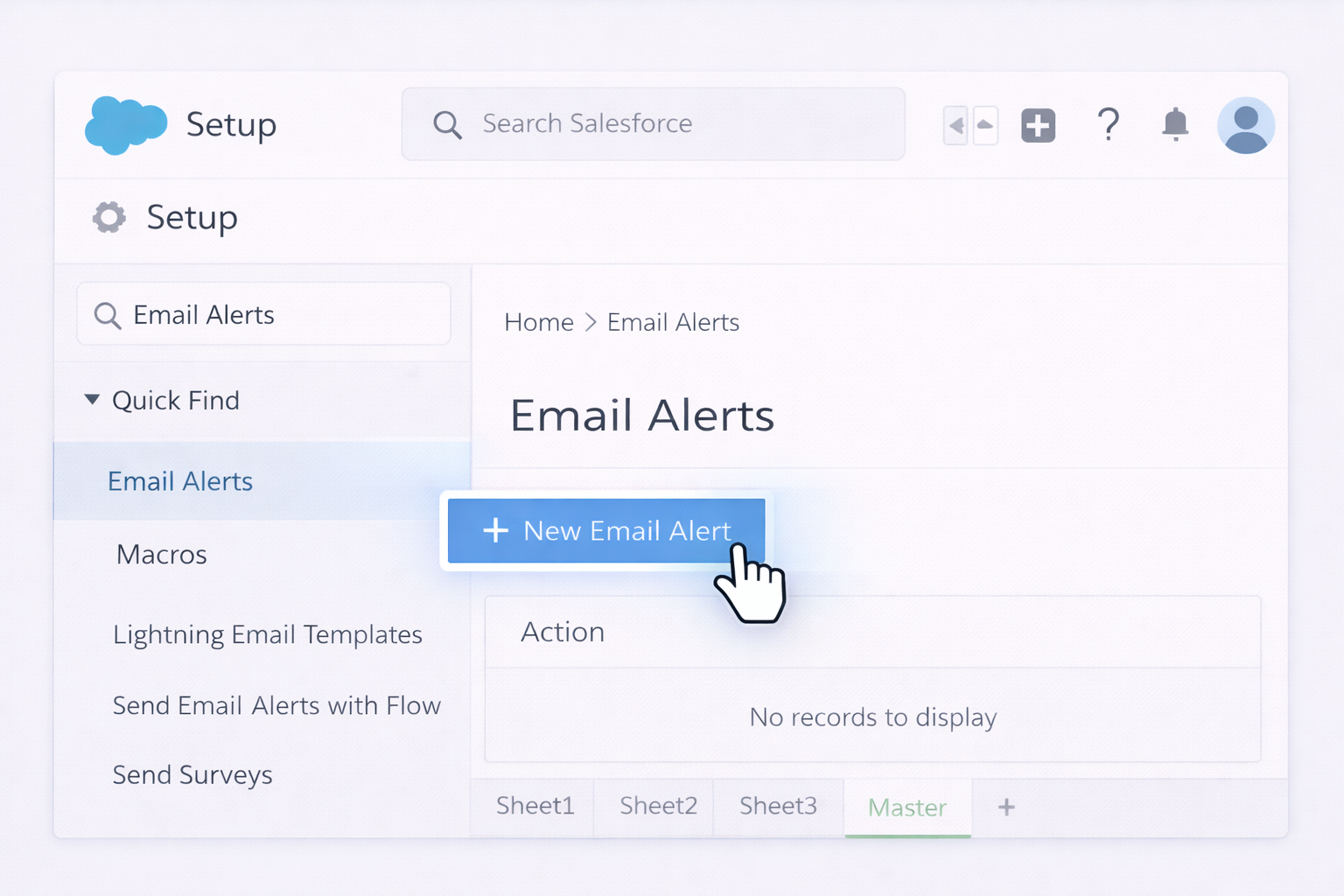
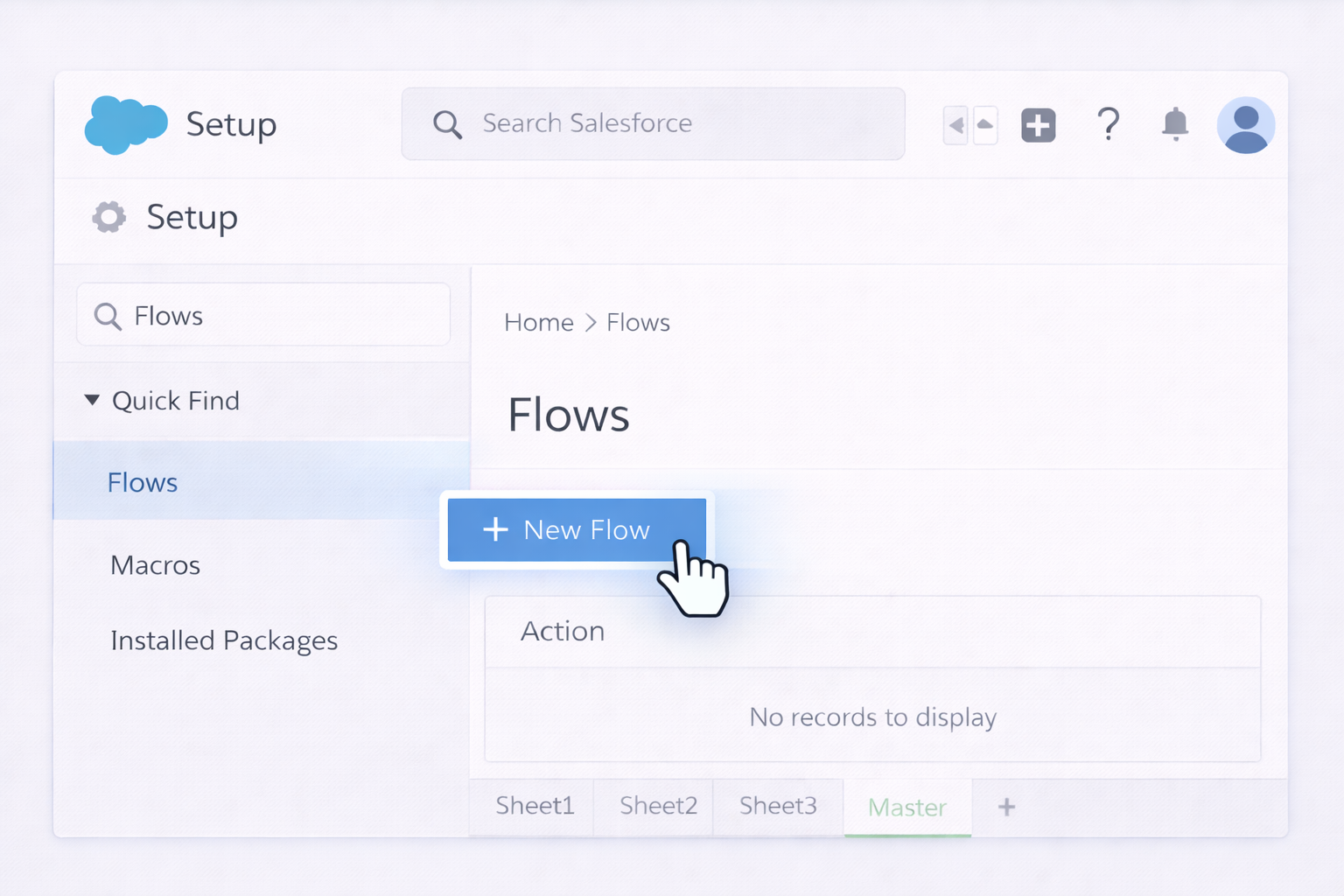
## OverviewSalesforce email alerts are powerful, but configuring and maintaining them manually doesn’t scale for busy sales and marketing teams. Below are three practical tiers of setup—from traditional methods to fully autonomous AI-agent-driven workflows—so you can choose the level of automation that matches your growth.---## 1. Traditional / Manual Ways to Set Up Salesforce Email Alerts### 1.1 Create Basic Salesforce Email Alerts with Workflow/Flow**Goal:** Send an email when a record changes (e.g., new lead, opportunity stage change).**Steps (Workflow/Flow basics):**1. In Salesforce, go to **Setup** (gear icon).2. Search for **Email Alerts** in the Quick Find box.3. Click **Email Alerts**, then **New Email Alert**.4. Choose the **object** (Lead, Opportunity, Case, etc.).5. Select an **Email Template** (or create one under **Classic Email Templates** or **Lightning Email Templates**).6. Set **Recipients** (record owner, specific users, roles, or email fields on the record).7. Save the alert.8. Now create a **Workflow Rule** or **Flow** to trigger it: - For traditional workflows: go to **Workflow Rules**, define criteria (e.g., Opportunity Stage equals "Proposal"), and attach the email alert as an **Immediate Action**. - For Flows: use **Record-Triggered Flows** to fire on create/update, then add a **Send Email** or **Action** that calls your email alert.Official docs:- Salesforce Email Alerts: https://help.salesforce.com/s/articleView?id=sf.workflow_email_alerts.htm&type=5- Record-Triggered Flows: https://help.salesforce.com/s/articleView?id=sf.flow_build_triggered_flows.htm&type=5**Pros:** Native, reliable, secure. **Cons:** Static rules; can get messy at scale.### 1.2 Schedule Salesforce Report Emails to Your Gmail**Goal:** Get daily/weekly snapshots (pipeline, MQLs, churn risk) delivered to Gmail.**Steps:**1. In Salesforce, open the **Report** you want.2. Click **Subscribe** (Lightning) or **Schedule Future Runs** (Classic).3. Set **frequency** (daily, weekly, monthly), **time**, and **conditions** if supported.4. Add recipients (yourself, team members, or a shared email). Use your Gmail addresses.5. Save the subscription.Official docs:- Report Subscriptions: https://help.salesforce.com/s/articleView?id=sf.reports_schedule.htm&type=5**Pros:** Great for leadership summaries and recurring KPIs. **Cons:** Static; inbox can flood if you oversubscribe.### 1.3 Manually Curate Alerts with Gmail Filters and LabelsOnce Salesforce starts sending alerts, tame them in Gmail.**Steps:**1. In Gmail, click the **gear icon → See all settings**.2. Go to **Filters and Blocked Addresses → Create a new filter**.3. In the **From** field, add Salesforce system addresses (e.g., `no-reply@salesforce.com`) or filter by **Subject** phrase (like "New Lead:").4. Click **Create filter**.5. Choose actions: **Skip the Inbox (Archive)**, **Apply the label** (e.g., "Salesforce Alerts"), **Star it**, **Mark as important**, or **Forward** to another address.6. Save the filter.Official docs:- Gmail Filters: https://support.google.com/mail/answer/6579**Pros:** Clean inbox, clear priority channels. **Cons:** Still static; you must keep updating filters as alerts evolve.### 1.4 Manually Send One-Off Alert Emails from SalesforceFor rare, high-touch scenarios (like a complex deal), reps can:1. Open the **record** in Salesforce.2. Click **Email** or **Send List Email** from a list view.3. Choose a template, personalize, send.**Pros:** Extremely targeted. **Cons:** Labor-intensive and easy to forget.---## 2. No-Code Automation Between Salesforce and Gmail### 2.1 Use Salesforce Flow as a No-Code Automation EngineSalesforce Flow is effectively no-code automation for admins.**Example: Alert an AE in Gmail when a deal hits a high value.**1. Go to **Setup → Flows → New Flow**.2. Choose **Record-Triggered Flow** on **Opportunity**.3. Trigger: **When a record is created or updated**.4. Entry conditions: `Amount > 50000` AND `Stage = 'Proposal'`.5. Add a **Send Email** action: - Use a **dynamic address** (Opportunity Owner’s email) or a specific Gmail group. - Reference merge fields like Opportunity Name, Account, Amount, and Close Date.6. Save, **Activate**, and test.Docs: https://help.salesforce.com/s/articleView?id=sf.flow_build_triggered_flows.htm&type=5**Pros:** Powerful, no external tools, admin-friendly. **Cons:** Logic complexity grows fast; still manual maintenance.### 2.2 Connect Salesforce and Gmail via Zapier or Make (Integromat)No-code integration tools watch for Salesforce events and act in Gmail.**Example: Create a Gmail alert when a new high-intent Lead is created.**1. In **Zapier** (or **Make**), create a new **Zap/Scenario**.2. Trigger: **New Record in Salesforce** (object: Lead).3. Apply filters: Lead Source = "Web" and Rating = "Hot".4. Action: **Send Email in Gmail**.5. Personalize the subject (e.g., "🔥 New Hot Lead: {{Lead Name}}") and body with Salesforce fields.6. Test and turn it on.**Pros:** Fast, flexible, good for cross-app automation. **Cons:** Additional cost; can become a tangle of Zaps if not documented.### 2.3 Gmail Add-ons and Chrome ExtensionsSome teams use Gmail add-ons to surface Salesforce data or log emails back into Salesforce, complementing alerts.**Pattern:**- Salesforce sends alert.- Gmail add-on surfaces related Salesforce record in the sidebar.Docs hub:- G Suite Marketplace (search "Salesforce"): https://workspace.google.com/marketplace**Pros:** Better context in Gmail. **Cons:** More tools to manage; still not truly autonomous.---## 3. Scaling Email Alerts with an AI Agent (Simular-Style Automation)This is where you move beyond static rules. Instead of baking every logic change into flows or Zaps, you let an AI computer agent operate Salesforce and Gmail like a highly trained assistant.### 3.1 AI Agent as Your Smart Alert Architect**What it does:**- Logs into Salesforce via the browser.- Navigates Setup to create or adjust **Email Alerts**, **Flows**, and **Report Subscriptions**.- Opens Gmail to build or refine **filters**, **labels**, and **forwarding rules**.- Documents every change in a Google Doc or internal wiki for governance.**Workflow example:**1. You describe your policy once: “Alert AEs in Gmail when deals over $25k move to Proposal or Negotiation, but send daily digests for smaller deals.”2. The AI agent opens Salesforce, edits existing flows and alerts to match this logic, and tests with sandbox records.3. It then configures Gmail filters so high-value alerts hit **Primary**, while low-priority alerts go to a "Salesforce Digest" label.**Pros:**- No need to click through dozens of setup screens yourself.- Fast adaptation when your sales process changes.- Every action is inspectable and repeatable (like Simular Pro’s transparent execution model).**Cons:**- Requires initial onboarding and guardrails.- Best for teams comfortable with autonomous systems.### 3.2 AI Agent as the Continuous Tuner of AlertsStatic rules decay: people change roles, products change, thresholds move. An AI agent can run *ongoing* maintenance passes.**Loop example:**1. Nightly, the agent scans Salesforce **Setup** for email alerts, flows, and report subscriptions.2. It pulls open/click stats from Gmail (or analyzes subject lines and volumes) to identify noisy alerts.3. It proposes changes in a Google Sheet: "Reduce frequency", "Merge into weekly summary", "Retire alert".4. With your approval, the agent executes those changes directly in Salesforce and updates Gmail filters.**Pros:**- You stay in control while offloading the grunt work.- Alerts stay relevant to how your team actually behaves.**Cons:**- Requires a bit of process (review/approve cycles) for compliance-heavy orgs.### 3.3 AI Agent as the Contextual Digest CreatorInstead of 50 raw alert emails, imagine getting **one curated Gmail digest** every morning.**What the AI computer agent does:**1. Logs into Salesforce, pulls key changes: new high-intent leads, big deal movements, at-risk renewals.2. Reads existing alert emails in Gmail.3. Synthesizes a summary email: top 10 items with context, links to records, and suggested actions (e.g., "Call this lead today; opened 3 emails").4. Sends the digest from a shared Gmail account to your sales and marketing teams.**Pros:**- Massive noise reduction, more action.- Perfect for executives and busy account teams.**Cons:**- Needs careful prompt design and initial oversight to ensure relevance and tone.By combining native Salesforce tools, no-code platforms, and an AI agent that literally *uses* Salesforce and Gmail like a human, you create an alert system that’s not just automated—but continuously improving with your business.


Heading 1

Heading 2

Heading 3

Heading 4

Heading 5
Heading 6

Lorem ipsum dolor sit amet, consectetur adipiscing elit, sed do eiusmod tempor incididunt ut labore et dolore magna aliqua. Ut enim ad minim veniam, quis nostrud exercitation ullamco laboris nisi ut aliquip ex ea commodo consequat. Duis aute irure dolor in reprehenderit in voluptate velit esse cillum dolore eu fugiat nulla pariatur.

Block quote

Ordered list

  1. Item 1
  2. Item 2
  3. Item 3

Unordered list

  • Item A
  • Item B
  • Item C

Text link

Bold text

Emphasis

Superscript

Subscript

Scale Salesforce Gmail alerts with an AI agent today

Train Simular for SF alerts
Install Simular Pro on your Mac, then record how you currently set up Salesforce email alerts and organize them in Gmail. The AI computer agent learns your exact clicks, rules, and preferences.
Test and refine Simular agent
Run Simular through a sandbox: let it log into Salesforce, create test alerts, and verify emails land correctly in Gmail. Review its action logs, tweak prompts, and lock in guardrails before going live.
Delegate and scale alerts
Once trusted, fully delegate Salesforce email alert creation and Gmail filter tuning to the Simular AI Agent. It maintains rules, cleans noise, and scales workflows across teams automatically.

FAQS