Every growing team hits the same wall in Google Sheets: data is scattered across tabs and files. Sales runs weekly lead lists, marketing tracks campaigns by region, finance logs revenue by month. At first, you open each sheet and eyeball the numbers. Then you start copy‑pasting. Eventually, “Where is the truth?” becomes a weekly meeting.Querying multiple sheets into a single master view turns that chaos into a system. Using array syntax and the QUERY function, you can stack tabs, filter out noise, and create a reliable source of truth that updates as your team works.Now imagine an AI agent keeping that system alive for you. Instead of manually updating ranges, fixing broken formulas, or adding new sheets to the master, you delegate the routine work. The AI computer agent opens Google Sheets like a human, adjusts the queries, validates results, and logs what changed—so your team always walks into the room with aligned, trustworthy numbers.
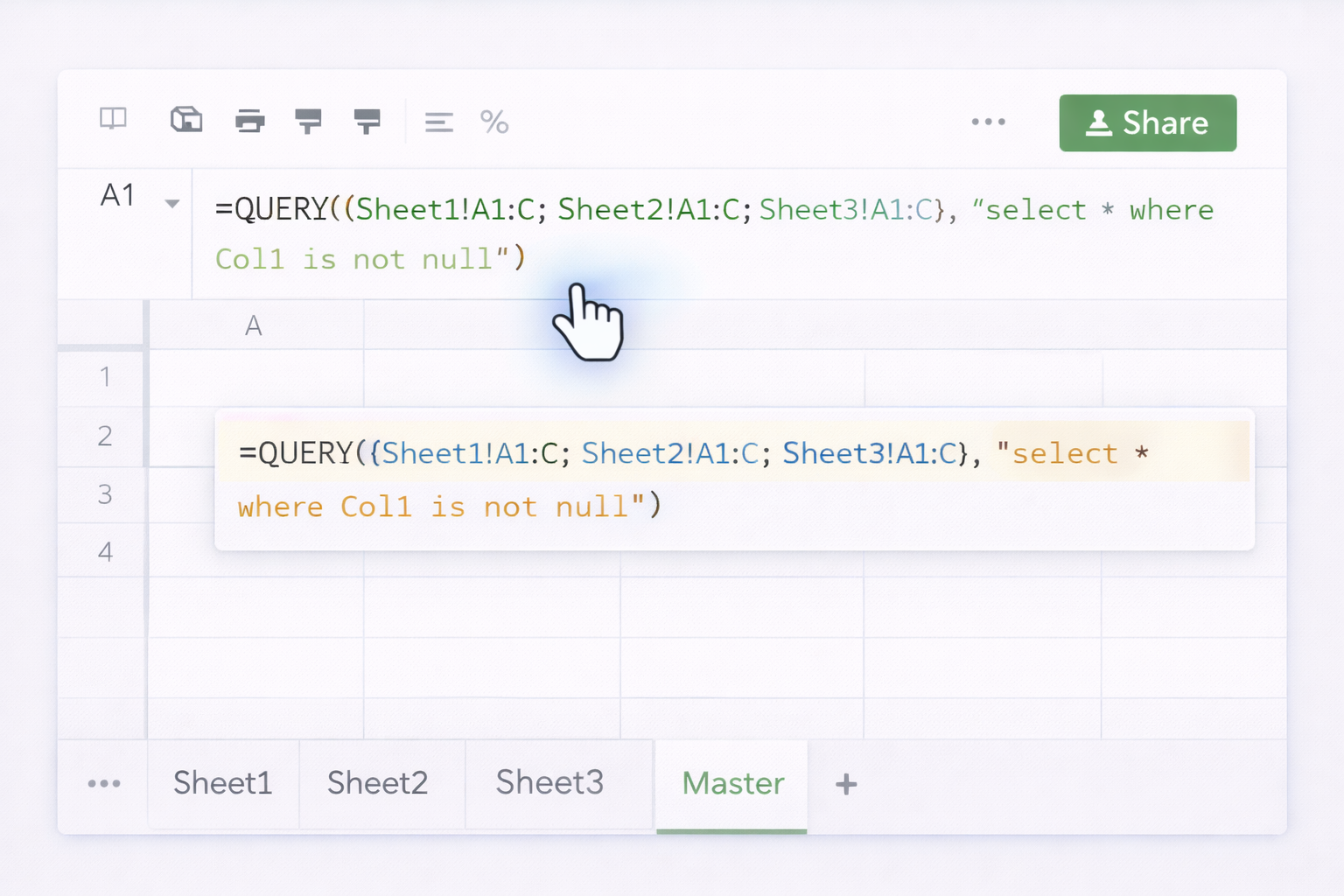
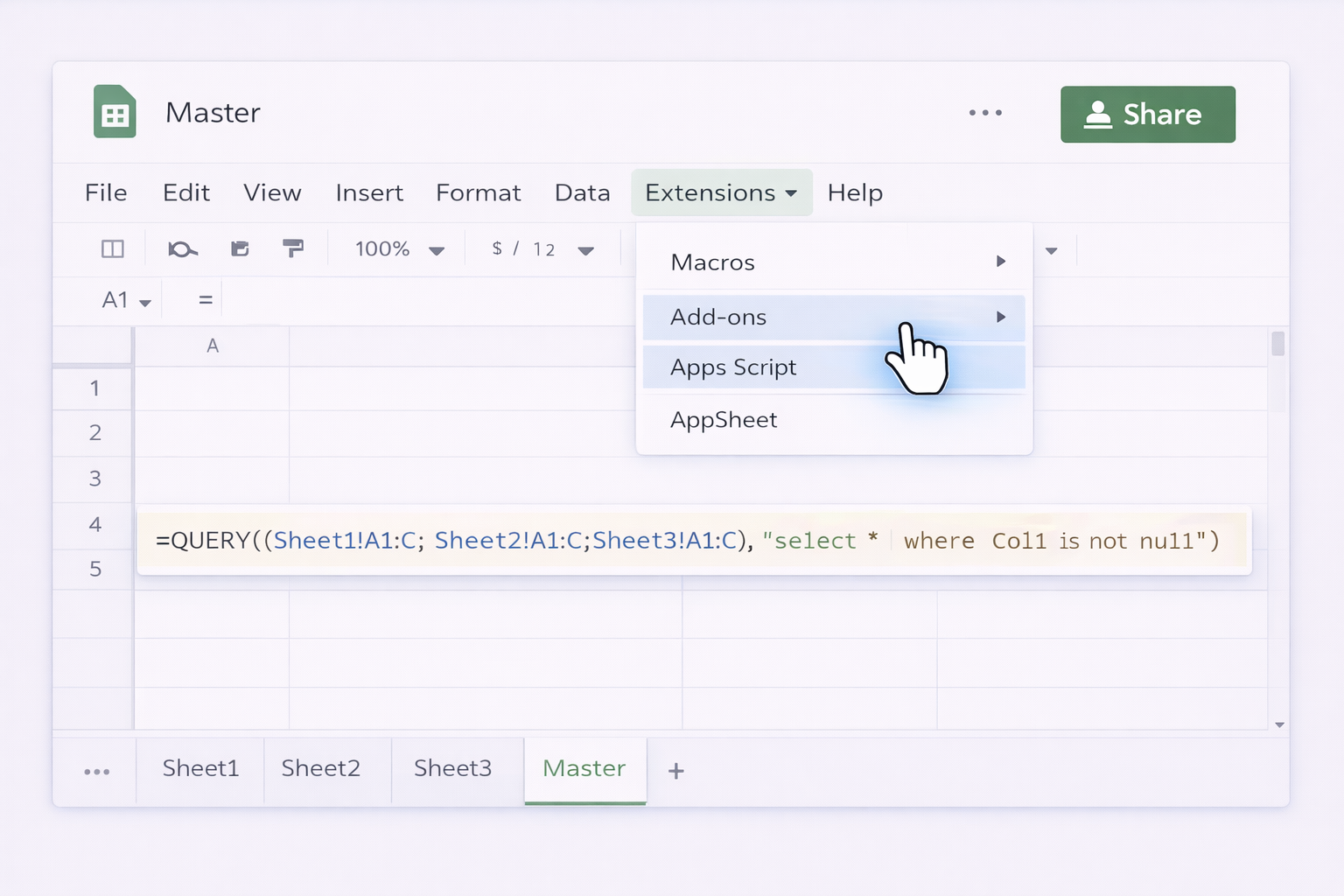
When your business is small, it’s easy to survive with a few Google Sheets tabs. But as soon as you add new markets, products, or sales reps, you end up with dozens of sheets—and no single source of truth.This guide walks through practical ways to query multiple sheets in Google Sheets, and then shows how to scale the whole workflow with automation and AI agents.---## 1. Manual and traditional ways to query multiple sheets### 1.1 Use QUERY with array syntax (same spreadsheet)If your data lives in multiple tabs in the same file (for example, `Sheet1`, `Sheet2`, `Sheet3`), you can stack them into one master.**Step‑by‑step:**1. Create a new tab named `Master`.2. In cell A1, enter: `=QUERY({Sheet1!A1:C;Sheet2!A1:C;Sheet3!A1:C}, "select * where Col1 is not null")` * `{ ... ; ... }` stacks ranges vertically. * `Col1 is not null` drops empty rows.3. Adjust `A1:C` to match your real columns.**Pros:** Simple, live updates, no add‑ons. **Cons:** Harder to maintain when you add many new sheets or change structures.Official QUERY docs: https://support.google.com/docs/answer/3093343### 1.2 Merge sheets from another file with IMPORTRANGE + QUERYIf your data is split across separate Google Sheets files (for example, one per client or region), use `IMPORTRANGE` inside `QUERY`.**Step‑by‑step:**1. In `Master`!A1 of your main file, run once to grant access: `=IMPORTRANGE("https://docs.google.com/spreadsheets/d/FILE_ID_1", "Sheet1!A1:C")`2. After you see data, wrap multiple `IMPORTRANGE`s in an array and query: `=QUERY({ IMPORTRANGE("https://docs.google.com/spreadsheets/d/FILE_ID_1", "Sheet1!A1:C"); IMPORTRANGE("https://docs.google.com/spreadsheets/d/FILE_ID_2", "Sheet1!A1:C") }, "select * where Col1 is not null")`**Pros:** Centralizes data from many files. **Cons:** Can be slow; breaks if file URLs change.IMPORTRANGE docs: https://support.google.com/docs/answer/3093340### 1.3 Build a master with consistent headers onlyOften you want just specific columns (for example, `Date`, `Client`, `Revenue`).**Step‑by‑step:**1. Make sure each sheet has identical headers in row 1.2. On `Master`, use: `=QUERY({ Sheet1!A1:D; Sheet2!A2:D; Sheet3!A2:D }, "select Col1, Col2, Col4 where Col1 is not null", 1)` Here, the last `1` tells QUERY that row 1 contains headers.**Pros:** Clean, focused master sheet; easy to add more tabs by extending the array. **Cons:** Every structure change (adding or moving columns) must be updated manually.### 1.4 Use FILTER instead of QUERY for simple mergesIf you don’t need SQL‑style queries, `FILTER` can be easier.**Example:**`={ FILTER(Sheet1!A1:C, Sheet1!A:A<>""); FILTER(Sheet2!A1:C, Sheet2!A:A<>"")}`**Pros:** Very readable; great for simple conditions. **Cons:** Less flexible than QUERY for sorting, aggregations, or complex filters.### 1.5 Pivot tables from multiple rangesPivot tables are powerful but can only reference one range. To summarize across many sheets:1. First, build a stacked master using one of the formulas above.2. Then, insert a pivot table based on the `Master` tab.Pivot table docs: https://support.google.com/docs/answer/1272900**Pros:** Strong summaries and aggregations on top of the merged data. **Cons:** Two‑step setup; still manual when you add new source sheets.---## 2. No‑code automation methodsWhen updating the master sheet turns into a weekly chore, layering no‑code automation on top of Google Sheets is the next logical step.### 2.1 Trigger updates with scheduled formulas and helper tabsYou can simulate automation inside Sheets itself:1. Create helper tabs (`Raw_Sheet1`, `Raw_Sheet2`) that hold clean data.2. Use `IMPORTRANGE` to pull data into each helper tab.3. In `Master`, use one `QUERY` over `{Raw_Sheet1;Raw_Sheet2;...}`.4. To avoid recalculation issues, use iteration or time‑driven scripts (see next section) to force refreshes at set intervals.This is still "in‑Sheet" but reduces how often you touch the formulas.### 2.2 Use Apps Script as low‑code glueGoogle Apps Script, while technically code, is often used by non‑engineers because it runs directly inside Sheets.**Example workflow:**1. Open `Extensions` → `Apps Script` in your master spreadsheet. 2. Write a script that: * Reads ranges from `Sheet1`, `Sheet2`, `Sheet3`. * Writes them into `Master` with `appendRow` or `setValues`.3. Create a time‑driven trigger (for example, every hour) so the script runs automatically.Apps Script overview: https://developers.google.com/apps-script/guides/sheets**Pros:** Flexible, can handle complex business logic, easier to manage than huge formulas. **Cons:** Requires some JavaScript knowledge; debugging can eat into your day.### 2.3 Connect CRMs and forms via no‑code toolsTools like Zapier, Make, or similar platforms let you:1. Watch new rows in many different Google Sheets (for example, one per client).2. On each new row, append it to a central `Master` sheet.3. Optionally enrich the row (look up CRM data, campaign IDs, etc.) before writing.**Pros:** Great for agencies and marketing teams pulling data from many client sheets. No need to touch formulas. **Cons:** Costs can grow with volume; logic lives outside Sheets, so it’s another system to maintain.---## 3. Scaling with AI agents (Simular) at desktop levelAt some point, the real bottleneck is not the formula—it’s the human.Someone has to open the spreadsheet, add new client tabs, update ranges, fix broken `IMPORTRANGE`s, and sanity‑check numbers.This is exactly where an AI computer agent like Simular Pro becomes your leverage.Simular’s agents can operate your actual desktop and browser the way a human would, but with production‑grade reliability and full transparency.### 3.1 Use an AI agent to maintain QUERY formulas across sheets**Workflow idea:**1. You define a simple playbook: how your Google Sheets are structured, what the `Master` tab should contain, and naming rules for new tabs.2. On a schedule (daily, hourly) the Simular agent: * Opens your Google Sheets file in the browser. * Scans for new tabs that match your naming pattern (for example, `Client_*` or `Week_*`). * Edits the array in your `QUERY` formula so new tabs are automatically included. * Checks for errors (`#REF!`, `#VALUE!`) and logs any issues.3. The agent saves, closes, and posts a short summary back to your team via webhook.**Pros:*** Fully hands‑off upkeep, even when the sheet structure changes.* No need to remember every formula detail—your agent does.**Cons:*** Requires initial setup and onboarding of the agent.Learn more: https://www.simular.ai/simular-pro### 3.2 Automate cross‑tool workflows into a master Google SheetOften, your "multiple sheets" problem is actually a multi‑tool problem: CRM exports, ad dashboards, CSVs, and emails all landing in different places.A Simular agent can:1. Download or open source data (for example, exports from your CRM, ad platforms, or Google Drive files).2. Paste or import them into individual tabs inside one spreadsheet.3. Update or rebuild the `QUERY`/`IMPORTRANGE` logic to keep the `Master` tab current.4. Repeat this entire workflow reliably thousands of times, with every step logged and inspectable.**Pros:*** Treats the whole workflow—across web, desktop, and Google Sheets—as one automated pipeline.* Transparent execution: every click, formula edit, and paste is visible.**Cons:*** Best suited for teams that value consistency and are ready to invest in a robust, long‑term automation layer.By starting with manual QUERY formulas, layering in no‑code helpers, and then handing the repetitive upkeep to an AI agent, you turn a fragile spreadsheet tangle into a reliable data product your sales and marketing teams can depend on.
Lorem ipsum dolor sit amet, consectetur adipiscing elit, sed do eiusmod tempor incididunt ut labore et dolore magna aliqua. Ut enim ad minim veniam, quis nostrud exercitation ullamco laboris nisi ut aliquip ex ea commodo consequat. Duis aute irure dolor in reprehenderit in voluptate velit esse cillum dolore eu fugiat nulla pariatur.
Block quote
Ordered list
Unordered list
Bold text
Emphasis
Superscript
Subscript
The most robust way to merge multiple tabs in a single Google Sheets file is to use the QUERY function with array syntax.1. Identify the ranges you want to stack; for example, Sheet1!A1:C, Sheet2!A1:C, Sheet3!A1:C. Make sure the column order and headers are identical.2. Create a new tab called Master.3. In Master!A1, enter a formula like: =QUERY({Sheet1!A1:C;Sheet2!A1:C;Sheet3!A1:C}, "select * where Col1 is not null", 1) * The curly braces { } define an array of ranges. * The semicolon ; stacks the ranges vertically. * "Col1 is not null" removes empty rows. * The final 1 tells QUERY that the first row contains headers.4. Adjust A1:C and the column conditions to fit your schema.Whenever you add or edit rows in those source tabs, the Master tab updates automatically. Google’s official QUERY docs are here: https://support.google.com/docs/answer/3093343
To query across different Google Sheets files, use IMPORTRANGE inside QUERY.1. Open your destination spreadsheet and create a Master tab.2. Grant access to each source file: * In any cell, run: =IMPORTRANGE("SOURCE_FILE_URL", "Sheet1!A1:C") * When prompted, click Allow access.3. Once access is granted for each file, combine them in an array inside QUERY: =QUERY({ IMPORTRANGE("URL_1", "Sheet1!A1:C"); IMPORTRANGE("URL_2", "Sheet1!A1:C") }, "select * where Col1 is not null", 1)4. Add more IMPORTRANGE blocks as your number of files grows.5. Keep column structures aligned across files so QUERY doesn’t misinterpret columns.This creates a live master sheet fed by multiple external spreadsheets. See IMPORTRANGE docs: https://support.google.com/docs/answer/3093340 and QUERY docs: https://support.google.com/docs/answer/3093343
If you only need certain columns from multiple Google Sheets tabs, use QUERY’s column selection feature on top of an array of ranges.1. Standardize your column layout. For example, A: Date, B: Lead Source, C: Campaign, D: Revenue across Sheet1, Sheet2, Sheet3.2. On your Master tab, use: =QUERY({ Sheet1!A1:D; Sheet2!A2:D; Sheet3!A2:D }, "select Col1, Col3, Col4 where Col1 is not null", 1) * Col1 maps to column A in each range, Col3 to C, Col4 to D.3. Replace Col1, Col3, Col4 with the actual columns you want.4. Optionally add order by, group by, or limit clauses to refine the output.This approach keeps your master sheet lean and focused on the fields that matter. Learn more about building query strings in Google’s guide: https://support.google.com/docs/answer/3093343
To keep a master sheet updated automatically, you have three main options:1. **Formula‑only refresh**: If all data lives in the same file, a single QUERY over an array like {Sheet1!A1:C;Sheet2!A1:C} updates continuously as users edit source tabs.2. **IMPORTRANGE for multi‑file setups**: Use QUERY({IMPORTRANGE(...); IMPORTRANGE(...)}, ...) so your master sheet pulls new rows from external spreadsheets. Changes to those files flow into the master without manual copying.3. **Automation and AI agents**: For more complex scenarios—new tabs added regularly, changing structures, or inputs from other tools—use automation. Low‑code options include Apps Script triggers that re‑write or refresh ranges on a schedule. At the next level, an AI computer agent (such as one built on Simular Pro) can open Google Sheets in the browser, detect new tabs or files, update QUERY formulas, validate outputs, and log each run. This replaces recurring manual maintenance with a repeatable, inspectable workflow.
Scaling multi‑sheet queries for a team means thinking beyond a single clever formula.1. **Standardize structure**: First, enforce consistent headers and column order across all contributing sheets (for example, every regional sales sheet uses A: Date, B: Rep, C: Deal Value). This makes any QUERY or IMPORTRANGE‑based solution durable.2. **Centralize logic**: Keep your core QUERY formulas in one Master tab or one Apps Script project instead of scattered across many files. Document how new sheets should be named and added.3. **Use a layered design**: Raw data tabs → clean helper tabs (with basic cleanup formulas) → a single Master tab powered by QUERY. This separation makes debugging easier.4. **Automate upkeep**: As the number of sheets grows, maintaining arrays like {Sheet1;Sheet2;...} becomes error‑prone. Introduce automation—either with Apps Script triggers or an AI computer agent such as Simular. The agent can handle opening Sheets, adding new tabs into the master’s formula, checking for errors, and notifying owners.By combining structure, centralized logic, and automation, your team gets a reliable, scalable reporting backbone instead of a fragile patchwork.