Oops! Something went wrong while submitting the form.


.svg)
Every growing team hits the same wall in Google Sheets: data is scattered across tabs and files. Sales runs weekly lead lists, marketing tracks campaigns by region, finance logs revenue by month. At first, you open each sheet and eyeball the numbers. Then you start copy‑pasting. Eventually, “Where is the truth?” becomes a weekly meeting.
Querying multiple sheets into a single master view turns that chaos into a system. Using array syntax and the QUERY function, you can stack tabs, filter out noise, and create a reliable source of truth that updates as your team works.
Now imagine an AI agent keeping that system alive for you. Instead of manually updating ranges, fixing broken formulas, or adding new sheets to the master, you delegate the routine work. The AI computer agent opens Google Sheets like a human, adjusts the queries, validates results, and logs what changed—so your team always walks into the room with aligned, trustworthy numbers.
When your business is small, it’s easy to survive with a few Google Sheets tabs. But as soon as you add new markets, products, or sales reps, you end up with dozens of sheets—and no single source of truth.
This guide walks through practical ways to query multiple sheets in Google Sheets, and then shows how to scale the whole workflow with automation and AI agents.

If your data lives in multiple tabs in the same file (for example, Sheet1, Sheet2, Sheet3), you can stack them into one master.
Step‑by‑step:
Master.=QUERY({Sheet1!A1:C;Sheet2!A1:C;Sheet3!A1:C}, "select * where Col1 is not null"){ ... ; ... } stacks ranges vertically.Col1 is not null drops empty rows.A1:C to match your real columns.Pros: Simple, live updates, no add‑ons.
Cons: Harder to maintain when you add many new sheets or change structures.
Official QUERY docs: https://support.google.com/docs/answer/3093343
If your data is split across separate Google Sheets files (for example, one per client or region), use IMPORTRANGE inside QUERY.
Step‑by‑step:
Master!A1 of your main file, run once to grant access:=IMPORTRANGE("https://docs.google.com/spreadsheets/d/FILE_ID_1", "Sheet1!A1:C")IMPORTRANGEs in an array and query:=QUERY({ IMPORTRANGE("https://docs.google.com/spreadsheets/d/FILE_ID_1", "Sheet1!A1:C"); IMPORTRANGE("https://docs.google.com/spreadsheets/d/FILE_ID_2", "Sheet1!A1:C") }, "select * where Col1 is not null")Pros: Centralizes data from many files.
Cons: Can be slow; breaks if file URLs change.
IMPORTRANGE docs: https://support.google.com/docs/answer/3093340
Often you want just specific columns (for example, Date, Client, Revenue).
Step‑by‑step:
Master, use:=QUERY({ Sheet1!A1:D; Sheet2!A2:D; Sheet3!A2:D }, "select Col1, Col2, Col4 where Col1 is not null", 1)1 tells QUERY that row 1 contains headers.Pros: Clean, focused master sheet; easy to add more tabs by extending the array.
Cons: Every structure change (adding or moving columns) must be updated manually.
If you don’t need SQL‑style queries, FILTER can be easier.
Example:={ FILTER(Sheet1!A1:C, Sheet1!A:A<>""); FILTER(Sheet2!A1:C, Sheet2!A:A<>"") }
Pros: Very readable; great for simple conditions.
Cons: Less flexible than QUERY for sorting, aggregations, or complex filters.
Pivot tables are powerful but can only reference one range. To summarize across many sheets:
Master tab.Pivot table docs: https://support.google.com/docs/answer/1272900
Pros: Strong summaries and aggregations on top of the merged data.
Cons: Two‑step setup; still manual when you add new source sheets.
When updating the master sheet turns into a weekly chore, layering no‑code automation on top of Google Sheets is the next logical step.
You can simulate automation inside Sheets itself:
Raw_Sheet1, Raw_Sheet2) that hold clean data.IMPORTRANGE to pull data into each helper tab.Master, use one QUERY over {Raw_Sheet1;Raw_Sheet2;...}.This is still "in‑Sheet" but reduces how often you touch the formulas.
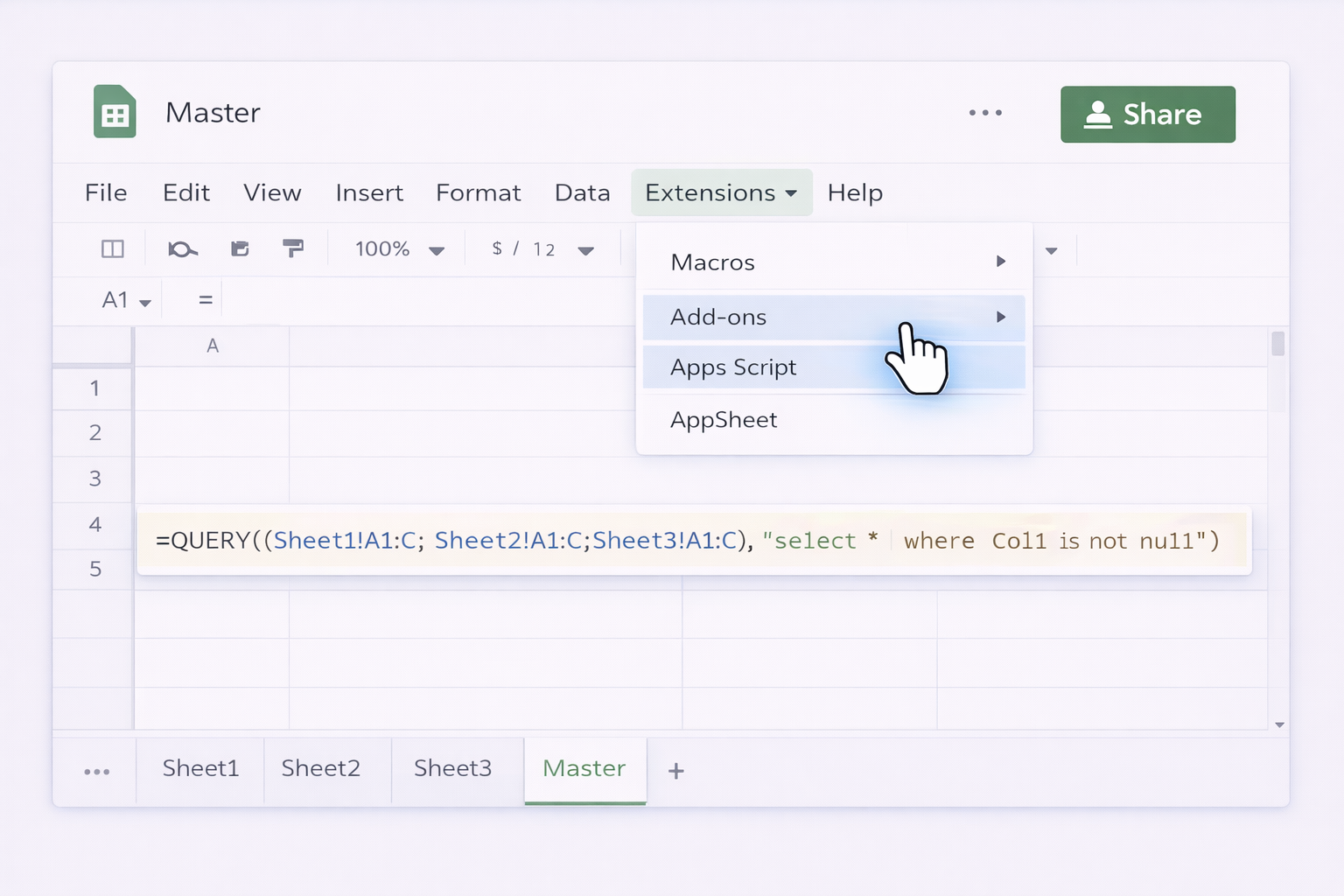
Google Apps Script, while technically code, is often used by non‑engineers because it runs directly inside Sheets.
Example workflow:
Extensions → Apps Script in your master spreadsheet. Sheet1, Sheet2, Sheet3.Master with appendRow or setValues.Apps Script overview: https://developers.google.com/apps-script/guides/sheets
Pros: Flexible, can handle complex business logic, easier to manage than huge formulas.
Cons: Requires some JavaScript knowledge; debugging can eat into your day.
Tools like Zapier, Make, or similar platforms let you:
Master sheet.
Pros: Great for agencies and marketing teams pulling data from many client sheets. No need to touch formulas.
Cons: Costs can grow with volume; logic lives outside Sheets, so it’s another system to maintain.
At some point, the real bottleneck is not the formula—it’s the human.
Someone has to open the spreadsheet, add new client tabs, update ranges, fix broken IMPORTRANGEs, and sanity‑check numbers.
This is exactly where an AI computer agent like Simular Pro becomes your leverage.
Simular’s agents can operate your actual desktop and browser the way a human would, but with production‑grade reliability and full transparency.
Workflow idea:
Master tab should contain, and naming rules for new tabs.Client_* or Week_*).QUERY formula so new tabs are automatically included.#REF!, #VALUE!) and logs any issues.
Pros:
Cons:
Learn more: https://www.simular.ai/simular-pro
Often, your "multiple sheets" problem is actually a multi‑tool problem: CRM exports, ad dashboards, CSVs, and emails all landing in different places.
A Simular agent can:
QUERY/IMPORTRANGE logic to keep the Master tab current.
Pros:
Cons:
By starting with manual QUERY formulas, layering in no‑code helpers, and then handing the repetitive upkeep to an AI agent, you turn a fragile spreadsheet tangle into a reliable data product your sales and marketing teams can depend on.