Oops! Something went wrong while submitting the form.
How to use Quickbooks balance sheet template smartly
Practical guide to using the Quickbooks balance sheet template and an AI computer agent to automate reporting, catch issues early, and free your team to focus on growth.
Every month, your team fights the same battle: hunting through spreadsheets, exports, and emails just to answer a basic question – how healthy is the business? The Quickbooks balance sheet template is the short path through that chaos. It pulls assets, liabilities, and equity directly from your books, applies the right formulas, and presents a clean snapshot that investors, banks, and leadership can trust. No custom Excel logic, no fragile column references – just a consistent, GAAP-friendly view you can compare month over month.
But the real shift happens when an AI computer agent sits on top of Quickbooks as your tireless operator. Instead of you logging in late at night, the agent does it: signs into Quickbooks, runs the balance sheet for each entity, exports PDFs and Excel copies, drops them into the right folders, and emails summaries to stakeholders. It can even flag unusual swings in receivables or cash, so issues surface before they become crises. You stop being the bookkeeper of last resort and return to being the strategist.
How to use Quickbooks balance sheet template smartly
1. Manual ways to build your Quickbooks balance sheet
1. Run the standard Balance Sheet report
Log in to QuickBooks Online.
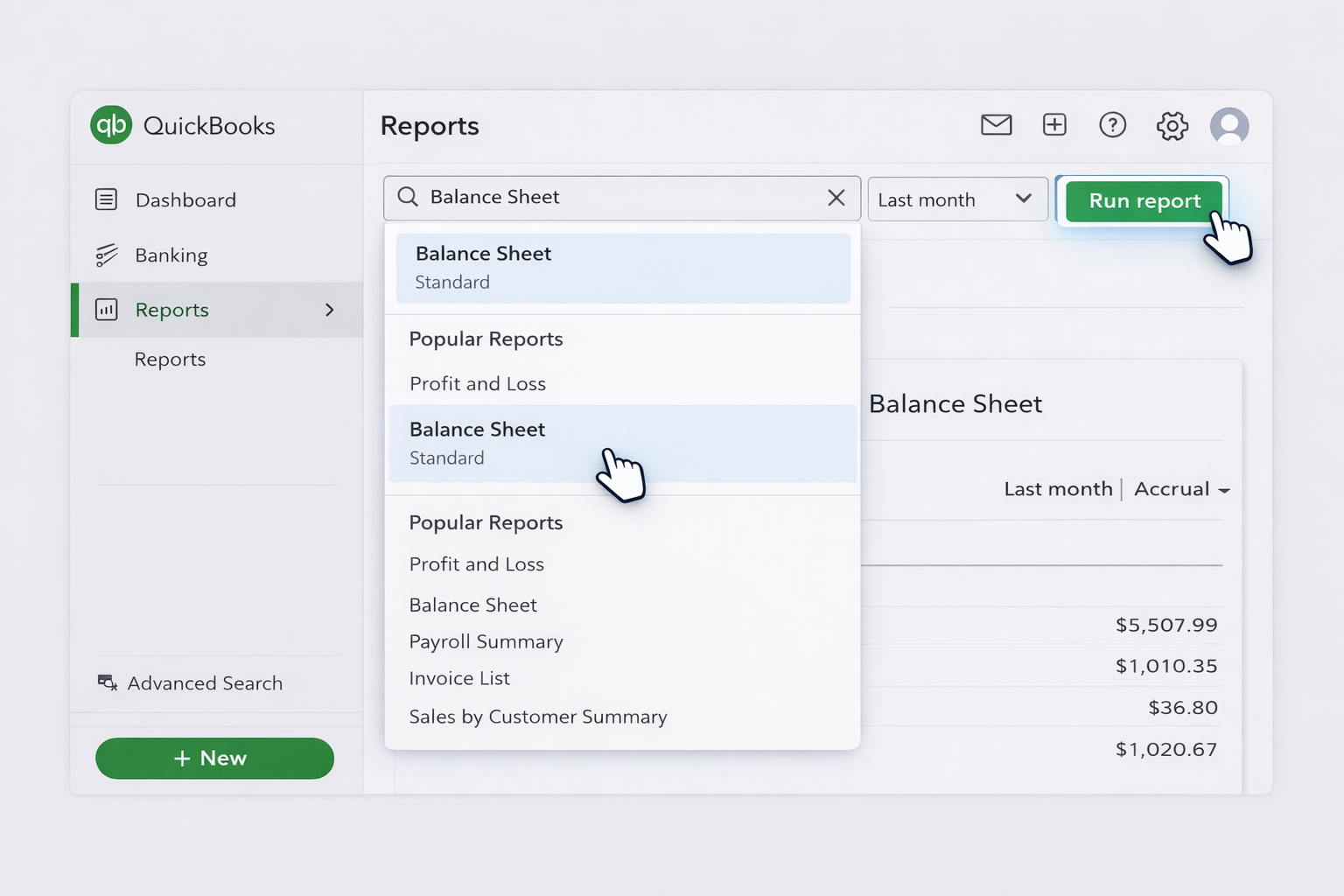
From the left navigation, click Reports.
In the search bar, type "Balance Sheet" and select the standard Balance Sheet report.
Set the Report period (for example, Last month or a custom date range) and the accounting method (Cash or Accrual) in the top filters.
Click Run report.
Review key sections: Assets, Liabilities, and Equity. Check that cash, accounts receivable, accounts payable, and retained earnings look reasonable.
Use the Save customization button if you want to reuse the exact layout later.
4. Build a simple month-end checklist around the report
Before running the final Balance Sheet, reconcile bank and credit card accounts.
Match outstanding customer invoices and vendor bills.
Review undeposited funds and suspense accounts.
Only after cleanup, rerun the Balance Sheet and export final copies.
Keep a simple checklist document your team repeats each period.
This manual approach works, but it is time-consuming and fragile if a single step is missed.
2. No-code ways to automate your balance sheet workflow
A. Schedule Balance Sheet emails from QuickBooks
Create a customized Balance Sheet you like (see section 1).
In QuickBooks Online Advanced, you can schedule reports to send automatically.
Open the customized report, click Save customization, then manage it from the Custom reports tab.
Set the email schedule (for example, first business day of the month at 8am) and add recipients like your CFO, investors, or accountant.
QuickBooks will email a fresh PDF or Excel version each time, without manual clicks.
Scheduling overview: search "Schedule and email reports in QuickBooks Online" in the QuickBooks help center.
B. Use Zapier or Make to move exports into your systems
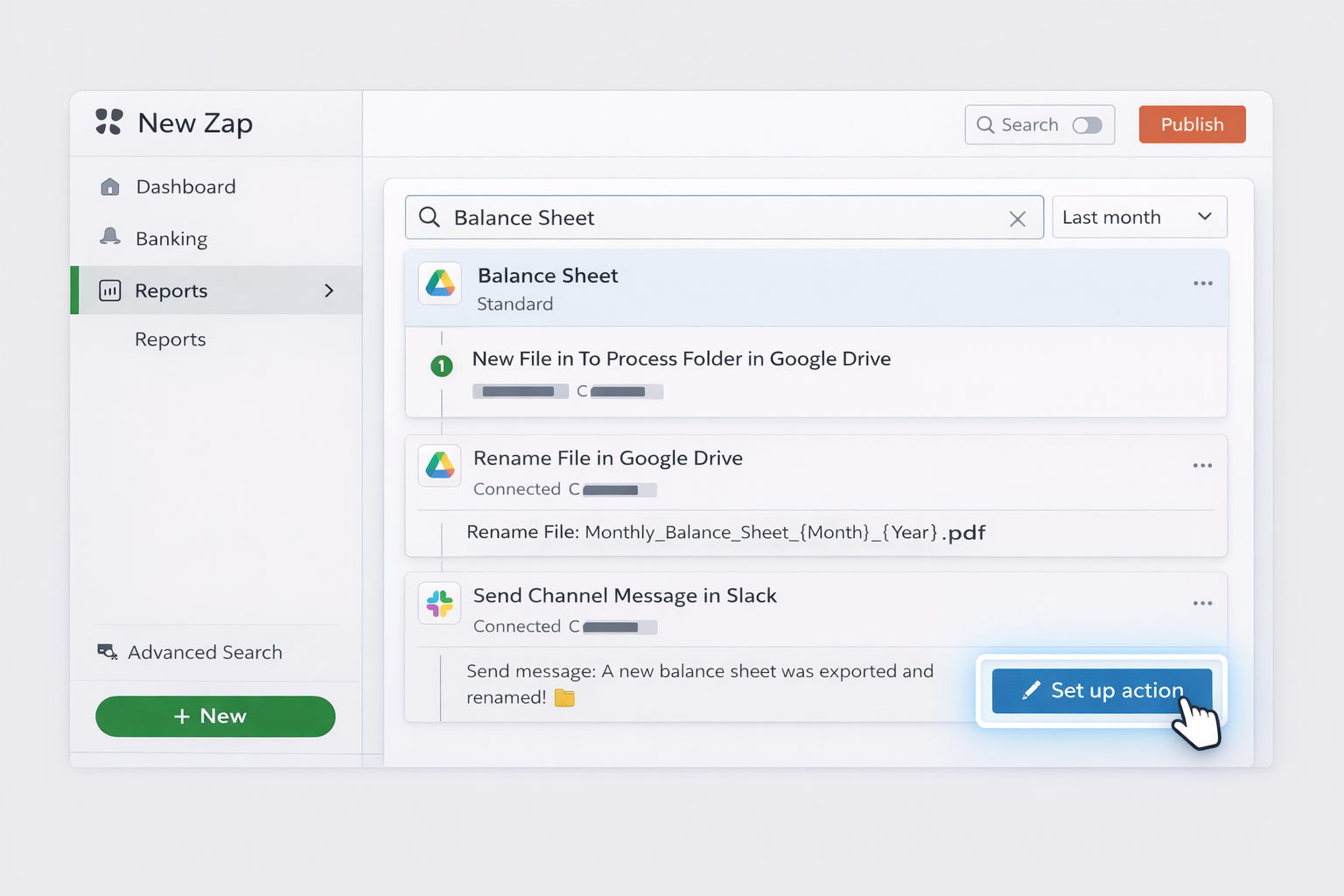
In QuickBooks, set a rule that you or your bookkeeper will export the Balance Sheet to a specific cloud folder (for example, a "To Process" folder in Google Drive or Dropbox).
Action 1: Rename the file based on the current month and year.
Action 2: Move it into an "Archive" folder by year.
Action 3: Post a message in Slack or email your team with the link.
Optionally, add a step to append the file link to a running Google Sheet master index for audits.
This removes repetitive file management and makes every Balance Sheet easy to find.
C. Auto-compile a lightweight dashboard
Use a tool like Google Data Studio or Power BI.
Connect it to a data source that syncs QuickBooks data (for example, a no-code connector via your automation platform).
Pull key fields that come from the Balance Sheet: cash, accounts receivable, accounts payable, current liabilities, equity.
Build visuals that update daily or weekly.
Keep the official Balance Sheet report in QuickBooks as your source of truth, but let managers live in the dashboard.
These no-code methods reduce manual handling and make the Balance Sheet more visible, but someone still has to initiate key steps and watch for errors.
3. Scaling with Simular AI agents operating QuickBooks
Simular Pro is an AI computer-use agent that can operate desktop, browser, and cloud tools the way a human would: clicking, typing, navigating QuickBooks, and integrating with the rest of your stack. This is how you move from "less manual" to truly delegated.
Method 1: Agent-run month-end Balance Sheet pack
Define the workflow once: log into QuickBooks Online, run the custom Balance Sheet, export PDF and Excel, drop them into the right Drive folders, and email links to stakeholders.
In Simular Pro (https://www.simular.ai/simular-pro), record or specify this process in natural language: include URLs, login steps, which report, and what date range.
Use Simular's transparent execution to watch each action: you can see the clicks and keystrokes exactly as they happen.
Trigger the agent by webhook from your close checklist tool or at a scheduled time.
Let the agent run end-to-end, even if it takes hundreds of UI steps.
Pros:
Completely hands-off once configured.
Works across QuickBooks, cloud storage, and email without custom code.
Every step is logged and inspectable.
Cons:
Requires careful first-time setup and testing.
You should monitor early runs to confirm data and permissions are correct.
Method 2: Anomaly-spotting assistant on top of your Balance Sheet
Have Simular Pro run the Balance Sheet, export to Excel, and open the file.
The agent then scans line items for unusual jumps in balances compared to last month or last quarter.
It drafts a short commentary: for example, "Accounts receivable increased 45% vs prior month; review top 10 overdue invoices."
It posts this commentary into a Slack channel or a Google Doc alongside the report.
Pros:
Turns a static Balance Sheet into an insight-generating artifact.
Helps non-finance founders or sales leaders quickly grasp what changed.
Cons:
Still relies on underlying QuickBooks data quality.
You should review commentary, especially in early runs, to tune thresholds.
If you manage multiple QuickBooks companies (for example, separate entities or client books in an agency), Simular can:
Log into each QuickBooks company.
Run the Balance Sheet for the same period.
Export all reports and combine them into a single Excel workbook.
The agent copies totals into a consolidated tab, clearly labeling each entity.
It saves the workbook to a shared folder and sends a summary email.
Pros:
Eliminates repetitive hopping between companies.
Especially powerful for agencies and multi-entity groups.
Cons:
More complex workflows mean more steps to validate.
You should lock down access controls carefully, since the agent touches multiple entities.
For all AI-agent methods, the key advantage over classic RPA is Simular's neuro-symbolic approach: it can adapt when QuickBooks changes layout while still remaining repeatable and transparent, letting you scale balance sheet reporting without scaling headcount.
Scale Quickbooks balance sheets with AI agents today
Onboard Simular to QB
Install Simular Pro, connect it to your Quickbooks Online login, and walk the agent through one clean run of creating and exporting your balance sheet so it learns every step.
Test and refine the agent
Run the Simular AI agent on a test Quickbooks company, review its transparent action log, fix any misclicks or filters, and fine tune prompts until the balance sheet exports perfectly.
Delegate and scale with AI
Schedule the Simular AI Agent via webhook or calendar, let it run Quickbooks balance sheet tasks across entities, and scale reporting reliably without adding manual ops hours.
Learn how to automate Quickbooks
Quickbooks gives you a built-in balance sheet template that pulls live accounting data, automates calculations, and lets you customize, export, and schedule reports.




.svg)


%20(2).svg)