

Oops! Something went wrong while submitting the form.

.svg)
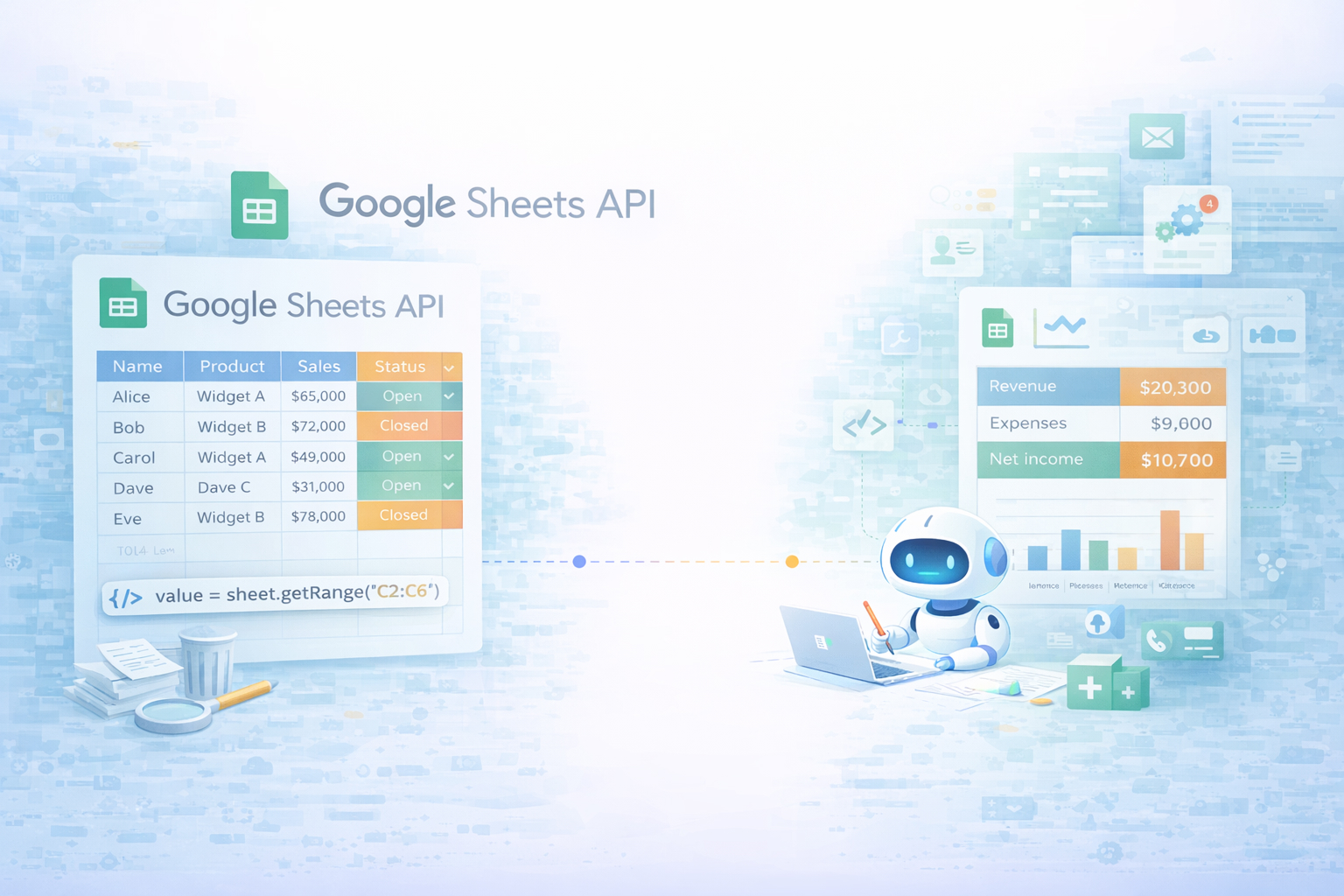
Google Sheets already sits at the center of countless businesses: sales trackers, campaign dashboards, content calendars, finance models. The Google Sheets API turns those familiar spreadsheets into programmable data backends. You can create spreadsheets, read and write values, update formatting, and even manage multiple sheets from any application by calling endpoints like spreadsheets.values.get or spreadsheets.values.update via https://sheets.googleapis.com.
That power is multiplied when you hand it to an AI agent. Instead of manually wiring every call, an AI computer agent can navigate your stack: pull leads from a CRM, clean them, enrich via the web, and post the results into Google Sheets through the API. Delegating these API workflows to an agent means every repetitive sync, report, or data cleanup runs in the background, on schedule, without you hovering over scripts or dashboards.
Imagine you’re a marketing lead with a master spreadsheet for campaigns. Right now, you or your team copy-paste data from tools into Google Sheets. The API replaces that with precise, repeatable operations — but the traditional path starts fairly hands-on.
Method 1: Use Google client libraries (e.g., JavaScript or Python)
npm install googleapishttps://www.googleapis.com/auth/spreadsheets for read/write.spreadsheets.values.get and spreadsheets.values.update documented at https://developers.google.com/workspace/sheets/api/reference/rest/v4/spreadsheets.values.Sheet1!B2:E20 range.This approach is powerful and flexible, but requires engineering time and ongoing maintenance.
Method 2: Raw HTTP requests with cURL or Postman
GET https://sheets.googleapis.com/v4/spreadsheets/{spreadsheetId}/values/Sheet1!A1:D10values.update or values.append, sending JSON like:{ "range": "Sheet1!A1", "majorDimension": "ROWS", "values": [["Name","Email"]] }This is great for one-off integrations or debugging, but not ideal for non-technical teams or large-scale automation.
Method 3: Google Apps Script inside the spreadsheet
SpreadsheetApp service (it wraps the API) to read/write.Apps Script is closer to the sheet and easier for light coding, but it still requires JavaScript skills and lacks the robustness of a full app or agent.
Many business owners and agencies don’t want to see a line of code. You still can tap into the Sheets API indirectly through no-code tools.
Method 4: Use an automation platform (Zapier, Make, etc.)
Pros: friendly UI, no code, quick to ship small automations. Cons: costs grow with volume, complex branching logic can get messy, and you’re limited to the actions exposed by that platform.
Method 5: Use a Sheets-as-API service (like SheetDB)
Services such as SheetDB (https://sheetdb.io) wrap Google Sheets as a simple JSON REST API.
https://sheetdb.io/api/v1/XXXX.This is ideal when you want a spreadsheet to act as a lightweight CMS or database, but you still shoulder authentication logic and integration design.
Now, picture a different Monday. Your sales pipeline sheet updates itself: new leads enriched from LinkedIn, bounced emails flagged, campaign performance summarized — and you didn’t touch an API console or a Zap.
That’s where an AI computer agent like Simular comes in.
Method 6: Delegate lead enrichment and logging to an AI agent
Workflow story: A growth agency tracks outbound prospects in Google Sheets. Historically, a VA would open each profile, copy job title, company size, and website, then paste results into the sheet.
With Simular Pro (https://www.simular.ai/simular-pro):
Pros: no traditional coding, can combine browser navigation, multiple tools, and Google Sheets in one loop. Cons: requires clear instructions and some initial setup to avoid overwriting the wrong ranges.
Method 7: Automated reporting and research pipelines
Think of a marketing team that needs a Monday report combining:
With Simular:
Pros of AI-agent-based Sheets automation
Cons
By starting with one concrete process — say, “update my sales Google Sheet every morning from my CRM and web research” — and then promoting it to an AI agent-run workflow, you gradually remove the manual glue work from your business while keeping Google Sheets as the familiar, flexible front-end.

