Locked cells are great—until they get in the way of work. Sales teams need to adjust quotas, finance needs to tweak forecasts, agencies need clients to fill in briefs. If the wrong cells are locked in Excel or Google Sheets, everyone stalls and tickets pile up: “Can you unlock this tab for me?” Knowing exactly how to unlock only the right cells lets you protect formulas and structure while keeping day‑to‑day edits frictionless. It also means you can standardize templates across your company without becoming the bottleneck every time someone needs one more column editable.Now imagine you never had to touch those protection settings again. An AI computer agent can open Excel or Google Sheets, unprotect the right sheets, unlock just the ranges you specify, then reapply protection across dozens of files. Instead of manually clicking through review menus all afternoon, you describe the rules once and the agent maintains them for every campaign sheet, report, and client dashboard on autopilot.
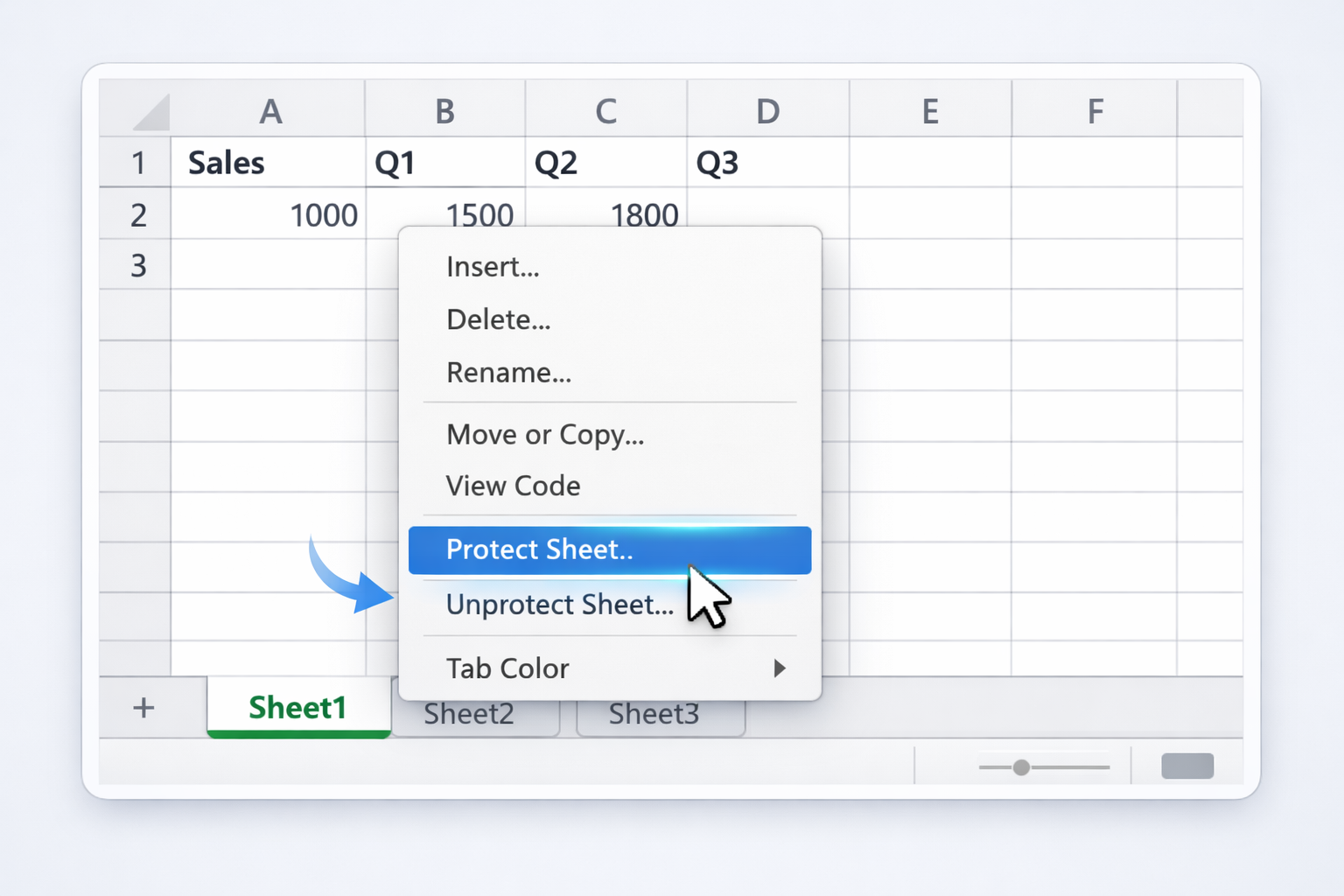
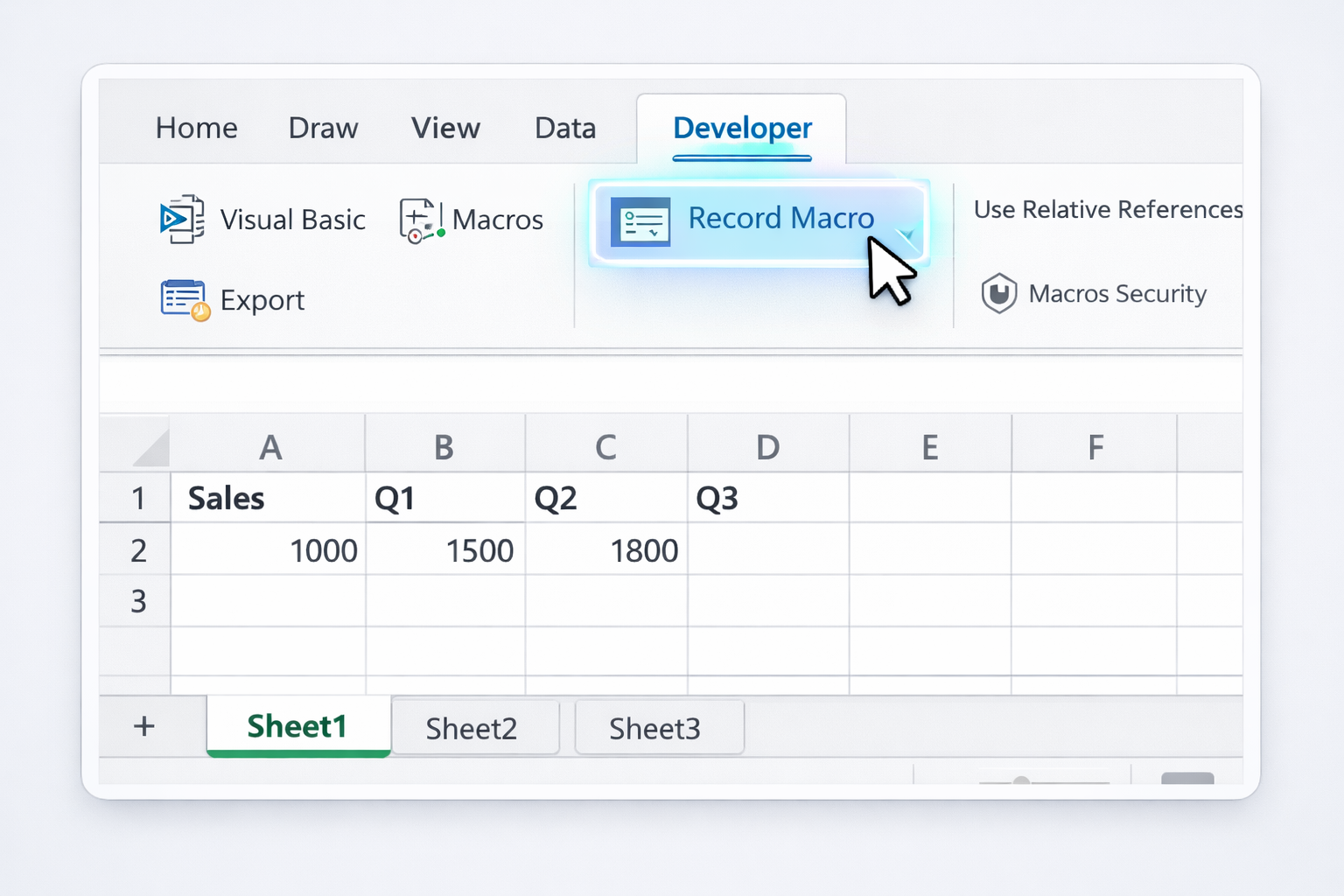
### 1. Manual ways to unlock cells in Excel and Google SheetsBefore we automate anything, you need the core mechanics.#### A. Unlock all cells in an Excel worksheet1. Open your workbook in Excel.2. Right‑click the sheet tab you want to edit.3. Click “Unprotect Sheet…”.4. If the sheet has a password, enter it and click OK.5. All previously locked cells on that sheet are now editable.Official Microsoft guide on locking/unlocking specific areas: https://support.microsoft.com/en-us/office/lock-or-unlock-specific-areas-of-a-protected-worksheet-75481b72-db8a-4267-8c43-042a5f2cd93a#### B. Unlock only certain cells in ExcelOften you want formulas locked but input cells free.1. First, unprotect the sheet (as above).2. Press Ctrl+A to select the entire sheet.3. Press Ctrl+1 to open Format Cells.4. Go to the Protection tab and clear the “Locked” checkbox. Click OK. Now nothing is locked yet.5. Select the cells or ranges you WANT to protect (for example, formula columns).6. Press Ctrl+1 again, Protection tab, tick “Locked”, OK.7. On the Review tab, click “Protect Sheet…”.8. Choose a password (optional but recommended) and what users are allowed to do, then click OK.9. Result: the ranges you marked as Locked are protected; everything else is editable.#### C. Unlock specific ranges on a protected Excel sheetWhen the sheet is protected but you want certain ranges editable with or without a password:1. Unprotect the sheet.2. Go to Review → “Allow Users to Edit Ranges”.3. Click “New…”.4. Give the range a name (optional), set the Refers to cells box (for example, =B2:B100), and optionally set a range password.5. Click OK and confirm the password.6. Back in the dialog, click “Protect Sheet…”, set a sheet password, and click OK.7. Now: the sheet is protected, but users can edit that specific range (with or without the range password, depending on your setup).Detailed walkthrough: https://support.microsoft.com/en-us/office/lock-or-unlock-specific-areas-of-a-protected-worksheet-75481b72-db8a-4267-8c43-042a5f2cd93a#### D. Unlock cells in Excel for MacOn Mac the flow is similar:1. On the Review tab, click “Unprotect Sheet” and enter the password.2. Select the cells you want unlocked.3. Press Command+1 → Protection tab → clear “Locked” → OK.4. Re‑protect the sheet from Review → “Protect Sheet…”.Mac-specific guide: https://support.microsoft.com/en-us/office/lock-cells-to-protect-them-in-excel-for-mac-59bb04cf-1a79-4a69-9828-568c98bdb310#### E. Unlock cells in Google SheetsIn Google Sheets, protections live at the cell or sheet level.1. Open the sheet in Google Sheets.2. Click Data → Protected sheets and ranges.3. In the right sidebar, select the protected range or sheet you want to adjust.4. To fully remove protection, click the trash bin icon.5. To make only part of it editable, change the range reference, or on a protected sheet, use “Except certain cells” and define which cells remain editable.Official Google guide: https://support.google.com/docs/answer/1218656---### 2. No‑code and low‑code automation methodsOnce you know the basics, you can remove repetitive clicking with light automation.#### A. Excel macros to toggle protectionIf you routinely unlock, edit, then re‑lock the same sheets:1. Enable the Developer tab (File → Options → Customize Ribbon → tick Developer).2. Click Developer → “Record Macro…”.3. Name it like “ToggleProtection”, store in This Workbook.4. While recording, unprotect the sheet, select and change the Locked property on the ranges you need, then protect the sheet again with your desired options.5. Stop recording.Next time, run the macro and Excel will replay all those steps. This is low‑code: you do not have to write VBA, just record.Macro quick start from Microsoft: https://support.microsoft.com/en-us/office/quick-start-create-a-macro-741130ca-080d-49f5-9471-1e5fb3d581a8#### B. Office Scripts / Power Automate (Excel on the web)For teams on Microsoft 365:1. In Excel for the web, use Automate → “Record Actions” to capture unprotecting, unlocking ranges, and reprotecting.2. Save the script.3. In Power Automate, create a flow that runs this Office Script on a file when it’s created in a specific OneDrive or SharePoint folder.Outcome: any new template dropped into that folder gets the same unlock/lock logic applied automatically.#### C. Google Apps Script to standardize protectionsIf you manage many Google Sheets templates:1. Open a Google Sheet and go to Extensions → Apps Script.2. Use a simple script to clear protections, then add new protected ranges programmatically using the Protection service.3. Attach the script to a custom menu so non‑technical teammates can run it from the sheet.4. Optionally trigger it when the file is opened.This keeps templates consistent without hunting through the Protected sheets sidebar every time.#### D. Workflow tools like Zapier or MakeWhile Zapier and Make cannot directly click “Unprotect sheet”, they can trigger scripts that do:1. For Sheets, set up a Zap that fires when a new spreadsheet is created from a template in Google Drive.2. The Zap calls a Google Apps Script Web App endpoint that runs your protection/unlock logic.3. For Excel, a Power Automate flow can play the same role when new files are added to a OneDrive folder.---### 3. Scaling with AI agents like SimularManual and no‑code flows still assume someone keeps an eye on things. An AI computer agent like Simular Pro can sit above your tools and handle the messy, cross‑app work.#### A. Agent that adjusts protections per requestStory: your sales ops lead gets daily requests like, “Can you unlock column F in this Excel quota sheet?”With Simular:1. You record or describe the workflow once: open the file (Excel or Sheets), find the right tab, unprotect, adjust Locked or protected ranges, save, and confirm.2. The Simular agent can now repeat this on any similar file, triggered via a simple form or webhook.Pros: no macros to maintain, works across desktop Excel, Excel for the web, and Google Sheets. Great for non‑technical teams.Cons: requires initial setup and clear instructions; best for recurring patterns, not one‑off edge cases.#### B. Agent to standardize protections across many filesImagine migrating 200 client reporting workbooks to a new structure:1. Point Simular at a folder of Excel and Sheets files.2. For each file, the agent opens it, removes legacy protections, applies your new standard of locked formulas and unlocked inputs, and saves.3. Simular’s transparent execution lets you inspect each step before running at full scale.Pros: massive time savings, consistent rules, auditability.Cons: you should test on a small batch first and keep backups.#### C. Agent as a guardrail for template usageYou can even have Simular run nightly checks:1. The agent opens key team spreadsheets.2. If it detects unlocked formula ranges or missing sheet protection, it corrects them and logs a report.3. Any anomalies are surfaced to an ops owner.Pros: continuous quality control without you babysitting spreadsheets.Cons: needs thoughtful configuration so it does not override intentional one‑off changes.Blending these approaches gives you a ladder: start with manual skills, add light automation, then let an AI agent carry the repetitive protection work so you and your team can focus on analysis, not menus.
Lorem ipsum dolor sit amet, consectetur adipiscing elit, sed do eiusmod tempor incididunt ut labore et dolore magna aliqua. Ut enim ad minim veniam, quis nostrud exercitation ullamco laboris nisi ut aliquip ex ea commodo consequat. Duis aute irure dolor in reprehenderit in voluptate velit esse cillum dolore eu fugiat nulla pariatur.
Block quote
Ordered list
Unordered list
Bold text
Emphasis
Superscript
Subscript
To safely remove protection from an Excel sheet, you want to avoid accidentally exposing sensitive formulas or structure. Start by opening the workbook and right‑clicking the sheet tab you need to edit. Choose “Unprotect Sheet…”. If a password is set, enter it and click OK. Before you start editing, review which areas truly need to stay protected: typically, formula columns, lookup tables, or structural headers. Optionally, press Ctrl+A, Ctrl+1, go to the Protection tab, and clear “Locked” so everything becomes editable. Then select only the ranges that should remain fixed, press Ctrl+1 again, and re‑enable “Locked”. When you are done, go to the Review tab and click “Protect Sheet…”, set a password, and choose the allowed actions (for example, allow users to select unlocked cells but not format columns). This way, you briefly unprotect, make the required changes, and then re‑apply protection in a controlled, intentional way rather than leaving the sheet fully open.
In Excel, the trick is that locking only takes effect when the sheet is protected. First, unprotect the sheet from the Review tab by clicking “Unprotect Sheet…” and entering the password if prompted. Next, press Ctrl+A to select the whole sheet and then press Ctrl+1 to open Format Cells. Go to the Protection tab and clear “Locked”; click OK. Now nothing is locked. Select the precise input cells you want users to edit (for example, B3:B100 for monthly targets). Press Ctrl+1 again, go back to Protection, and this time leave “Locked” unchecked for those cells so they remain unlocked. Then select your formula columns (say, C3:F100), open Format Cells, and tick “Locked” so only these are protected. Finally, go to Review → “Protect Sheet…”, set your options, and click OK. In Google Sheets, use Data → Protected sheets and ranges, protect the whole sheet, and then allow editing only for specific ranges. This keeps formulas safe while inputs stay flexible.
If you have forgotten the password for a protected Excel sheet, there is unfortunately no supported Microsoft feature to recover it. That is by design: sheet protection is meant to prevent unauthorized editing. Your first step should be to check whether anyone else on your team has the password or an unprotected copy of the file. If the workbook is part of a shared system (for example, a recurring report template), ask the original author if they can re‑issue it with updated protection settings. If you are in a corporate environment using OneDrive or SharePoint, version history may contain an earlier, unprotected version you can restore. Be careful with third‑party password‑removal tools: many violate company security policies, and some can corrupt files or introduce malware. As a preventative measure going forward, store sheet passwords in a secure team password manager and standardize who owns protection rules, so you are not blocked by a single forgotten password again.
In Google Sheets, you manage locked and unlocked areas through the Protected sheets and ranges feature. Open your spreadsheet and go to Data → Protected sheets and ranges. In the sidebar, you can either protect a whole sheet or a specific range. To protect most of a sheet but leave inputs open, choose the sheet, check “Except certain cells,” and define the ranges that remain editable, such as A2:A50. You can then specify who is allowed to edit: either only you, or custom users and groups. To unlock cells later, return to Data → Protected sheets and ranges, click the protection entry, and either adjust the range so it no longer covers those cells, or delete the protection rule using the trash bin icon. This allows you to ship templates where formulas and structure are locked, while collaborators can still update the rows or columns you intentionally left editable. Full details are in Google’s docs: https://support.google.com/docs/answer/1218656
Yes, and it is worth doing if you maintain many similar workbooks. At a basic level, you can record a macro in one Excel file that unprotects the sheet, adjusts Locked settings on specific ranges, and re‑protects it. Save that macro in your Personal Macro Workbook so it is available across files, then run it whenever you open a similar template. For Microsoft 365 users, Office Scripts combined with Power Automate can run this flow automatically when new files appear in a OneDrive or SharePoint folder. If you work across both Excel and Google Sheets, an AI computer agent such as Simular can go further: it can open each file, follow the same unprotect–adjust–protect routine you would click manually, and do so for dozens or hundreds of documents in sequence. The key is to standardize your rules (which cells should be editable, which must stay locked) and encode them once, so automation can repeat them reliably without human error.