Every serious marketer eventually hits the same wall: you know Instagram ads are working, but you can’t clearly see which campaigns deserve more budget and which should be killed. An ad cost calculator built around your own numbers changes that. By pulling spend, impressions, clicks, and revenue into one place, you can see CPC, CPM, CPA, ROAS, and true profit per campaign in minutes instead of guessing.
Delegating this calculator to an AI computer agent means it logs into Instagram Ads Manager, exports fresh performance data, updates your Google Sheets model, and flags anomalies every day without you touching a keyboard. Instead of burning an hour building pivot tables and checking formulas, you wake up to a ready-made dashboard and a short summary of what changed, so you can decide where to scale or cut spend. That’s how agencies, sales teams, and founders turn a spreadsheet into a daily growth engine.
If you run Instagram ads, you live and die by your numbers. But manually checking Ads Manager, exporting CSVs, and rebuilding the same report in Google Sheets is a productivity tax on every marketer, founder, and agency. Let’s walk through three levels of Instagram ad cost calculation:
Throughout, your two anchors are Instagram Ads Manager and Google Sheets.
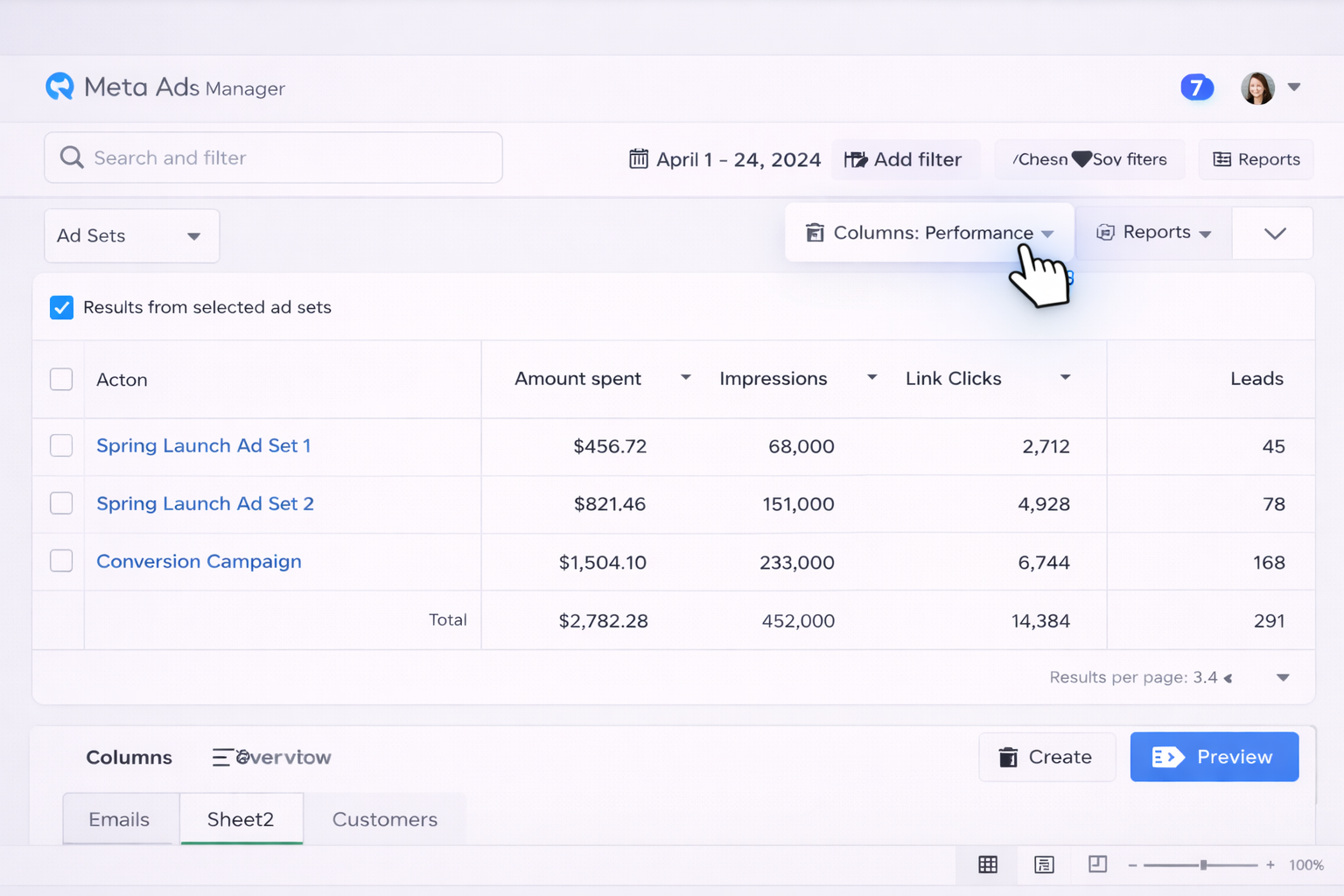
This is simple but painful to repeat daily or across many accounts.
=C2/E2 for CPC and copy down.=C2/(D2/1000) for CPM and copy down.=C2/F2 for CPA and copy down.=G2/C2 for ROAS and copy down.You now have a living calculator but still must export and paste every time.
Forecast.Forecast!B2, reference historical averages from your data tab using =AVERAGE(Data!H:H) for CPC, etc.This mimics classic calculators but is still entirely manual.
No-code platforms (such as popular automation tools) can pipe Instagram/Meta Ads data directly into Sheets.
Raw_Instagram.Metrics tab that references Raw_Instagram using =QUERY or =SUMIFS.Now your calculator updates automatically whenever the automation runs.
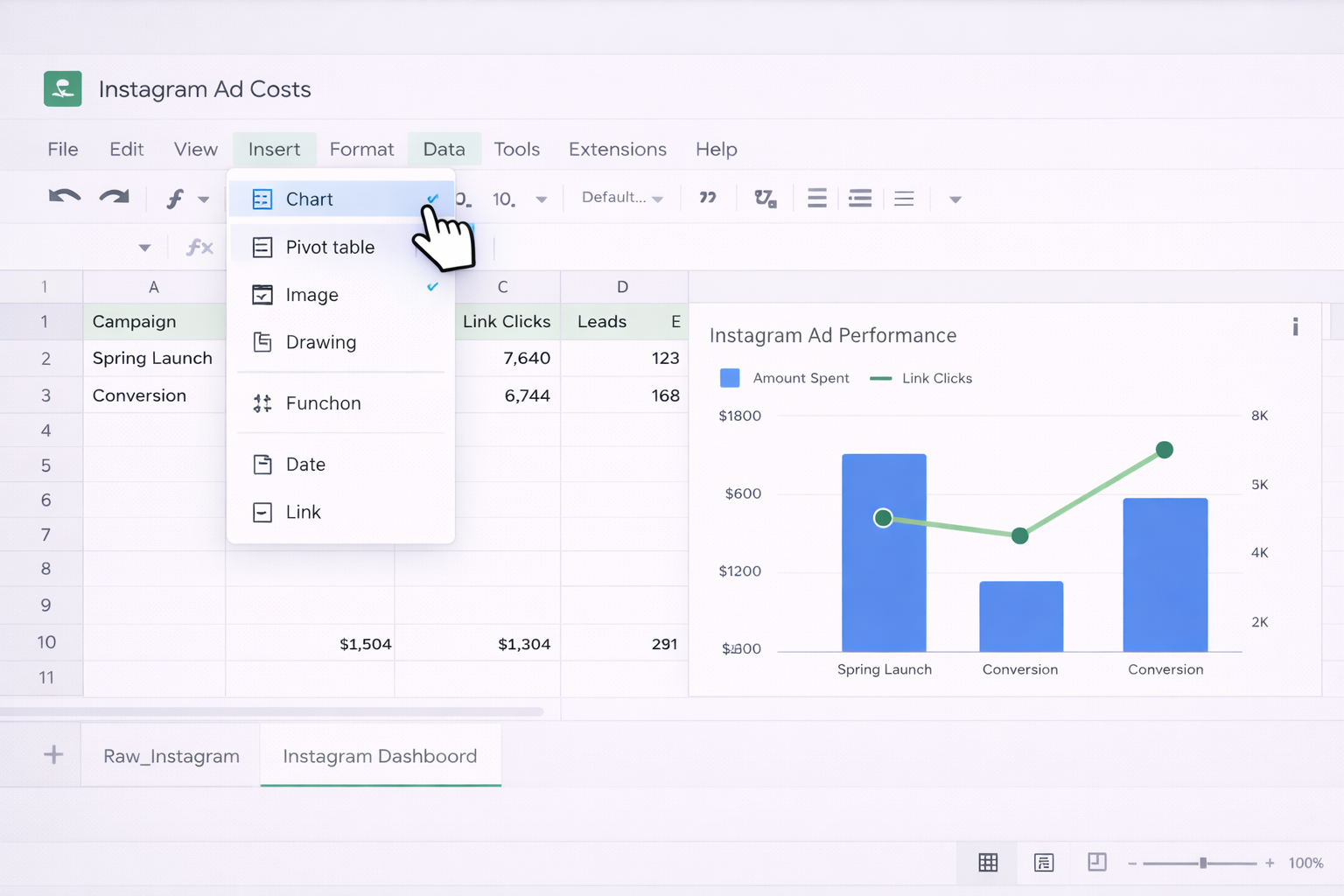
With live data arriving, you can:
=QUERY(Raw_Instagram!A:K,"select B,sum(C),sum(D),sum(E),sum(G) group by B",1) to aggregate by campaign.This turns your Sheet into a lightweight BI tool for Instagram costs, with no code.
Manual and no-code flows save time, but they still require you to design and maintain the logic. An AI agent can watch your screen, navigate Ads Manager, update Google Sheets, and even narrate what changed.
Imagine your AI computer agent doing this every morning:
raw_imports folder, or paste fresh metrics into the Raw_Instagram tab.
Pros:
Cons:
Beyond just updating costs, your AI agent can:
Because an advanced agent can operate across your entire desktop environment, it behaves like a junior analyst who never sleeps—collecting, calculating, and interpreting Instagram cost data for you.
The result: instead of spending your mornings exporting, cleaning, and calculating, you review one Sheet, read one narrative, and make faster budget decisions at scale.

Start with a simple forecast that mirrors how Instagram charges for ads. First, decide on a test budget (for example, $1,000 for 7 days). In Google Sheets, create input cells for Budget, Expected CPC, and Conversion Rate.
Use benchmarks or past campaigns to pick an expected CPC, such as $1.50. Then in your Sheet:
- Clicks = Budget / CPC (e.g., =B2/B3)
- Leads or Purchases = Clicks × Conversion Rate (e.g., =B4*B5)
- CPA = Budget / Conversions
- If you know your average order value, Revenue = Conversions × AOV, and ROAS = Revenue / Budget.
To refine those assumptions, explore Meta’s help docs on how auctions, CPC, and CPM work for Instagram placements: https://www.facebook.com/business/help/instagram. Start small, compare your forecast with real results from Ads Manager after the first week, then update your CPC and conversion assumptions in Sheets for the next round.
Begin by exporting performance data from Instagram (via Meta Ads Manager). In Ads Manager, filter by the date range and campaigns you care about, then click to export as CSV with metrics: Amount Spent, Impressions, and Link Clicks.
Open the CSV in Google Sheets. Add two new columns: CPC and CPM. In the first row of data, calculate:
- CPC = Amount Spent / Clicks (e.g., if Spend is in C2 and Clicks in E2, use =C2/E2)
- CPM = Amount Spent / (Impressions / 1000) (e.g., with Impressions in D2, use =C2/(D2/1000))
Copy these formulas down the entire column to compute CPC and CPM for every campaign, ad set, or ad.
You can learn more about how impressions and charges work in Instagram’s official business help center: https://www.facebook.com/business/help/instagram. Once set up, save this Sheet as your base calculator and simply paste new exports into it.
Think of your cost model as three layers: raw data, metrics, and decisions. First, create a `Raw_Instagram` tab in Google Sheets. Paste exported Ads Manager data there, including date, campaign name, placement, spend, impressions, clicks, conversions, and revenue.
Second, create a `Metrics` tab. Use formulas that reference `Raw_Instagram` to compute CPC, CPM, CPA, and ROAS. For example, use `=QUERY(Raw_Instagram!A:K,"select B,sum(C),sum(D),sum(E),sum(F),sum(G) group by B",1)` to consolidate by campaign, then add formula columns for CPC (=Spend/Clicks) and so on.
Third, create a `Decisions` or `Dashboard` tab. Pull in the key metrics and highlight campaigns above or below thresholds. Use conditional formatting to flag high CPC or low ROAS. For Google Sheets dashboard basics, see: https://support.google.com/docs/answer/9310249. Your model becomes a living control panel for Instagram budget decisions.
Update cadence depends on your spend and how quickly you make decisions. For low-spend accounts or evergreen campaigns, a weekly refresh may be fine. For agencies managing many clients or brands with aggressive scaling, daily updates are far more powerful.
From a practical standpoint, align your rhythm with how often you adjust bids or budgets in Instagram Ads Manager. If you change budgets daily, you should at least refresh your Google Sheets calculator once per day. Export the latest data, paste into your `Raw_Instagram` tab, and let your formulas recalculate CPC, CPM, CPA, and ROAS.
To reduce friction, combine a daily manual review with automation: use an integration or AI agent to update Sheets automatically each morning, then block 15 minutes to scan for outliers. Instagram’s help center recommends monitoring learning phases and performance regularly: https://www.facebook.com/business/help/instagram.
An AI agent can behave like a tireless junior media buyer who loves spreadsheets. Instead of you logging into Ads Manager, choosing filters, exporting CSVs and pasting them into Google Sheets, the agent can be taught to do those exact steps on your desktop.
You first define what a perfect reporting run looks like: which Instagram campaigns to filter for, what columns to export, and where to paste data in Sheets. The AI agent then reproduces that sequence—open browser, navigate to Meta Ads Manager, apply filters, export, open your Google Sheet, update the proper tab, and even refresh charts. Advanced agents can add a short written summary of changes (for example, “CPC on Reels ads increased 22% vs. last week”) directly into the Sheet.
Because this workflow is repeatable and transparent, you keep strategic control while handing off all the clicking, downloading, and calculating to automation.