How to Master Search in Google Sheets: A Pro Guide

Practical guide to searching in Google Sheets fast while an AI computer agent handles repetitive find, filter, and cleanup so the team focuses on strategy.
Advanced computer use agent
Production-grade reliability
Transparent Execution

Why Google Sheets Search + AI

Every sales team, agency, and operations lead eventually hits the same wall: a huge Google Sheets file where one wrong search breaks a report, a campaign list, or a client dashboard. Learning how to search properly is not a “spreadsheet nerd” skill; it’s how you keep revenue ops clean, reduce mistakes, and move from gut feeling to data-backed decisions.Google Sheets gives you powerful native tools: quick find with Ctrl+F or ⌘+F, deep “Find and replace” with options like match case, search across all sheets, and even regular expressions for patterns like dollar amounts or zip codes (see Google’s guide: https://support.google.com/docs/answer/62754). Once you understand these, you can slice through messy datasets in seconds.Now imagine delegating that work. Instead of you hunting through 20 tabs for bad phone numbers or outdated UTMs, an AI computer agent runs the searches, applies the rules, and hands you a clean summary.Why automate with an AI agent? Because the real value of your time is not pressing Ctrl+F 400 times. A Simular-style AI computer agent can:- Open your Google Sheet in the browser- Run consistent Find and replace passes for dozens of patterns- Log what it changed into an audit sheet- Repeat the routine daily or hourly without complaints.This turns searching in Google Sheets from a tedious chore into a background process that quietly protects your pipeline, reporting, and client deliverables.

How to Master Search in Google Sheets: A Pro Guide

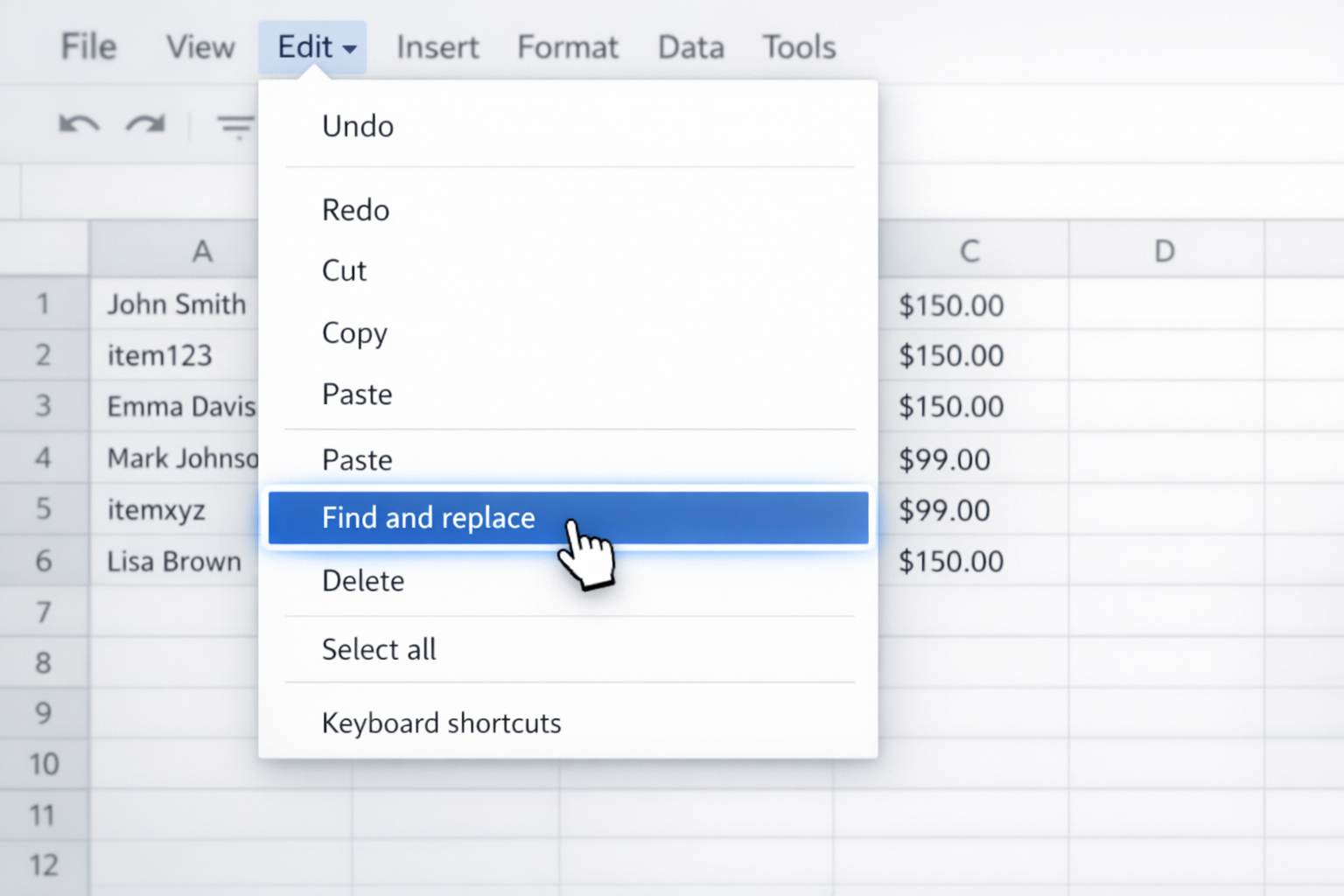
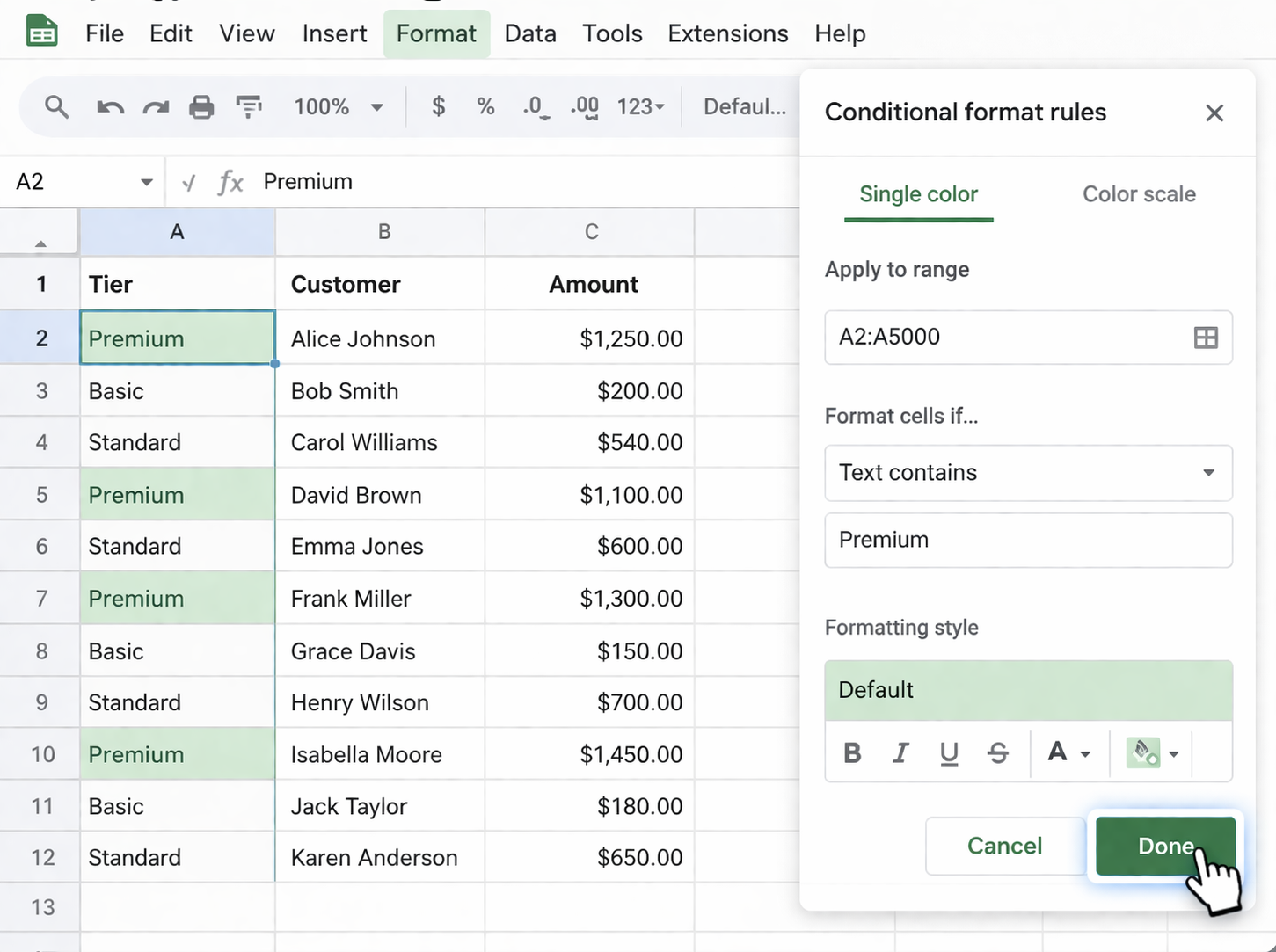
### 1. Manual ways to search in Google SheetsBefore you automate, you need to know what you’re automating. Here are the core manual methods every business owner, marketer, or ops lead should master.#### 1.1 Quick search with keyboard shortcuts (Ctrl+F / ⌘+F)This is your “binoculars” for a single sheet.1. Open your spreadsheet in Google Sheets.2. Press **Ctrl+F** on Windows or **⌘+F** on macOS.3. A small search box appears in the top-right.4. Type the word, email, or value you’re looking for.5. Use the up/down arrows in the search box (or Enter) to jump through each match.Use it when: you need to quickly locate a specific client name, campaign ID, or invoice number inside one tab.#### 1.2 Deep search with Edit → Find and replaceWhen you want more control—or to clean data—use **Find and replace**.1. Open your Sheet.2. Click **Edit → Find and replace**.3. In **Find**, enter the text or pattern you’re searching for.4. (Optional) In **Replace with**, enter the new value.5. Click **Find** to move through each match.6. Click **Replace** to change the current match, or **Replace all** to change every match.7. Use options to refine: - **Match case** for exact capitalization. - **Match entire cell contents** to avoid partial matches. - **Search within formulas** if the text may be inside a formula.Official Google help: https://support.google.com/docs/answer/62754#### 1.3 Search across all tabsIf your workbook has many tabs (e.g., by month, client, or region):1. Open **Edit → Find and replace**.2. In the **Search** dropdown, choose **All sheets** instead of **This sheet**.3. Run **Find** or **Replace all** as needed.This is perfect for hunting a client’s domain across dozens of campaign logs or reconciling a lead ID across multiple stages.#### 1.4 Pattern search with regular expressionsGoogle Sheets supports **regex** (regular expressions) inside Find and replace.1. Go to **Edit → Find and replace**.2. In **Find**, enter a regex such as: - `^\$([0-9,]+)?[.][0-9]+` to find dollar amounts - `[0-9]{5}(-[0-9]{4})?` for US ZIP codes3. Check **Search using regular expressions**.4. Click **Find** or **Replace all**.This is a power move for cleaning phone numbers, currencies, or IDs in bulk.Learn more: https://support.google.com/docs/answer/62754#### 1.5 SEARCH / FIND formulas for in-cell checksWhen you need search logic embedded in your sheet (e.g., flagging rows containing a specific keyword):- **SEARCH** (case-insensitive): ``` =IF(IFERROR(SEARCH("VIP", A2), 0) > 0, "VIP lead", "Standard") ``` This labels rows where column A contains “VIP”.Official SEARCH docs: https://support.google.com/docs/answer/3094154Use formulas when you want ongoing, automatic flagging instead of one-off manual searches.---### 2. No-code automation methodsOnce the basics are solid, you can reduce clicks using no-code tools and built-in automation.#### 2.1 Filter views for dynamic searchingInstead of searching each value manually, use filters to show only matching rows.1. Select your header row.2. Click **Data → Create a filter**.3. On the column you care about, click the filter icon.4. Choose **Filter by condition → Text contains** and enter your search term.Result: the sheet shows only rows matching “US”, “Facebook”, “High intent”, etc. You can save custom views for recurring searches.#### 2.2 Conditional formatting as a “visual search”Conditional formatting is a way to have Google Sheets visually highlight matches for you.1. Select the range (e.g., `A2:A5000`).2. Go to **Format → Conditional formatting**.3. Under **Format cells if**, choose: - **Text contains** for a simple keyword, or - **Custom formula is** with formulas like `=REGEXMATCH(A2, "VIP|High")`.4. Pick a highlight color.5. Click **Done**.Now, every time new data is added, matching cells light up automatically.#### 2.3 No-code platforms (Zapier / Make) to auto-searchFor recurring cross-tool workflows—like searching Google Sheets when a new lead hits your CRM—you can use no-code platforms.Typical Zapier-style flow:1. **Trigger**: “New lead in HubSpot/Pipedrive”.2. **Action**: “Find row in Google Sheets” where email or domain matches.3. **Next action**: Update the row, add a note, or send a Slack alert if not found.This way, the search happens in the background every time an event occurs. You never open the sheet; the automation reads and uses the data for you.---### 3. Scaling search with AI agents (Simular-style automation)Manual and no-code methods work—until the volume explodes. When you’re:- Cleaning 100k+ rows every week- Searching dozens of patterns- Jumping across multiple tools (Sheets, CRM, email, analytics)…you’re in AI agent territory. Simular Pro is designed for exactly this: an AI computer agent that uses your desktop and browser like a human, at scale.Official product overview: https://www.simular.ai/simular-proAbout the team and approach: https://www.simular.ai/about#### 3.1 Agent to run complex Find and replace playbooksImagine you maintain a huge performance report sheet for multiple clients.You can design an AI agent workflow that:1. Opens your Google Sheet in the browser.2. Navigates to **Edit → Find and replace**.3. Sequentially runs a library of search/replace rules you define, such as: - Replace misspelled campaign tags - Standardize currency symbols - Strip tracking parameters from URLs4. Logs each change to an “Audit” tab (date, rule, count of replacements).5. Saves and closes the sheet.**Pros:**- Zero manual clicking once set up.- Transparent execution: every action is visible and reviewable.- Scales to thousands or millions of steps, fitting enterprise reporting.**Cons:**- Requires initial design of rules and test runs.- Best suited when patterns are clear and stable.#### 3.2 Agent as a search concierge for sales and marketingFor agencies and sales teams, a Simular-style agent can:1. Open your “Master Leads” Google Sheet.2. Use Find and replace and filters to: - Search for all leads from a specific domain or ICP segment. - Flag rows where the **Status** is empty but **Last activity** is recent.3. Copy matching rows to a “Today’s Priority Outreach” tab.4. Optionally push that list into your CRM or email platform via webhooks.**Pros:**- Turns a messy lead sheet into a daily, ready-to-work call list.- Runs on schedule (e.g., every morning before your SDRs log in).**Cons:**- Requires alignment between your Sheet schema and the agent’s instructions.#### 3.3 At-scale quality checks and anomaly searchAnother pattern: use the agent as an always-on QA assistant.Workflow:1. Agent opens key reporting Sheets.2. Uses SEARCH/FIND formulas or inline Find and replace to look for: - Unexpected text (e.g., “N/A”, “ERROR”, “#VALUE!”). - Out-of-pattern values using regex.3. Writes a “Data Issues” summary tab and sends you a message (via Slack or email through your existing automations).**Pros:**- Catches issues before clients or leadership see them.- Frees analysts from manual sanity checks.**Cons:**- Needs careful tuning of what counts as an error or anomaly.By combining strong manual fundamentals, smart no-code tricks, and a production-grade AI computer agent like Simular Pro, you move Google Sheets search from “someone’s painful weekly chore” to an invisible, reliable part of your data engine.

Heading 1

Heading 2

Heading 3

Heading 4

Heading 5
Heading 6

Lorem ipsum dolor sit amet, consectetur adipiscing elit, sed do eiusmod tempor incididunt ut labore et dolore magna aliqua. Ut enim ad minim veniam, quis nostrud exercitation ullamco laboris nisi ut aliquip ex ea commodo consequat. Duis aute irure dolor in reprehenderit in voluptate velit esse cillum dolore eu fugiat nulla pariatur.

Block quote

Ordered list

  1. Item 1
  2. Item 2
  3. Item 3

Unordered list

  • Item A
  • Item B
  • Item C

Text link

Bold text

Emphasis

Superscript

Subscript

Scale Google Sheets Search with Smart AI Agents

Train Simular agent
Install Simular Pro, then record a clear demo run: open your Google Sheets file, launch Find and replace, apply filters and searches. The agent learns each click to repeat it reliably.
Refine & test agent
Use Simular’s transparent execution to replay the workflow on a copy of your Google Sheets file, tweak prompts and rules until the agent completes every search and cleanup on the first try.
Scale tasks with AI
Once tested, delegate all recurring Google Sheets searches to the Simular AI Agent. Trigger it via schedule or webhook so bulk find, filter, and cleanup runs automatically across many files.

FAQS