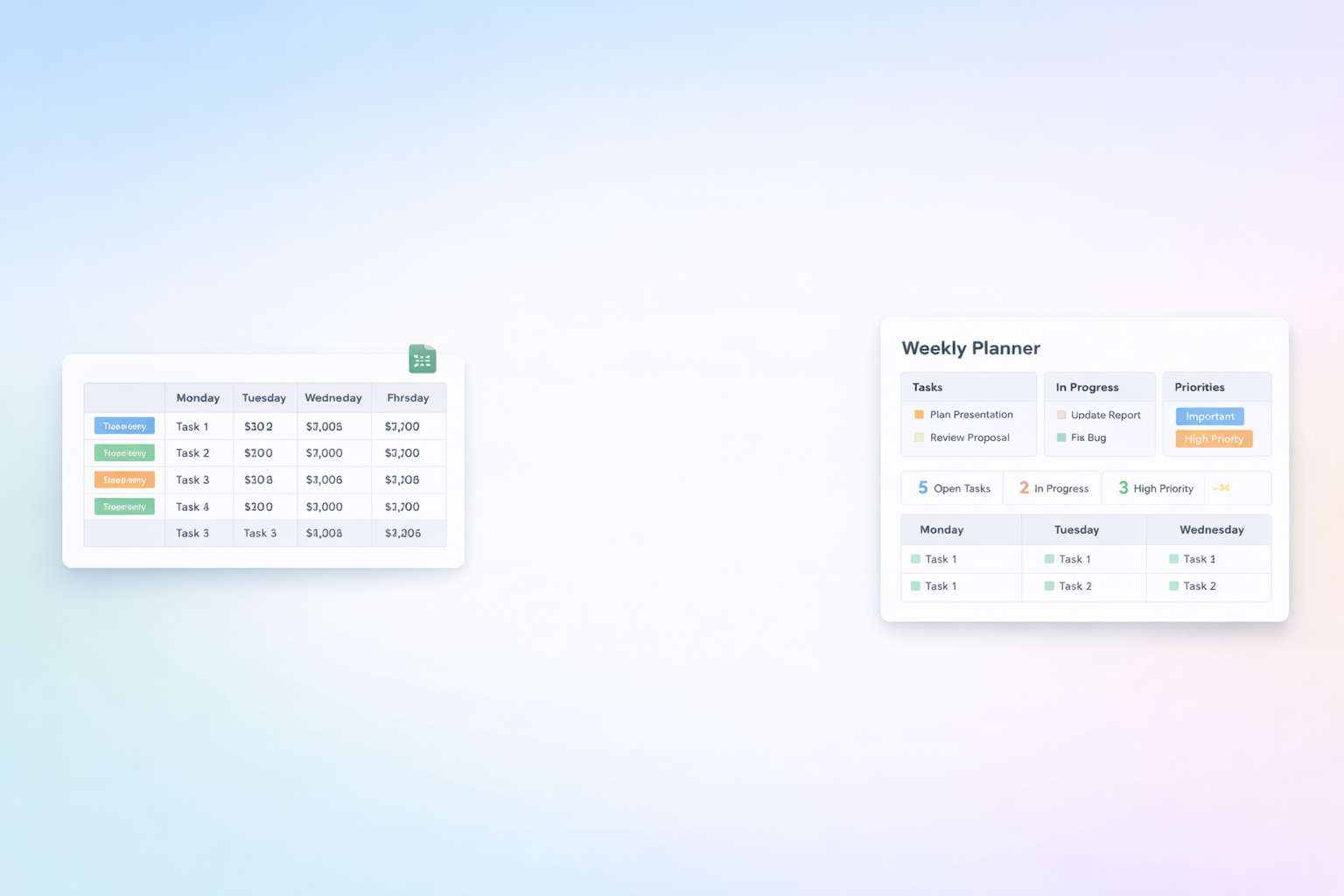
Open your Google Sheets weekly planner and you can almost see the week breathing: columns for each day, rows for every 30 minutes, color blocks for meetings, launches, sales calls. It’s familiar, flexible, and already lives where your team works.
That’s why a weekly planner template in Google Sheets is such a powerful hub for owners, agencies, sales and marketing teams. You get instant sharing, version history, filters by rep or client, and simple checkboxes to track what actually shipped. No new software. No steep learning curve.
Now layer an AI agent on top of that structure. Instead of you dragging blocks around at 10 p.m., the agent reads your priorities, lead lists, and campaign deadlines, then reshuffles the planner for you. It can copy in tasks from your CRM, mark done items, and highlight at-risk projects. Delegating the busywork of planning to an AI agent turns Sheets from a static calendar into a living, self-updating command center, so your time goes into the work that actually moves revenue, not coloring cells.
Method 1: Start from a blank sheet
See Google’s basics guide if you’re new to Sheets: https://support.google.com/docs/answer/6000292
Method 2: Use a pre-built weekly template
Method 3: Import a template from the web
Method 4: Add useful formatting and formulas
More on formatting and functions: https://support.google.com/docs/answer/3540681
Once your weekly planner is stable, the next bottleneck is feeding it with data and keeping it up to date. This is where no-code automation tools shine.
No-code idea 1: Auto-add new leads or tasks into your weekly planner
Use a tool like Zapier or Make (Integromat-style) to push tasks into your planner when events happen in other apps:
This keeps your weekly view close to capacity without manual copy-paste.
No-code idea 2: Turn form submissions into scheduled work
No-code idea 3: Daily digest and reminders
No-code idea 4: Connect Sheets to other data sources Leverage Google Workspace Marketplace add-ons (https://workspace.google.com/marketplace?host=sheets) to sync calendars, time trackers, or PM tools directly into your planner. Many add-ons can mirror events onto your Sheet without writing a single line of code.
Pros of no-code:
Manual and no-code flows help, but they still rely on you to think, click, and fix things. An AI agent platform like Simular Pro turns your Google Sheets weekly planner into a surface the agent can literally work on.
Simular’s AI agents operate across your desktop, browser, and cloud apps. They can navigate to Google Sheets, open your planner, read what’s on it, cross-reference with email, CRM, or docs, and then take actions just like a human would.
Agent method 1: Autonomous weekly planning assistant Workflow idea:
Pros:
Learn more about Simular Pro’s capabilities: https://www.simular.ai/simular-pro
Agent method 2: Live maintenance of the planner during the week
Instead of you constantly adjusting the plan:
Agent method 3: Reporting and retro for founders and managers
At week’s end, a Simular agent can:
You get the reliability of traditional RPA plus the flexibility of an AI that actually understands your schedule. And because Simular exposes each agent step visibly, you can inspect, tweak, and debug the workflow rather than trusting a mysterious black box.
In short, start with a solid Google Sheets weekly planner template. Then graduate from manual updates to no-code automations, and finally let an AI agent like Simular Pro handle the heavy lifting so your calendar becomes truly autonomous.
Start with the structure you saw in classic weekly templates. In Google Sheets, create a new blank spreadsheet. In row 1, merge A1:H1 and add a title like "Weekly Planner". In row 2, put the starting date in B2, then fill across with consecutive dates using the fill handle. Row 3 is for weekday names (Monday–Sunday). Column A holds your time slots: type 8:00 AM in A5 and 8:30 AM in A6, select both, then drag down to auto-fill the rest of the day. Now you’ve created a grid where columns = days and rows = time. Type your meetings, sales tasks, campaign work, and admin blocks into the cells that match when they should happen. Use colors for categories (e.g., one color per client or channel). Finally, freeze rows 1–3 (View → Freeze → Up to row 3) so headers stay visible while you scroll. This gives you a clean, reusable weekly planner layout.
After you’ve built or copied a weekly planner template, customization is where it becomes genuinely useful for your team. First, add columns to the right of each day for metadata, like an "Owner" column or "Channel" column to track who and what each block is for. Next, set up a NOTES section at the bottom of the sheet for weekly goals and retrospectives. Use conditional formatting (Format → Conditional formatting) so tasks with dates before TODAY() and not marked complete turn red, making at-risk work pop visually. Add checkboxes (Insert → Checkbox) in a "Done" column so your team can quickly mark completion. You can also create separate tabs: one for a master backlog of tasks, one for each team’s specific weekly view. To make it visually intuitive, adjust row height for time slots, apply consistent colors for task types, and use borders to separate days. Save this as a master template, then duplicate it for each new week.
There are two practical ways to connect your Google Calendar to a Sheets weekly planner. The fast, semi-manual route is to export or copy events. In Google Calendar, switch to Week view and use the print or export options to get a list of events, then paste them into your planner’s "Events" tab and reference them with formulas or filters.
For an ongoing sync, use the Google Workspace Marketplace. Search for a calendar-to-sheets add-on that supports your account type, install it, and grant permission. Configure it to pull events for specific calendars and date ranges into a dedicated tab, with columns like Start time, End time, Title, and Attendees. In your weekly planner tab, use FILTER or QUERY formulas to pull only events matching the current week’s dates into the correct day columns. This gives you a living view where scheduled calendar events sit alongside manually planned deep-work blocks without you retyping everything.
To turn your Google Sheets planner into a performance dashboard rather than a static calendar, you need simple progress tracking. Start by adding a "Status" column next to each day or in a separate tasks tab. Insert checkboxes (Insert → Checkbox) so each row can be marked done. Then create a summary section at the top or in a dedicated "Summary" tab. Use formulas like =COUNTIF(DoneRange, TRUE) to count completed tasks, and =COUNTA(DoneRange) for total tasks. Combine them into a completion rate: =COUNTIF(DoneRange, TRUE)/COUNTA(DoneRange). You can further break this down by owner using COUNTIFS to see completion percentages per salesperson or account manager.
Add conditional formatting to dim or gray out completed rows, and highlight high-priority tasks that are still unchecked near the end of the week. Finally, at the end of each week, copy key metrics into a rolling log tab for trend analysis on how your team’s capacity and focus are evolving.
Automation starts with a clear, predictable structure, which your Google Sheets weekly planner already provides. To bring in an AI agent like Simular, first define the decision rules you use: how you prioritize leads, when you schedule deep work vs. meetings, what counts as urgent. Next, set up your data sources: a tab that pulls in open deals from your CRM, tasks from your helpdesk, or campaign to-dos from a PM tool. A Simular AI agent can be configured to open your browser, navigate to these tools, read the data, and then open your Sheets planner.
From there, you teach it to translate rules into actions: place high-value deals early in the week, cluster similar tasks, and respect existing appointments. Because Simular Pro makes every agent action transparent and step-by-step, you can watch the agent populate and adjust your planner, then refine its behavior. Over time, you move from approving its suggestions to fully delegating weekly planning, so the AI pre-builds your schedule while you focus on strategy.