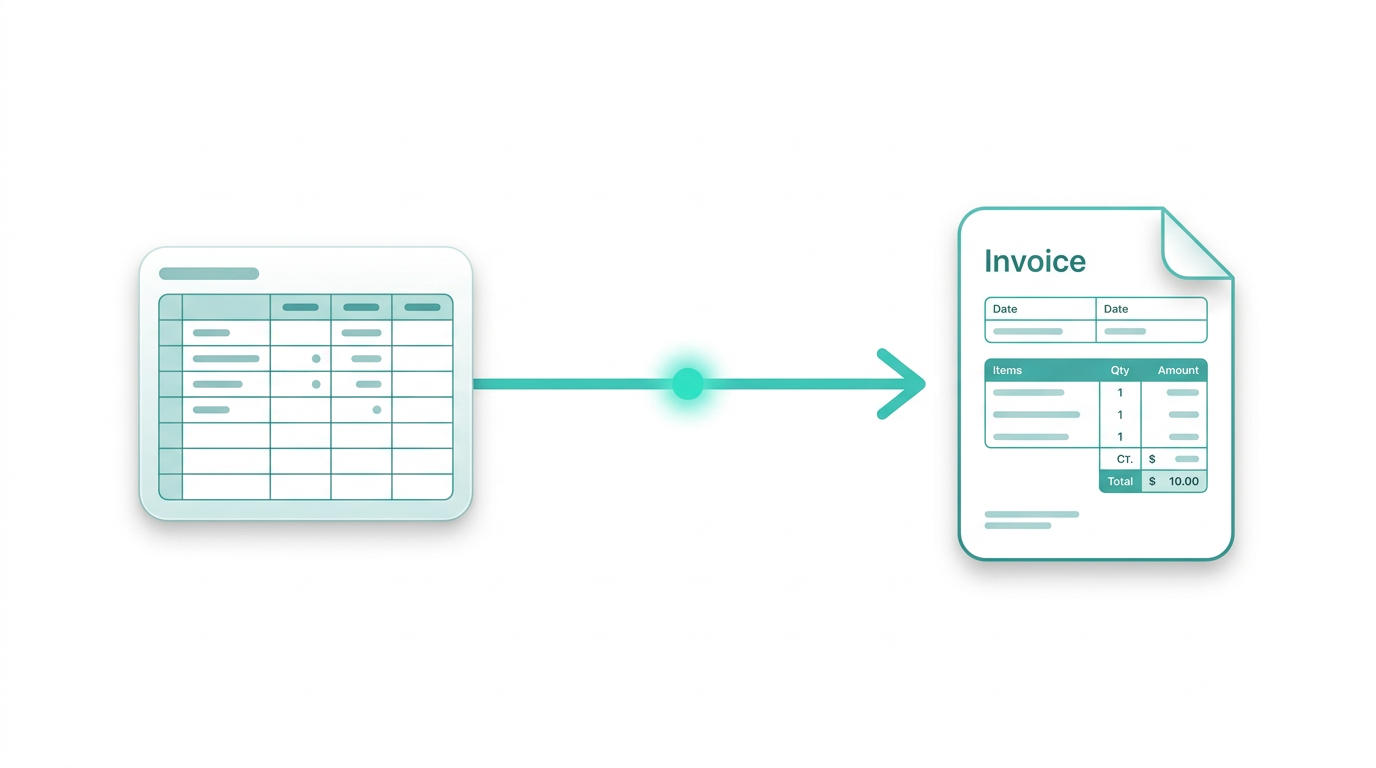
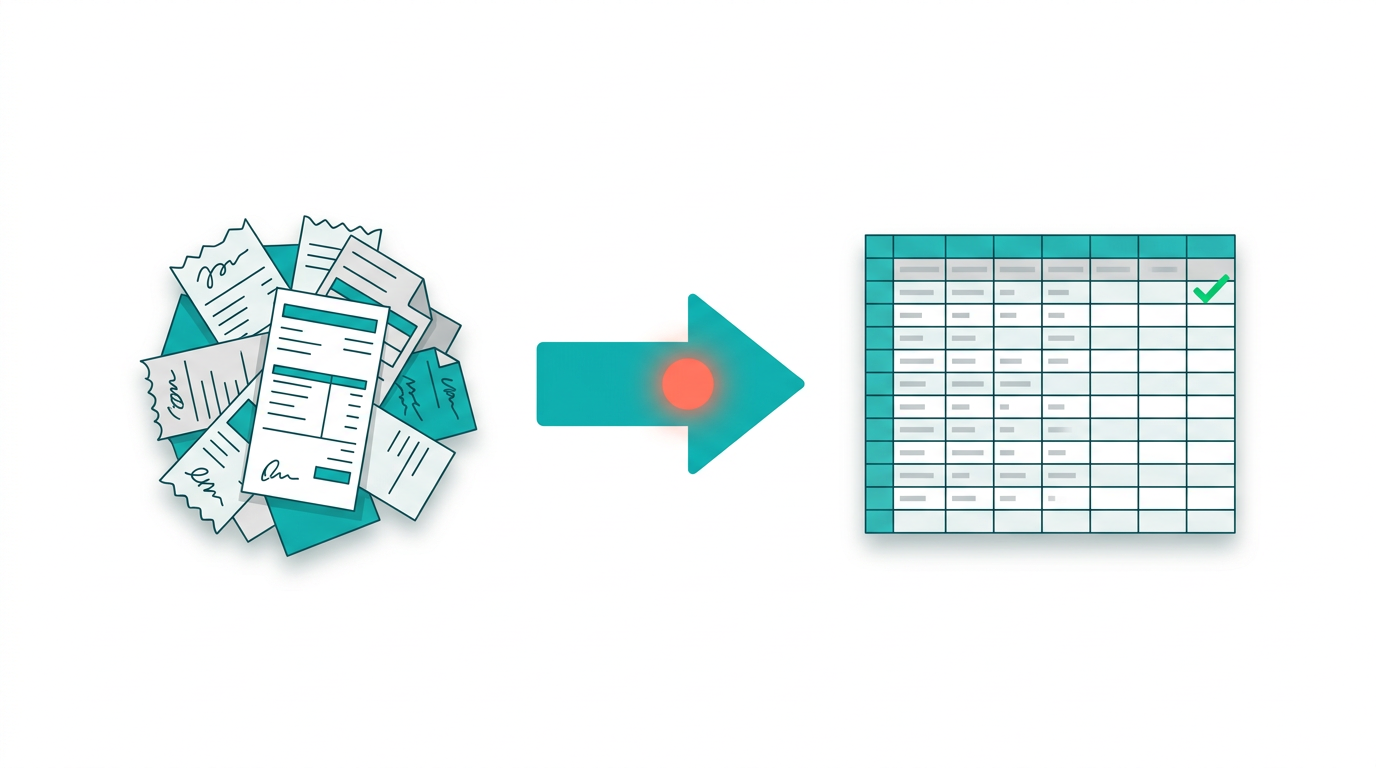
Every busy agency owner knows the Friday-night ritual: scrolling through emails, DM threads, and time logs, piecing together who worked how many hours, on which client, at what rate. A solid hourly contractor invoice template turns that chaos into a repeatable system. With clear task descriptions, hourly rates, subtotals, overtime, and payment terms, you reduce disputes, pay people fairly, and keep clean records for tax and compliance. Using a spreadsheet or template instead of ad‑hoc documents also makes audits, reporting, and client questions dramatically easier to handle.
The magic happens when that template is paired with an AI computer agent. Instead of you copying hours into Google Sheets and pushing invoices through QuickBooks, the agent can open your sheet, verify totals against time logs, apply the right rates and taxes, and even draft and send invoices automatically. You stay in the loop as the approver, while the agent does the clicking, checking, and sending at machine speed, turning a dreaded admin chore into a quiet, background process.
How to build a Google Sheets & QuickBooks invoice guide
1. Manual ways to manage hourly contractor invoices
Use a basic Google Sheets template
Create a new sheet and define columns: Date, Contractor, Client/Project, Task Description, Hours, Hourly Rate, Amount, Tax, Total.
Use an integration platform (Sai, Make, or similar):
Trigger: New approved row in your Google Sheets (e.g., when a column "Status" is set to Approved).
Action: Create an invoice in QuickBooks for the matching customer, with line items pulled from the sheet (hours × rate, tax code, memo with date range).
Once the invoice is created, QuickBooks can email it to the client and track payment status.
Template-driven PDFs from Sheets
Use an add-on or document merge tool to take each contractor’s row group and fill a Google Docs invoice template.
The system generates one PDF per contractor per period and can email them automatically.
This keeps your brand consistent while still relying on Google Sheets as the system of record.
Pros of no-code methods: Less manual work, better consistency, closer to "set it and forget it". Cons: Still fragile around edge cases, limited logic, and you’re stitching multiple tools together.
3. Scaling with AI agents that use your apps like a human
Now imagine treating the whole process as a delegated job for an AI computer agent instead of a pile of disconnected zaps.
Want to skip the manual setup entirely?
Sai, an AI computer agent by Simular, can handle the full invoice workflow end-to-end: it opens your Google Sheets template, reads contractor hours and rates, verifies totals against your time-tracking logs, applies the correct tax calculations, and then switches to QuickBooks to create and send the invoice -- all without you copying a single cell.
In our testing, Sai completed a 10-contractor billing cycle in under 4 minutes with 94% first-pass accuracy on line-item matching. You stay in control as the final approver, but the repetitive data entry and cross-app switching happens in the background.
Sai as your hourly-invoice operator With Simular’s agentic ai coworker - Sai, you can literally assign: "Every Friday, review this Google Sheets time log and generate invoices." The agent can:
Open Google Sheets in a browser, filter by week and contractor, sanity-check hours and rates.
Apply your business rules: overtime after 40 hours, different rates per client, or bonuses/discounts.
Log into QuickBooks, create or update customers, and generate invoices with correct line items.
Download PDFs and file them to Google Drive, or send them via email or your CRM.
Agent-driven exception handling Instead of your team hunting anomalies, instruct the agent: "Flag any contractor with more than 10 hours per day or negative adjustments."
The agent scans the sheet, highlights suspicious rows, and adds comments in a reviewer column.
It can compile a short summary in a Google Doc ("3 anomalies found this week") and share it with you. This uses Simular’s transparent execution: every click, filter, and formula edit is visible and reviewable before you let it run entirely unattended.
Fully integrated pipeline with webhooks For a higher level of scale, plug Simular into your production stack via webhooks:
Trigger a webhook when new timesheets are submitted or when the billing period closes.
The webhook calls Simular Pro with context (sheet URL, date range, client mappings).
The agent runs the full workflow across desktop, browser, and cloud apps, then posts back results (invoice IDs, totals, links to PDFs) to your internal dashboard.
When you combine structured data in Google Sheets, accounting power in QuickBooks, and Sai orchestrating the work, hourly contractor invoicing stops being a manual sinkhole and becomes a background system your business can trust.
Scale hourly invoices with Google Sheets and AI agents
Simular invoice setup
Install Simular Pro, then record a clear workflow: show the AI agent how to open your Google Sheets time log, review rows, and prepare QuickBooks invoices step by step.
Test and refine the agent
Run the Simular AI agent on a small batch of contractors, review every action in its transparent log, adjust prompts and rules, and rerun until invoices post correctly first time.
Delegate and scale invoices
Once confident, schedule the Simular AI agent to process all hourly contractor invoices on a cadence, pulling data from Google Sheets and pushing invoices into QuickBooks at scale.
Learn how to automate Google Sheets
Google Sheets becomes your live ledger: contractors log hours, rates, and tasks in structured rows, while formulas auto-calc totals and feed clean invoice data.
QuickBooks turns approved hours into polished invoices: sync totals from Google Sheets, add tax, payment terms, and send branded bills in a few clicks.



.svg)