Every business lives or dies by the truth of its spreadsheets. Forecasts, media plans, commission reports, cash runway models – they all hide inside cells that can be broken by a single mistyped range or missing parenthesis. Studies show that the vast majority of spreadsheets contain errors, yet busy teams rarely have the time or discipline to audit every formula. Google Sheets and Excel try to help with green triangles, error messages, and auditing tools, but they still rely on a human patiently clicking through each warning.At small scale that’s fine. Once you are running dozens of linked workbooks or campaign sheets, manual checks turn into an exhausting ritual that always happens too late. This is exactly where an AI computer agent shines: it can open each file, follow every formula path, apply consistent rules, and log issues before numbers hit a board deck. Instead of hunting for #DIV/0! at midnight, you review a clean exception report and decide what matters.
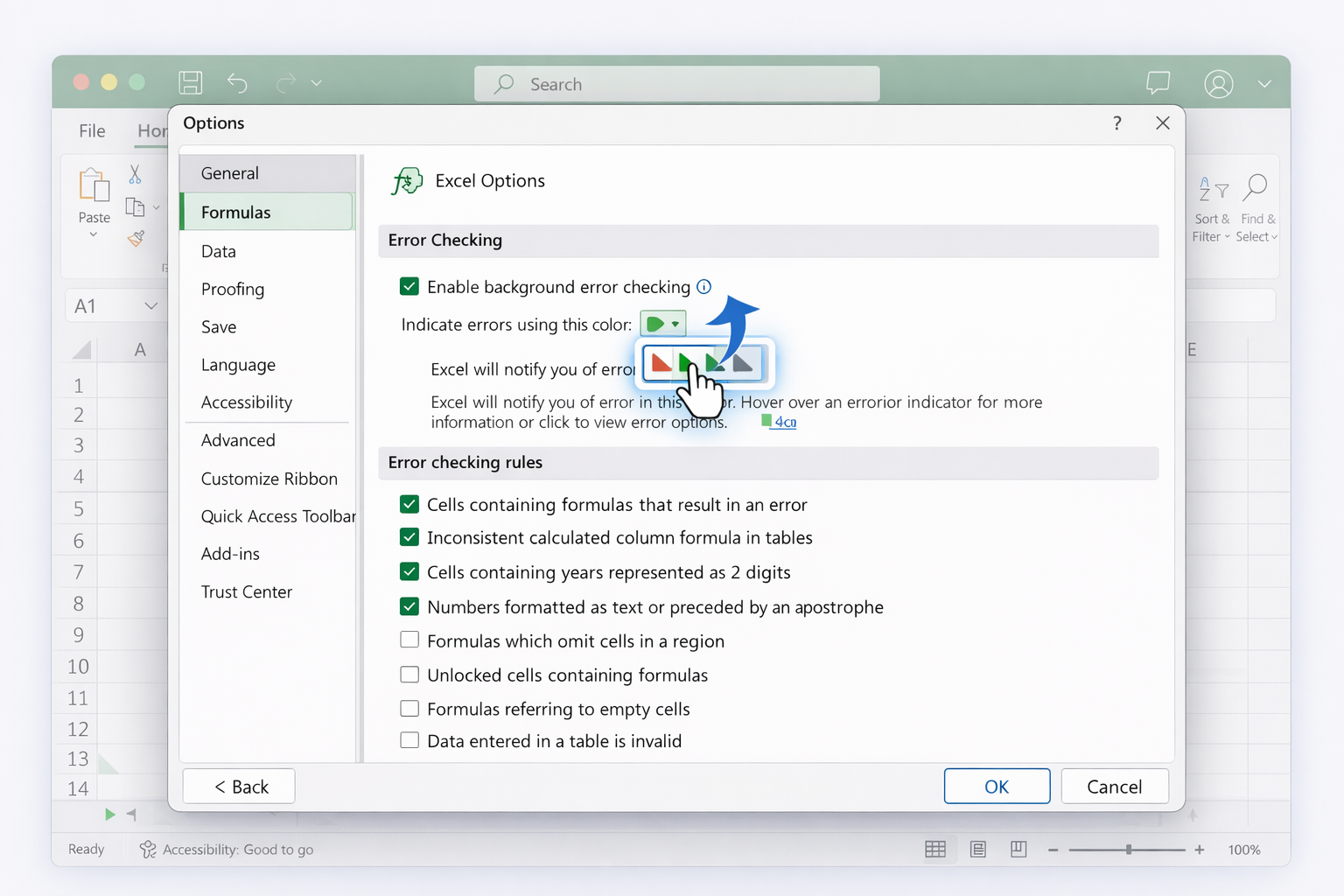
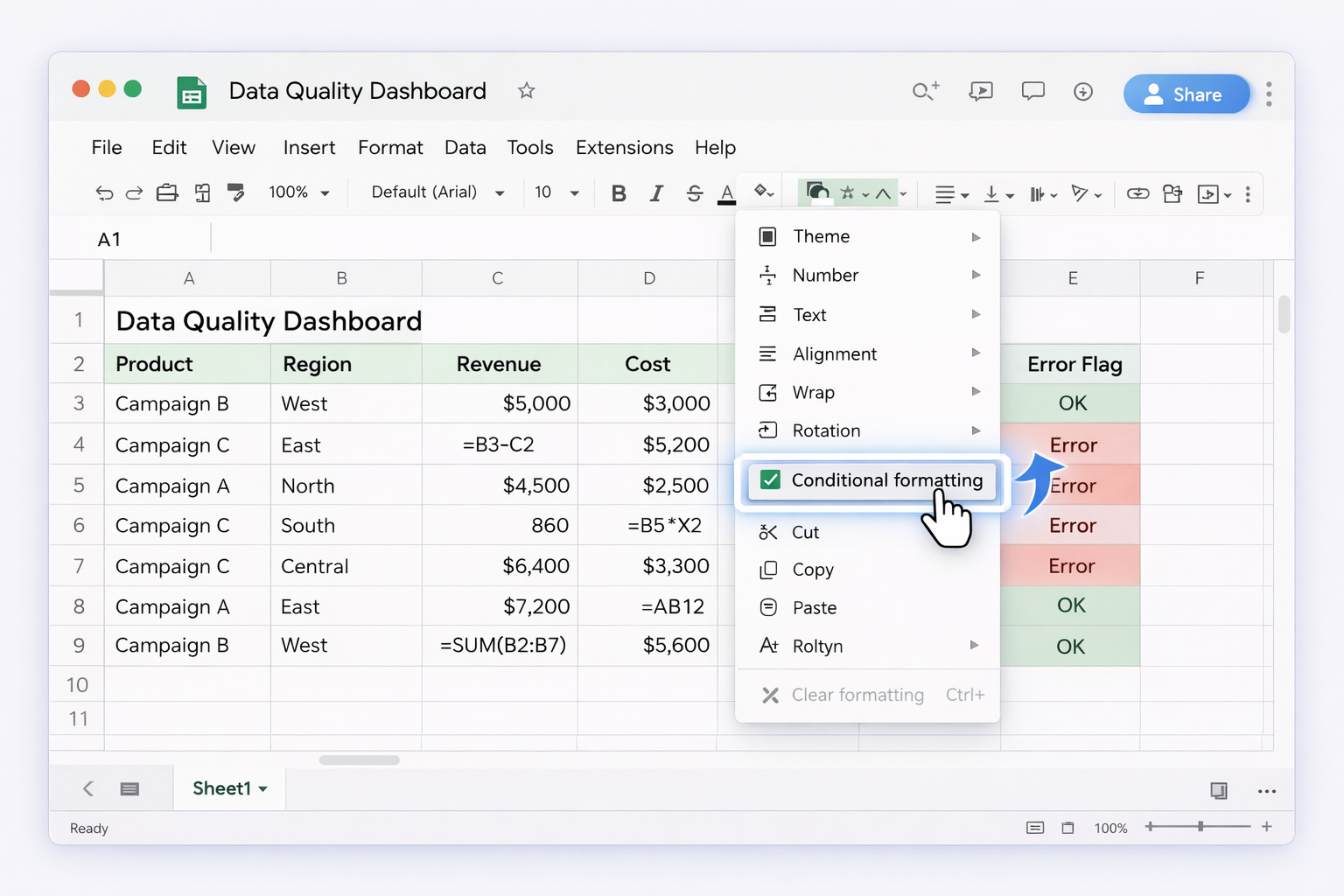
### OverviewIf you manage forecasts, ad spend, or client reports, you already know the sinking feeling of spotting a formula error after a meeting. The good news: Google Sheets and Excel both ship with serious error-checking power. Layer in automation and an AI computer agent, and you can turn error checking from a chore into an invisible background process.Below are three tiers of tactics: manual, no-code automation, and AI-agent driven.---## 1. Manual and traditional methods (Google Sheets and Excel)### 1.1 Turn on background error checking (Excel)1. Open your workbook in Excel.2. Go to **File → Options → Formulas**.3. Under **Error checking**, ensure **Enable background error checking** is checked.4. Choose a triangle color if you like.5. Under **Error checking rules**, keep the key ones enabled: - Cells containing formulas that result in an error - Inconsistent calculated column formula in tables - Formulas omitting adjacent cells, referring to empty cells, etc.Now, as you work, Excel marks suspicious cells with a small green triangle. Hover to see the message, click the warning icon, and choose **Help on this error** or **Edit in Formula Bar**.Official doc: https://support.microsoft.com/en-us/office/detect-formula-errors-in-excel### 1.2 Use the Error Checking dialog (Excel)For a more systematic sweep:1. Go to the **Formulas** tab.2. In **Formula Auditing**, click **Error Checking**.3. Excel selects the first error on the active sheet and opens the dialog.4. Use **Previous** and **Next** to navigate.5. For each error, choose: - **Show Calculation Steps** to open **Evaluate Formula**. - **Edit in Formula Bar** to fix. - **Ignore Error** only when you are certain it is intentional.This is the fastest built-in way to walk through every error.Reference: https://bettersolutions.com/excel/formulas/error-checking.htm### 1.3 Trace precedents and dependents (Excel)When an error appears, the real cause might be upstream:1. Select the cell with the error.2. On **Formulas → Formula Auditing**: - Click **Trace Precedents** to see arrows from inputs. - Click **Trace Dependents** to see where the result flows.3. Follow the arrows to find the first cell that stops behaving as expected.4. Fix the earliest broken link; many downstream errors will disappear.5. Use **Remove Arrows** once done to clear the view.This is crucial for complex models with many linked sheets.### 1.4 Evaluate formulas step-by-step (Excel)For stubborn bugs:1. Select the problematic formula cell.2. Go to **Formulas → Evaluate Formula**.3. Click **Evaluate** repeatedly.4. Watch how Excel resolves each part: ranges, functions, operators.5. Note where the evaluation suddenly jumps to an error value like #N/A or #VALUE!; that’s your root cause.This is like a debugger for spreadsheets and great for training junior analysts.### 1.5 Data validation to prevent errors (Excel and Google Sheets)Instead of cleaning errors later, block bad inputs upfront.**Excel:**1. Select the input range.2. Go to **Data → Data Validation**.3. Under **Allow**, pick type (e.g., Whole number, Decimal, Date, List).4. Configure constraints (e.g., 0–1 for percentages).5. Add an **Input Message** to guide users and an **Error Alert** with clear language.Docs: https://support.microsoft.com/excel → search for "Data validation in Excel".**Google Sheets:**1. Select the range.2. Go to **Data → Data validation**.3. Choose criteria (number, list from a range, checkbox, etc.).4. Decide whether to **Show warning** or **Reject input**.5. Optionally add a **help text**.Docs: https://support.google.com/docs → search for "Use data validation".### 1.6 Formula-based handling with IFERROR and friendsFor both Excel and Sheets:- Use **IFERROR** to replace any error with a safe fallback: - `=IFERROR(A1/B1, 0)`- Use **IFNA** for lookup-specific #N/A handling: - `=IFNA(VLOOKUP("Item", A2:B10, 2, FALSE), "Not found")`- Use **ISNUMBER**, **ISTEXT**, **ISBLANK** to guard calculations: - `=IF(ISNUMBER(A1), A1*2, "Invalid input")`Pros:- Very precise control.- Great for dashboards where users should never see raw error codes.Cons:- Can hide *real* problems if used blindly.- Still requires you to design each guard manually.---## 2. No-code automation methods### 2.1 Google Sheets: custom views and conditional formattingYou can build an error dashboard inside Sheets without code.1. Add a helper column that flags errors: `=IF(ISERROR(A2), "Error", "OK")`.2. Apply **Filter views** to show only rows marked Error.3. Add **Conditional formatting**: - Select your main data range. - Go to **Format → Conditional formatting**. - Use a custom formula like `=ISERROR(A1)` and color errors red.Docs: https://support.google.com/docs → search for "Conditional formatting".This creates a simple QA layer your team can quickly skim.### 2.2 Excel: tables, structured references, and rulesTurn ranges into Excel Tables to reduce formula mistakes:1. Select your data.2. Press **Ctrl+T** or **Insert → Table**.3. Use column names in formulas (structured references) instead of raw cell addresses, e.g. `=[@Revenue] - [@Cost]`.4. Enable error checking rules that flag inconsistent formulas in a column.When someone accidentally changes one row’s formula, Excel will warn you about the inconsistency.Docs: https://support.microsoft.com/excel → search for "Create and format tables".### 2.3 Workflow tools: Power Automate, Zapier, MakeNo-code platforms can periodically scan files for obvious issues.**Example with Power Automate + Excel:**1. Store Excel workbooks in OneDrive or SharePoint.2. In Power Automate, create a scheduled flow.3. Use **List rows present in a table** to pull data.4. Add conditions to detect known bad values (blank mandatory fields, negative quantities, etc.).5. Send a summary email or Teams message with links to affected rows.Docs: https://learn.microsoft.com/power-automate/ → search "Excel connector".**Example with Zapier + Google Sheets:**1. Trigger: schedule every night.2. Action: **Google Sheets → Lookup Spreadsheet Row(s)**.3. Use filters to find rows where status is blank or values look wrong.4. Send a Slack DM or email with a list of rows to fix.Pros:- No engineers required.- Centralized alerts instead of ad-hoc hunting.Cons:- Limited to patterns you predefine.- Still not fully aware of cross-sheet formulas or complex dependencies.---## 3. At-scale and AI-agent workflowsManual and no-code methods keep you safe up to a point. When you are juggling many Excel and Google Sheets files for clients or internal teams, you need something that works like a tireless analyst.### 3.1 Let an AI computer agent perform nightly spreadsheet auditsUsing a computer-use AI agent like Simular Pro, you can:1. Have the agent open your Google Drive or OneDrive.2. For each designated file, it will: - Open the spreadsheet in Google Sheets or Excel. - Run built-in error checks (Error Checking dialog, filter views, conditional formatting). - Traverse key tabs, inspect formulas, and note any #DIV/0!, #VALUE!, #N/A, #REF!, or inconsistent formulas. - Export a summary of issues into a central Google Sheet or Excel log.3. Simular’s transparent execution means every click and formula inspection is logged; you can replay the session to see *why* something was flagged.Pros:- Offloads repetitive, mechanical review.- Works across dozens of files without human supervision.- Perfect for agencies managing many client reports.Cons:- Requires initial setup and onboarding of the agent.- Best suited to structured, repeatable checks.### 3.2 Use AI to cross-check logic, not just syntaxBeyond spotting obvious error codes, an AI agent can reason about whether formulas make business sense:1. Train the agent with examples of correct models: e.g., standard CAC, ROAS, and LTV calculations.2. Provide a checklist: revenue should never be negative, margins should stay within certain bands, totals should match pivot summaries.3. The agent opens your Sheets/Excel, evaluates not only syntax errors but also suspicious patterns (e.g., a campaign with 400% CTR).4. It then writes comments directly in the sheet and sends you a narrative summary.Pros:- Catches logic errors humans might miss.- Gives narrative explanations stakeholders can understand.Cons:- Requires thoughtful definition of business rules.- You still make the final business judgment; the agent surfaces candidates.### 3.3 Integrate error checks into your production pipelineIf you export data from CRMs, ad platforms, or billing tools into Sheets/Excel, you can place an AI agent between export and reporting:1. Upstream system exports CSV or XLSX on a schedule.2. A webhook triggers Simular Pro.3. The agent imports data into a template workbook, runs all manual-style checks automatically, and only then publishes fresh numbers to a reporting file.4. If serious issues are detected, it posts to Slack or email instead of updating dashboards.Pros:- Prevents bad data from ever hitting stakeholder reports.- Production-grade: designed for thousands of steps with high reliability.Cons:- Requires slightly more engineering-like setup at the beginning.By combining strong manual hygiene, light no-code workflows, and an AI computer agent that behaves like a meticulous analyst, you turn Google Sheets and Excel from fragile spreadsheets into dependable infrastructure.
Lorem ipsum dolor sit amet, consectetur adipiscing elit, sed do eiusmod tempor incididunt ut labore et dolore magna aliqua. Ut enim ad minim veniam, quis nostrud exercitation ullamco laboris nisi ut aliquip ex ea commodo consequat. Duis aute irure dolor in reprehenderit in voluptate velit esse cillum dolore eu fugiat nulla pariatur.
Block quote
Ordered list
Unordered list
Bold text
Emphasis
Superscript
Subscript
Start by turning on Excel’s background error checking so it continuously flags issues as you work. Go to File → Options → Formulas and ensure ‘Enable background error checking’ is checked, then keep the key rules turned on, such as formulas resulting in an error, inconsistent formulas, and formulas that omit adjacent cells. Next, use the Formulas → Error Checking button to open the Error Checking dialog. This walks you through each problematic cell on the active sheet in sequence. For every error, read the description, then use ‘Show Calculation Steps’ (Evaluate Formula) to see how Excel is resolving the expression, step by step. Combine this with ‘Trace Precedents’ and ‘Trace Dependents’ to visualize which cells feed into and out of the error. Fix the earliest broken input rather than patching symptoms downstream. Finally, do a quick pass for intentional errors you want to ignore and mark them explicitly so teammates know they are safe to skip.
Prevention starts with clean inputs. In both Excel and Google Sheets, use Data → Data Validation to tightly control what users can enter. For example, constrain percentage fields between 0 and 1, dates within your reporting period, and select lists for campaign names. Add clear input messages so users understand the rules. Next, use tables and structured references in Excel (Insert → Table) so formulas reference column names rather than fragile A1-style coordinates. This makes copy/paste safer and reduces off-by-one mistakes. In your formulas, wrap risky operations in guards: IFERROR around divisions and lookups, IFNA for expected ‘not found’ cases, and ISNUMBER or ISBLANK checks before multiplying or summing. Finally, create a small ‘sanity check’ section in every model that recomputes totals via independent methods (e.g., sum of details vs. summary pivot); if they disagree, you know something broke long before a stakeholder sees the numbers.
Build a reusable QA template instead of reinventing checks in every file. Start by designing a small ‘Checks’ sheet that includes: 1) key balance tests (do subtotals equal grand totals?), 2) count checks (number of campaigns in the raw data vs. number in the report), and 3) simple rule tests (no negative revenue, no blank required IDs, no dates outside the period). Implement these using formulas like COUNTIF/COUNTIFS, SUMIF/SUMIFS, and logical expressions that return TRUE/FALSE. Then, in both Excel and Google Sheets, turn this into your default reporting template for the team. When a new workbook is created, analysts paste raw data into designated tabs while the Checks sheet automatically lights up any issues. For extra consistency, document how to interpret each check on the same sheet. Over time, refine the template as you encounter new error patterns, so every new file benefits from lessons learned in the previous ones.
Excel offers rich, desktop-grade auditing tools: background error checking with green triangles, the Error Checking dialog, Evaluate Formula, and Trace Precedents/Dependents. These are ideal for deep dives into complex models, especially when multiple linked sheets are involved. Google Sheets is stronger on collaboration and simplicity: errors show directly in cells with helpful messages, and functions like IFERROR, ISERROR, and data validation are straightforward to use. Sheets lacks a full Evaluate Formula window, but you can often simulate it with helper cells that compute intermediate results. For large teams editing the same file, Sheets’ version history also acts as a safety net when bad edits slip in. A pragmatic approach is to design robust templates that work in both tools—using portable functions and clear validation rules—and then lean on Excel’s auditing features when you need to debug something nuanced or performance-critical.
An AI agent behaves like a tireless analyst who never gets bored of clicking. Instead of you opening each Excel or Google Sheets file, scanning for green triangles, and tracing formulas, the agent does those steps on your behalf. With a tool like Simular Pro, you define the playbook once: which folders to monitor, which workbooks and tabs are critical, which error codes or business rules matter, and how to log findings. The agent then opens each file on your desktop or in the browser, runs built-in error checks, applies custom logic (for example, ‘no negative margins’, ‘no blank campaign IDs’), and writes a structured exception report into a central spreadsheet. Because Simular’s execution is transparent, you can replay exactly what it did if something looks off. This shifts your role from manual checker to reviewer of high-signal alerts, freeing up hours each week for strategy, clients, or experimentation.