Guide: how to MAKEARRAY in Google Sheets and Excel

Turn Google Sheets and Excel into living models with MAKEARRAY-style formulas, then let an AI computer agent maintain, extend and debug your data workflows for you.
Advanced computer use agent
Production-grade reliability
Transparent Execution

AI agents for Sheets & Excel

In a sales or agency team, MAKEARRAY is like a grid generator on steroids. In Excel, =MAKEARRAY(rows, cols, LAMBDA(r,c,calc)) builds entire tables in one hit, filling each cell with logic instead of copy‑pasted formulas. You can spin up pricing matrices, funnel simulations, A/B test grids, even randomized sample data using RANDBETWEEN and CHOOSE.The magic is that your structure becomes declarative: you describe the pattern once and Excel does the rest. No more dragging fill handles across thousands of rows or rebuilding layouts when your CEO asks for “just one more segment”.Now imagine an AI computer agent watching over those workbooks. Instead of you tweaking row and column counts or hunting #VALUE! errors, the agent updates MAKEARRAY arguments, adjusts LAMBDA functions, and regenerates tables on demand. You stay focused on campaign strategy or pipeline reviews while the agent mass-updates sheets, tests scenarios and keeps formulas consistent across every client file.

Guide: how to MAKEARRAY in Google Sheets and Excel

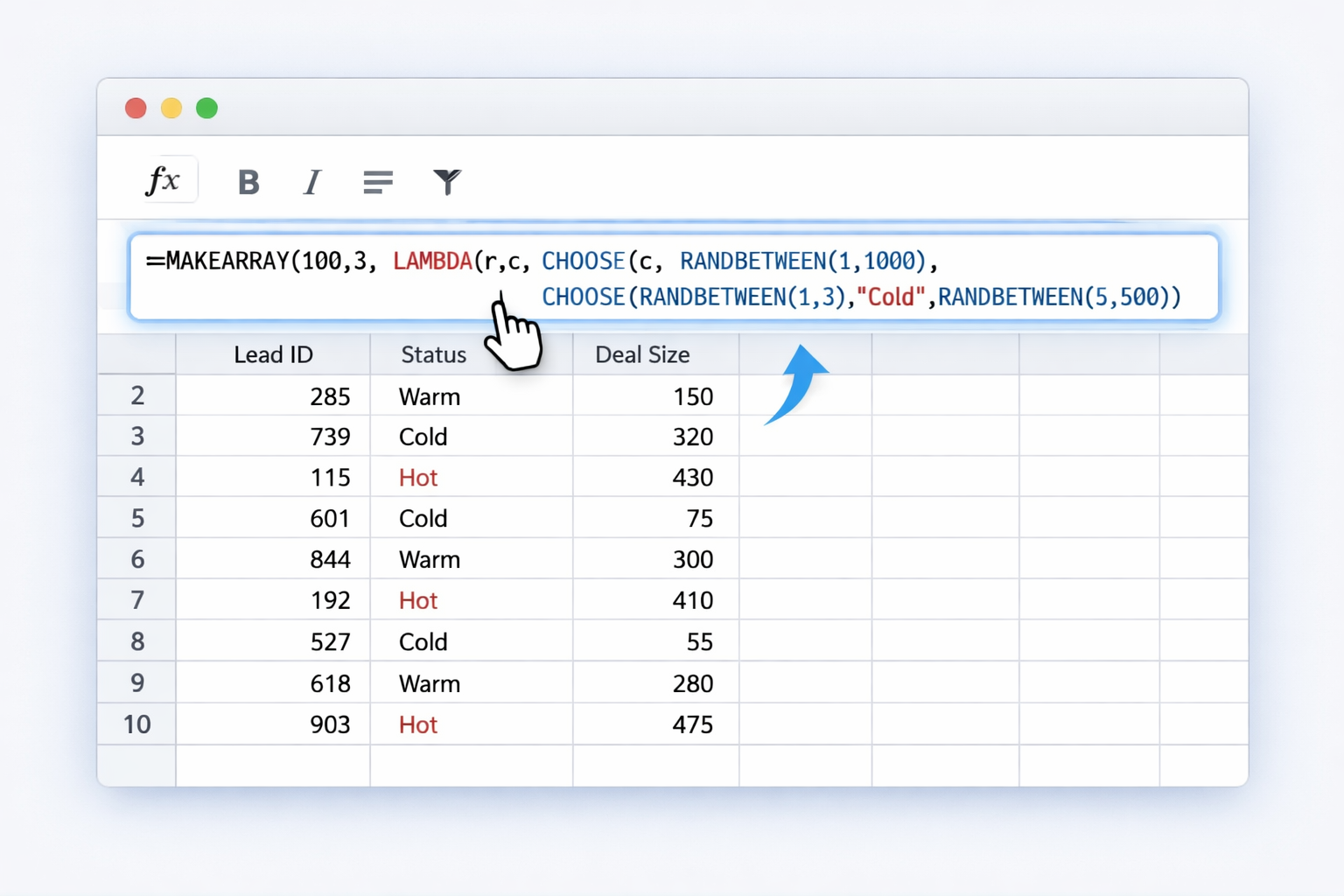
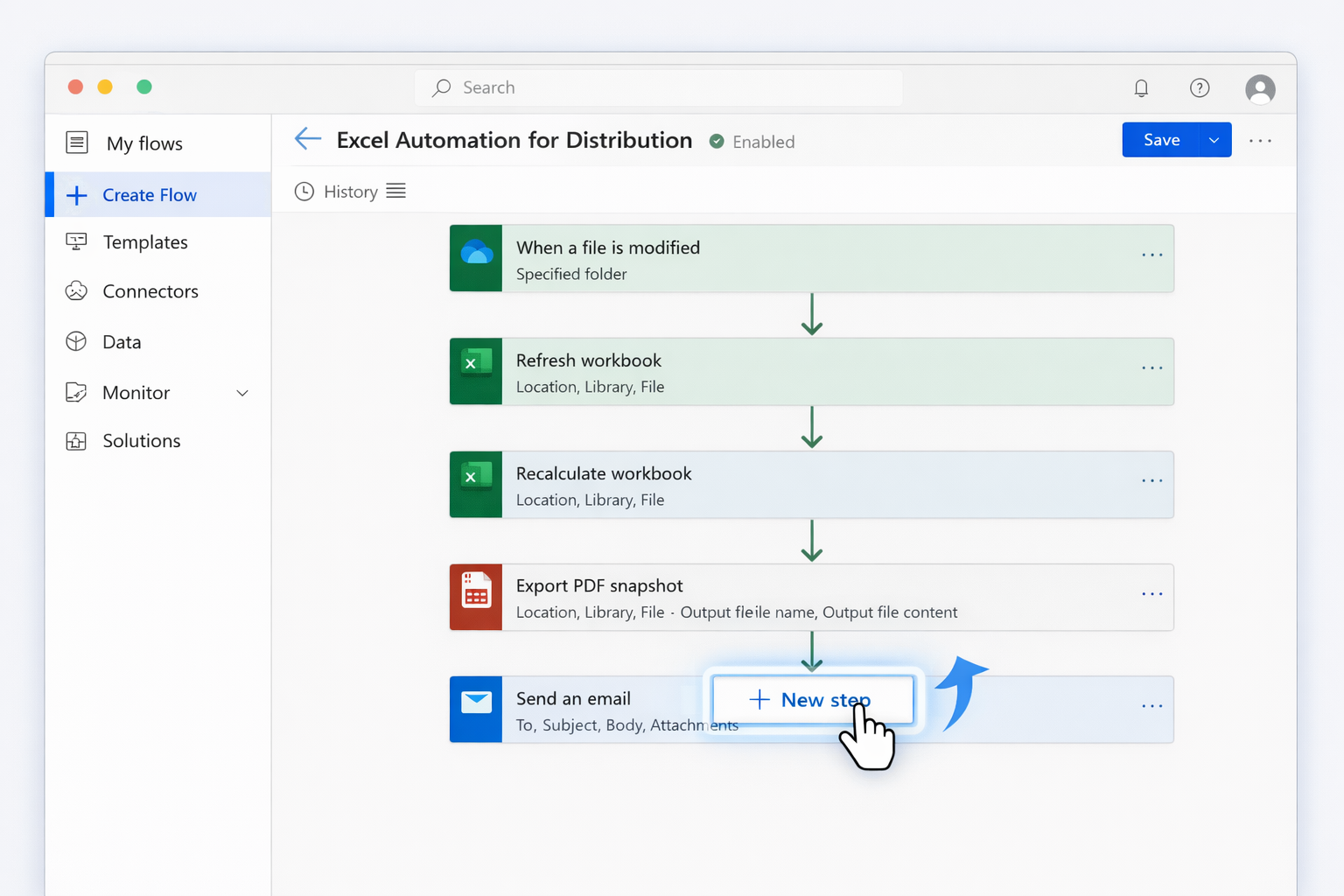
# Top Ways to Use and Automate MAKEARRAY-Style LogicBusiness owners, agencies, and sales teams live inside spreadsheets. MAKEARRAY in Excel (and its cousins in Google Sheets) let you turn those spreadsheets into programmable canvases. Let’s walk through practical ways to use it manually, with no-code tools, and finally at scale with an AI agent.---## 1. Manual methods inside Excel and Google Sheets### 1.1 Basic MAKEARRAY in ExcelStart with the official Microsoft docs: https://support.microsoft.com/en-us/office/makearray-function-b80da5ad-b338-4149-a523-5b221da09097**Goal:** Create a calculated table, e.g., a lead-scoring grid.1. Open Excel (Microsoft 365 / Excel 2024+).2. Select the cell where you want the top-left of your table.3. Enter a simple MAKEARRAY formula: ``` =MAKEARRAY(5,3,LAMBDA(r,c,2*r*c)) ``` This returns a 5×3 array where each cell is `2 * row * column`.4. Press Enter. Excel “spills” the array into adjacent cells.Adapt this for business logic:``` =MAKEARRAY(lead_rows,criteria_cols, LAMBDA(r,c, base_score + r*c))```You can reference named ranges inside the LAMBDA to use pricing tiers, regions, or funnel stages.### 1.2 Random test data for campaignsUse MAKEARRAY with RANDBETWEEN and CHOOSE to simulate leads or orders:``` =MAKEARRAY(100,3, LAMBDA(r,c, CHOOSE(c, RANDBETWEEN(1,1000), CHOOSE(RANDBETWEEN(1,3),"Cold","Warm","Hot"), RANDBETWEEN(5,500) ) ))```* Column 1: Lead ID* Column 2: Lead status* Column 3: Deal sizeThis lets marketers test dashboards and forecasts before the real data arrives.### 1.3 Guarding against errorsMAKEARRAY expects **scalar** row/column counts and a valid LAMBDA.* If `rows < 1` or `cols < 1`, you’ll get `#VALUE!`.* If your LAMBDA signature doesn’t match `(row, col)`, you’ll also get `#VALUE!`.Wrap sensitive calculations in IFERROR:``` =IFERROR( MAKEARRAY(10,5,LAMBDA(r,c,1/(r-c))), "Check LAMBDA logic")```### 1.4 Google Sheets equivalentsGoogle Sheets doesn’t have MAKEARRAY yet, but you can **replicate the behavior** with dynamic array functions like `ARRAYFORMULA`, `MAP`, `BYROW`, and `BYCOL`.Official help center: https://support.google.com/docs**Example: Multiplication table with MAP**1. In A1, create your row indices: ``` =SEQUENCE(5) ```2. In B1, create your column indices: ``` =SEQUENCE(1,3) ```3. Use MAP with LAMBDA-style logic: ``` =MAP(A1:A5,LAMBDA(r, BYCOL(B1:D1,LAMBDA(c,r*c)) )) ```Conceptually, this mirrors:``` MAKEARRAY(5,3,LAMBDA(r,c,r*c))```### 1.5 Visual layouts for dashboardsAgencies often need neat grids for campaign results, by channel and by week. In Excel, you can drive that with MAKEARRAY and references to header ranges:``` =MAKEARRAY(ROWS(channels),COLUMNS(weeks), LAMBDA(r,c, INDEX(results,r,c)))```This keeps layout logic in one formula instead of scattered references.---## 2. No-code automation with spreadsheet toolsOnce your MAKEARRAY or MAKEARRAY-style logic is in place, you can layer automation on top—without writing code.### 2.1 Excel + Power AutomateUse **Power Automate** to refresh and distribute MAKEARRAY-driven workbooks.1. Design your Excel file with named ranges controlling `rows`, `cols`, and any LAMBDA parameters.2. Store it in OneDrive or SharePoint.3. In Power Automate, create a flow: * Trigger: “When a file is modified” or on a **scheduled** basis. * Actions: * Refresh the workbook. * Recalculate (automatic with open/close or use Office Scripts if needed). * Export a PDF snapshot. * Email it to stakeholders.**Result:** You change one control cell (e.g., number of simulations, time periods) and the flow pushes updated MAKEARRAY tables to clients overnight.### 2.2 Google Sheets + Apps Script (low-code)In Sheets, combine dynamic arrays with a small Apps Script to automate updates.1. Build your MAP/BYROW formula to mimic your MAKEARRAY logic.2. In **Extensions → Apps Script**, write a script that: * Changes the input range (e.g., number of rows via a SEQUENCE function). * Forces recalculation if needed. * Sends a PDF or CSV export.3. Schedule it using **Triggers** → “Time-driven”.Even a few lines of script turn your Sheets model into an automated report engine.### 2.3 Zapier/Make with Sheets or ExcelUse a no-code automation platform to connect your CRM or ad platforms.*Trigger:* New leads or campaign metrics.*Actions:*- Append raw data to a Google Sheet or Excel Online file.- Let your existing MAKEARRAY (or MAP/BYROW) formulas transform that raw data into clean matrices.- Push results (summaries, scores, cohorts) back into your CRM or Slack.This way, MAKEARRAY becomes the transformation brain sitting inside your spreadsheet, while no-code tools handle movement of data.---## 3. Scaling with AI agents (Simular) at desktop levelTraditional automations break when layouts change or new tools appear. This is where a **Simular AI computer agent** shines: it behaves like a power user who understands Excel, Google Sheets, and your workflows.### 3.1 Agent-powered template rolloutImagine you run a marketing agency onboarding ten new clients this month. Each needs:- A traffic & leads workbook in Excel using MAKEARRAY for scenarios.- A collaboration-friendly Google Sheet mirroring the same logic.You can:1. Record one “golden” template with MAKEARRAY and Sheets dynamic arrays.2. In Simular Pro (https://www.simular.ai/simular-pro), create an agent that: - Duplicates the template file per client. - Renames sheets and tabs. - Updates ranges (rows, columns, LAMBDA logic) based on client-specific assumptions. - Connects each file to the right data source (CSV export, CRM download, etc.).**Pros:**- Human-like flexibility across desktop, browser, and cloud.- Works even when UI layouts change.**Cons:**- Requires a short onboarding run where you show the agent what “good” looks like.### 3.2 Continuous QA on formulasMAKEARRAY errors (`#VALUE!`, wrong dimensions) often surface after someone tweaks inputs. Instead of a human chasing broken cells, a Simular agent can:- Open scheduled workbooks daily.- Scan for errors and broken spill ranges.- Compare results to historical baselines.- If something looks off, revert the last change or flag you in Slack/email.You maintain strategic control; the agent handles low-level formula hygiene.### 3.3 End-to-end campaign workflowsBecause Simular agents can operate across browser, desktop, and cloud, you can design flows like:1. Pull fresh campaign data from ad platforms.2. Drop it into your Google Sheets raw data tab.3. Let MAP/BYROW/ARRAYFORMULA (MAKEARRAY-style logic) reorganize it.4. Export a cleaned CSV and open Excel locally.5. Run MAKEARRAY-driven models (e.g., revenue forecasts, scenario tables).6. Export a polished dashboard to PDF and upload to your client portal.**Pros:**- Almost zero human clicks once the flow is stable.- Highly transparent: in Simular Pro you can see every step the agent takes.**Cons:**- Best suited to teams ready to standardize on a few core spreadsheet templates.With this stack—manual mastery, no-code automation, and a Simular AI computer agent—you stop babysitting spreadsheets and start orchestrating them at scale.


Heading 1

Heading 2

Heading 3

Heading 4

Heading 5
Heading 6

Lorem ipsum dolor sit amet, consectetur adipiscing elit, sed do eiusmod tempor incididunt ut labore et dolore magna aliqua. Ut enim ad minim veniam, quis nostrud exercitation ullamco laboris nisi ut aliquip ex ea commodo consequat. Duis aute irure dolor in reprehenderit in voluptate velit esse cillum dolore eu fugiat nulla pariatur.

Block quote

Ordered list

  1. Item 1
  2. Item 2
  3. Item 3

Unordered list

  • Item A
  • Item B
  • Item C

Text link

Bold text

Emphasis

Superscript

Subscript

Scale MAKEARRAY with AI agents in Sheets & Excel

Train Simular agent
Show your Simular AI computer agent how your Excel MAKEARRAY workbooks and Google Sheets models are structured, then record one “ideal” setup it can reuse for every client.
Refine and test agent
Use Simular Pro’s transparent execution to watch each step as the agent edits rows, cols and LAMBDA logic in Excel, then tweak prompts until MAKEARRAY runs cleanly end-to-end.
Scale tasks with agent
Once reliable, schedule the Simular AI agent to open Sheets and Excel, update inputs, rebuild MAKEARRAY-style tables, export reports and push results into your CRM at scale.

FAQS