Oops! Something went wrong while submitting the form.
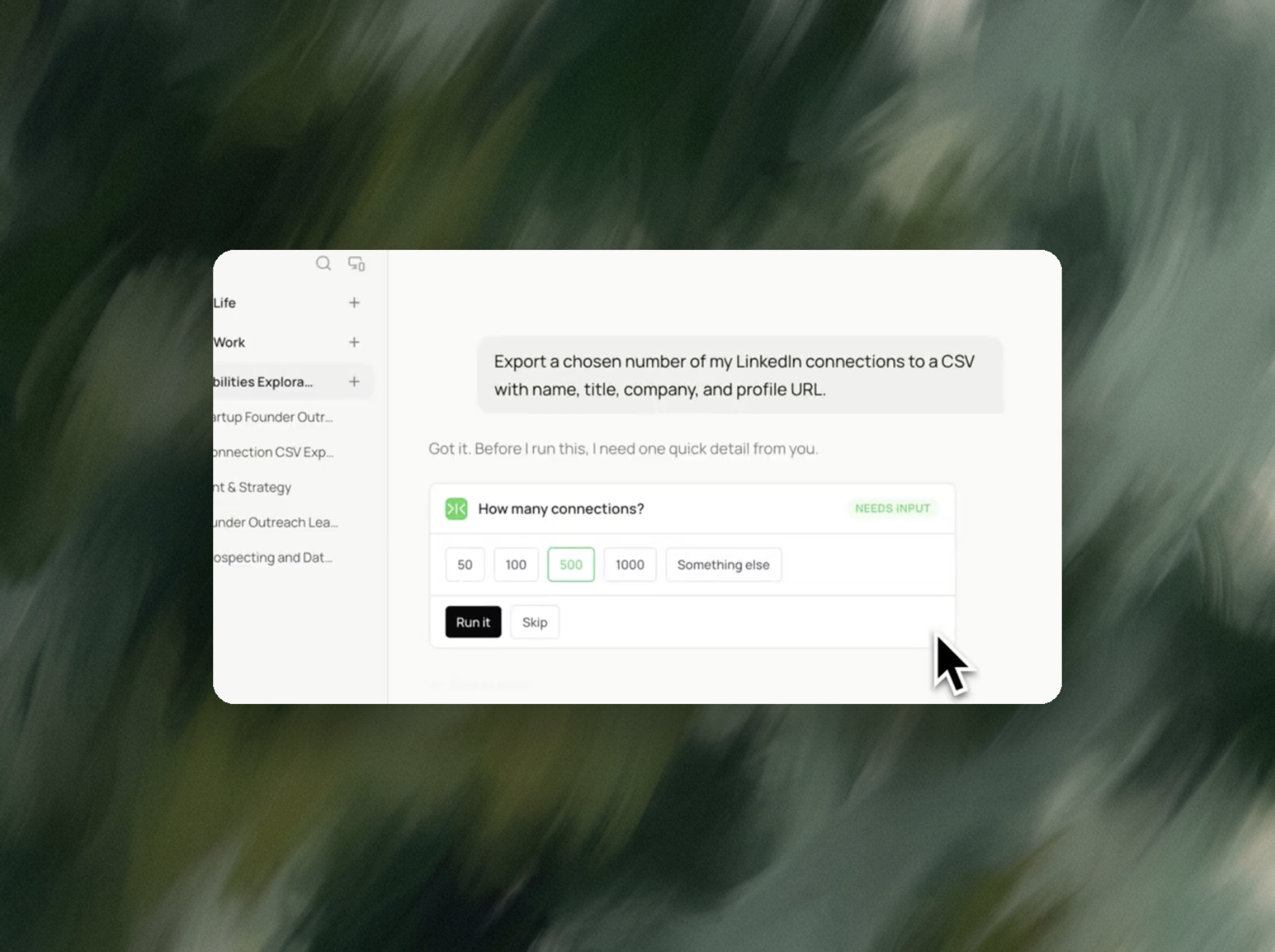
Say how many profiles you want and which fields you need. Sai reads LinkedIn while signed in as you, pages through the results, and hands back a clean CSV. No API key, no cookie token, no credits.

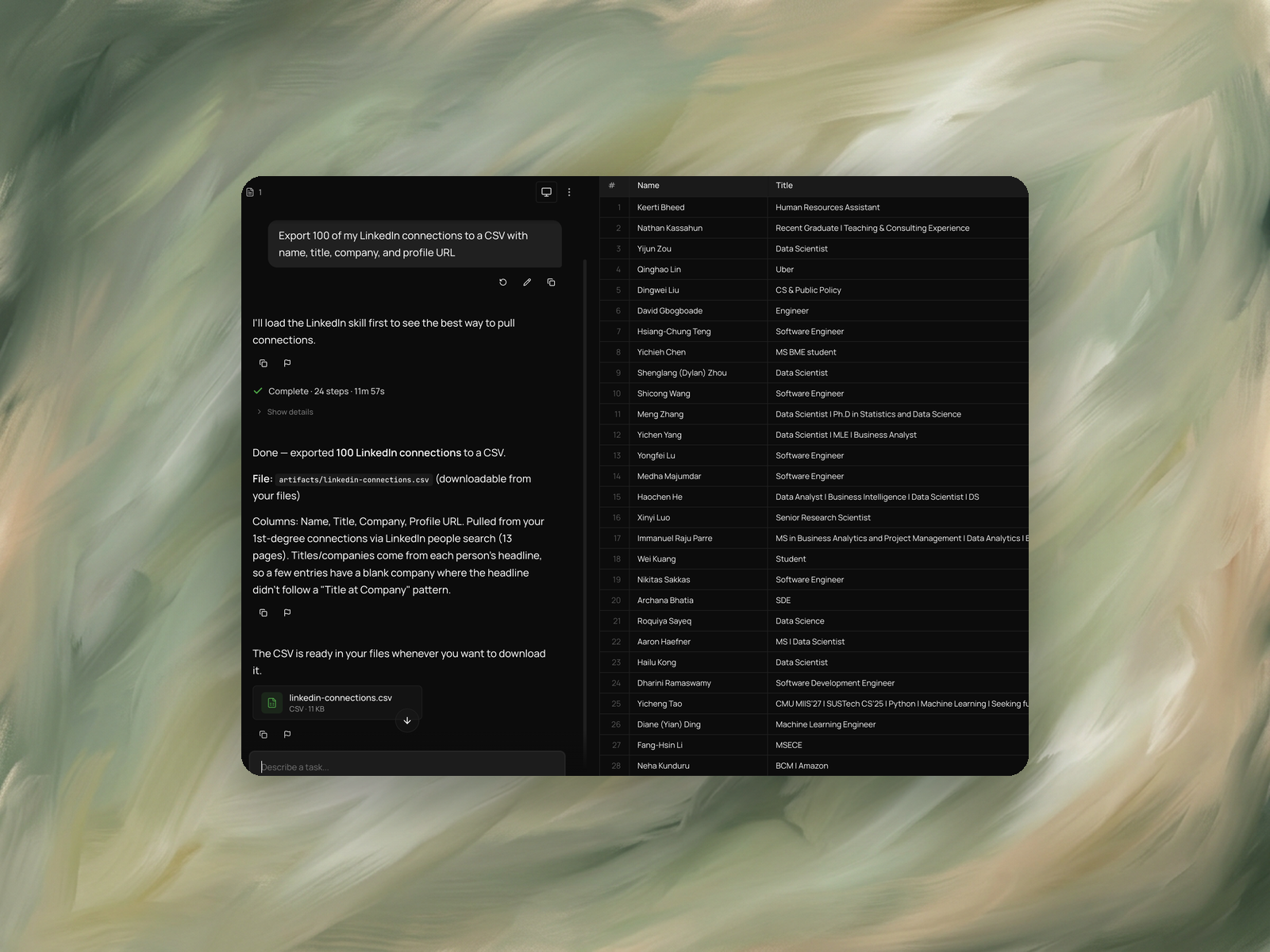
The recording is a real session. The sheet on the right is what it produced.
Sai opens each profile, pulls the signal, and writes the row, live, in a real browser.
Eight columns, sorted by score, with a source link behind every claim.
A LinkedIn account you're already signed into. That's it - no API key, no session cookie, no proxy setup.
A downloadable CSV with one row per profile: name, title, company, and profile URL. Add or drop columns by editing the prompt.
It Takes About 12 minutes for 100 profiles.
Re-run monthly and Sai reports only the profiles that weren't in the last export.
LinkedIn profile data extraction automation is the process of collecting fields from LinkedIn profiles — name, headline, current title, company, location, work history, education — and writing them into a spreadsheet or database without copying each one by hand.
It exists because LinkedIn provides no general-purpose export. LinkedIn's own data export returns information about your own account, not the profiles you searched or viewed. Sales Navigator allows leads to be saved to a list but blocks bulk export of search results. Any path from a search page to a spreadsheet therefore runs through a third-party tool or a manual copy.
Three methods are in common use. Browser extensions read profiles inside your logged-in session as you view them. Scraping APIs and proxy networks request profile pages from outside any user session. Datasets sell records collected previously and refreshed on the vendor's own schedule.
The methods differ less in which fields they return than in where they place the risk. LinkedIn's User Agreement prohibits automated scraping and the use of bots, enforced through rate limiting, CAPTCHA challenges, temporary restrictions and account termination. In hiQ Labs v. LinkedIn, the US Ninth Circuit addressed public-profile scraping under the Computer Fraud and Abuse Act, but that ruling concerned criminal computer-access liability and left LinkedIn's contractual terms intact.
Two situations produce the same task.
Outbound sales and growth. A Sales Navigator search returns 200 people matching a segment. Before any outreach is written, those results need to exist as rows with title, company and enough context to decide who is worth contacting.
Recruiting. A search returns candidates matching a role. The shortlist needs current title, tenure and background in a comparable format, not thirty browser tabs.
Both start from a search result page and need a spreadsheet. Neither is served by LinkedIn's own export.
Sai opens the LinkedIn search in a real browser as the signed-in user, reads each profile the way a person viewing it would, and writes the fields into a Google Sheet.
There is no session cookie to paste, no extension to install and no scraper template to select. Which fields to capture is stated in plain language in the prompt, so a list that needs current role plus company size plus a note from recent activity does not require chaining separate tools.
Fields that are not on a profile are left empty rather than inferred. An empty cell is visible when the sheet is reviewed; a plausible wrong value is not.
It uses the browser you're already signed into, so there's nothing to authenticate.
You describe the export in plain English. Sai confirms the count, runs LinkedIn's people search, pages through the results, reads each entry, and writes the CSV. When the run finishes you get the file plus a note on what it found - including where a headline didn't follow a "Title at Company" pattern, so a company cell came back blank.
That last part matters more than it sounds. A silent gap in a 500-row export is a problem you discover three weeks later in your CRM. Sai tells you at handoff.
Those are capable extraction tools. The difference is how much you assemble before anything runs.
If you're building a data pipeline that runs a thousand times a day, an API-first scraper is the right tool and the setup pays for itself. If you need a list in a spreadsheet this afternoon, the setup is the whole cost.
The prompt above pulls name, title, company, and profile URL. Anything visible on the profile can go in the list - location, headline, current company size, mutual connections, or when you connected.
Edit the bracketed part of the prompt to change the count, and edit the field list to change the columns. If you'd rather have a Google Sheet than a CSV, say so in the prompt and that's what you'll get.
Start with 100. It takes about twelve minutes and it's enough to check the columns are what you expected before committing to a larger run.
Once the shape is right, scale up. For lists you maintain over time, set the task to re-run monthly - Sai reports only the profiles that weren't in the previous export, so you're reviewing new entries instead of re-reading the whole file.
Extraction produces rows. Two things usually follow.
Fields the profile does not carry — company size, funding stage, a verified email — are added by lead list enrichment, which works from the sheet this task produces.
Where the list feeds outreach, personalized outreach drafting writes from the captured fields rather than from a template with merge tags.
For lists maintained over time, scheduled Google Sheets updates re-run the extraction and refresh rows that have changed.
No. Sai works inside your signed-in browser, so there's no token to generate and nothing to paste into a settings panel.
Yes. Anything you can reach in LinkedIn search while signed in, Sai can read and put in the sheet.
They still appear in the export, with the fields that could be parsed filled in and the rest left blank. Sai flags how many rows this affected rather than guessing at a company name.
Yes - ask for a Google Sheet in the prompt and Sai will create one and send you the link.