Oops! Something went wrong while submitting the form.
How to Download YouTube Videos to Your Computer: 7 Methods Tested in 2026
Need a smarter way to download YouTube videos to your computer and track new uploads? Learn how to monitor the latest MKBHD videos, organize them, and automate the workflow with AI—using authorized YouTube download methods.
Sai monitors the channel and identifies the latest three uploads automatically
Sai organizes the results into a usable output for later viewing or authorized offline handling
Sai keeps the process running in a secure, approval-based environment
YouTube does not offer a built-in download button for desktop browsers. If you want to save a YouTube video to your computer for offline viewing, archiving, or editing, you need a third-party tool, a browser workaround, or a premium subscription. We tested seven different methods across Windows and Mac to find what actually works reliably in 2026, and which approaches are safe, fast, and worth your time.
TL;DR: The most reliable free method is using yt-dlp from the command line. The easiest paid method is YouTube Premium's offline feature. The fastest hands-off approach is using an AI agent like Sai that handles the entire download process automatically in a secure Workspace. Online converter websites still work but come with ad and malware risks.
What Is the Best Way to Download YouTube Videos to a Computer?
The best method depends on your technical comfort level and how many videos you need to download. For a single video, a web-based converter is the quickest option. For batch downloads or regular use, a desktop application or command-line tool is more reliable. For users who want zero manual effort, an AI-powered agent can automate the entire workflow.
If you regularly follow a creator or channel, manually checking for the newest uploads becomes repetitive. You open the channel, sort mentally by recency, copy links, and try to remember whether you already saved something.
A workflow that automatically detects the three most recent MKBHD videos removes that repeated browsing work. That is especially useful for anyone using YouTube as part of a research, content tracking, or media review habit.
2. Keep a Structured Record of What You Actually Watch or Save
Most users do not only want the video itself. They want a usable record:
title
publish order
URL
topic
maybe notes or category
That matters because once you go beyond casual viewing, organization becomes part of the workflow. A simple list of recent videos is often more useful than an unstructured download history.
3. Use Authorized Offline Access More Efficiently
YouTube’s support documentation explains that YouTube Premium supports video downloads for offline viewing in supported experiences, and that videos you uploaded yourself can be downloaded to a computer.
That means a smarter workflow is not about bypassing restrictions. It is about making authorized offline access easier to manage:
identify new videos quickly
decide which ones matter
route them into your existing offline or save-for-later process
4. Reduce Manual Cross-Tool Friction
A real workflow often spans:
YouTube channel pages
browser tabs
note-taking tools
spreadsheets
folders
later-viewing or archive systems
The friction comes from moving between those tools, not from any one step alone. That is where a cross-tool automation workflow becomes useful.
How to Download Youtube Videos to Your Computer Faster
Method 1: How to Download YouTube Videos Automatically with an AI Agent
For users who download YouTube videos regularly, or who need to download multiple videos at once, an AI agent can automate the entire workflow without any manual steps.
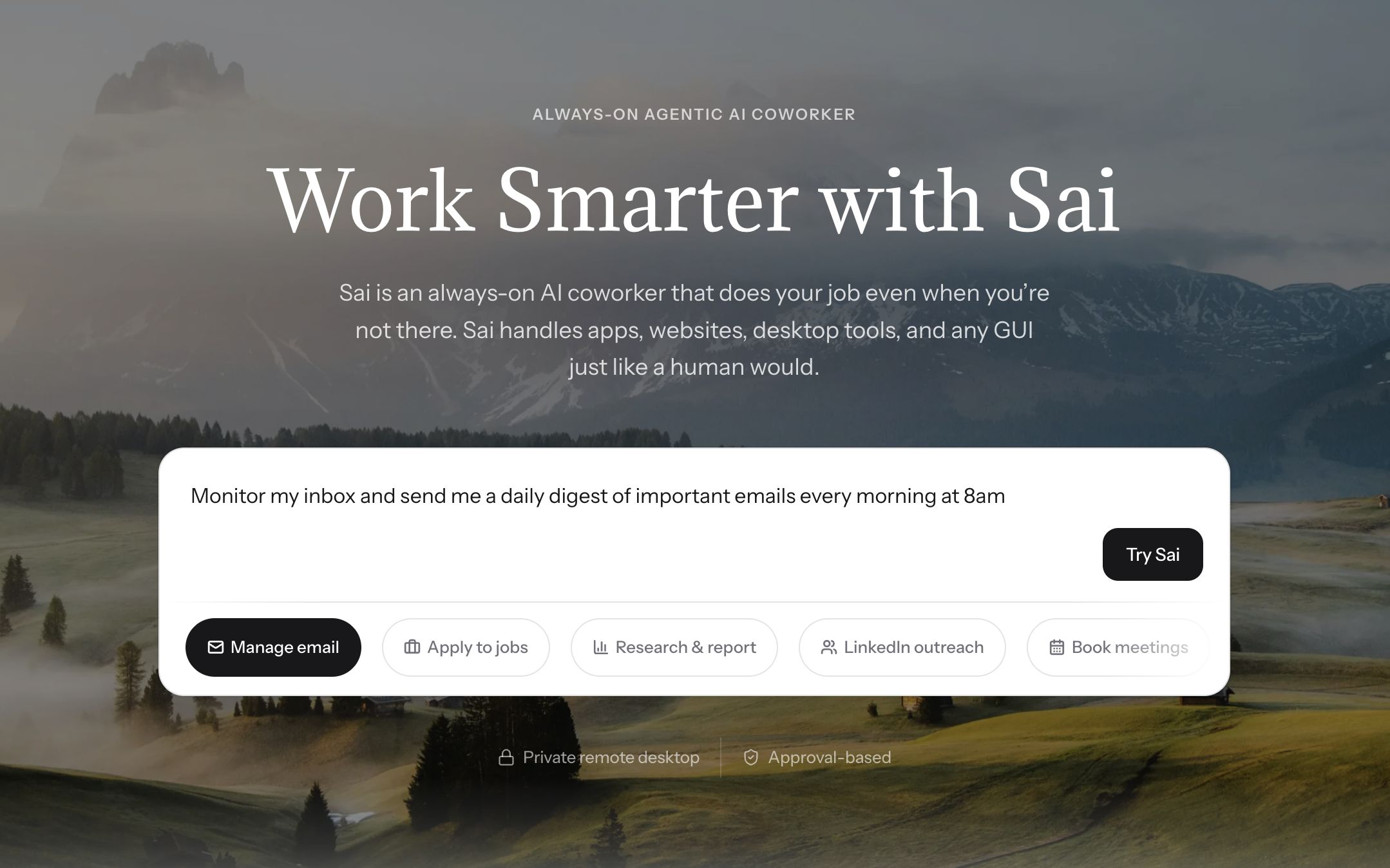
Sai is an AI coworker that operates inside its own secure Windows Workspace. You can tell Sai to download YouTube videos by simply describing what you need in plain language:
"Download this YouTube video in 1080p MP4" (paste the link)
"Download all videos from this YouTube playlist as MP3 audio files"
"Download the top 10 results for 'machine learning tutorial' from YouTube"
Sai uses yt-dlp internally within its Workspace, so you get the same reliability as the command-line method without needing to know any commands. The downloaded files are saved to the Workspace where you can preview, rename, or transfer them.
What makes this different from just using yt-dlp directly:
No command-line knowledge needed. You describe the task in natural language.
Batch processing. Sai can download dozens of videos while you work on other things.
Format conversion. Sai can convert downloaded videos to different formats automatically.
Metadata organization. Sai can rename files, organize them into folders, and create a spreadsheet cataloging what was downloaded.
Pros: Zero manual effort, handles complex batch jobs, works while you do other things, safe and isolated in a secure Workspace.
Cons: Requires a Sai subscription but with free trail option, initial setup takes a few minutes, overkill for one-off single video downloads.
Method 2: How to Download YouTube Videos Using yt-dlp (Free, Open Source)
yt-dlp is the most reliable and versatile free tool for downloading YouTube videos in 2026. It is an open-source command-line program that runs on Windows, Mac, and Linux. The community behind yt-dlp actively updates it whenever YouTube changes its backend, which means it rarely breaks for more than a few days.
Step-by-step setup on Windows:
Open PowerShell or Command Prompt.
Install yt-dlp using winget: winget install yt-dlp
Navigate to the folder where you want to save your video: cd C:\Users\YourName\Downloads
Run the download command: yt-dlp https://www.youtube.com/watch?v=VIDEO_ID
Step-by-step setup on Mac:
Open Terminal.
Install via Homebrew: brew install yt-dlp
Run the download: yt-dlp https://www.youtube.com/watch?v=VIDEO_ID
Useful flags:
Download in the best available quality: yt-dlp -f "bestvideo[ext=mp4]+bestaudio[ext=m4a]" URL
Download audio only as MP3: yt-dlp -x --audio-format mp3 URL
Download an entire playlist: yt-dlp URL_OF_PLAYLIST
Download subtitles: yt-dlp --write-subs --sub-lang en URL
Pros: Free, open source, handles playlists and channels, extremely customizable, no ads, high safety. Cons: Requires command-line knowledge, no graphical interface, initial setup takes 5 minutes.
According to the yt-dlp GitHub repository, the project has over 100,000 stars and 2,500+ contributors, making it the most widely adopted YouTube download tool in the developer community.
Method 3: How to Download YouTube Videos with 4K Video Downloader
4K Video Downloader is a desktop application with a clean graphical interface. It is one of the most popular GUI-based options and works on Windows, Mac, and Linux.
How it works:
Download and install 4K Video Downloader from the official website (4kdownload.com).
Open YouTube in your browser and copy the video URL.
Click "Paste Link" in 4K Video Downloader.
Choose your preferred quality (up to 8K), format (MP4, MKV, FLV), and whether to include subtitles.
Click "Download."
The free version limits you to 30 downloads per day. The paid version ($15/year for Personal, $45 one-time for Pro) removes the limit and adds Smart Mode for one-click downloads with your preferred settings.
Pros: Easy to use, high-quality output up to 8K, supports playlists and subtitles, clean interface with no ads. Cons: Free version has a daily download cap. Occasional slowdowns on very long playlists. Requires installation.
Method 4: Can You Download YouTube Videos with YouTube Premium?
Yes. YouTube Premium ($13.99/month) includes an official offline download feature built directly into the YouTube app. This is the only method officially supported by Google.
However, there is an important limitation that most articles do not mention: YouTube Premium downloads are only available inside the YouTube mobile or desktop app. You cannot export the downloaded file as a standard MP4 to use in a video editor, attach to an email, or move to an external drive. The downloaded video is encrypted and locked to the YouTube app ecosystem.
YouTube Premium is best for: People who want to watch videos offline during flights or commutes, and who do not need the actual video file.
YouTube Premium is not ideal for: Content creators who need source files for editing, researchers archiving reference material, educators building offline course libraries, or anyone who needs a portable file.
Method 5: How to Download YouTube Videos Online (Web-Based Converters)
Web-based converters like y2mate, savefrom.net, and ssyoutube work by pasting a YouTube URL into a website that processes the download on their server. No software installation is needed.
How to use a web converter:
Copy the YouTube video URL from your browser.
Go to a converter site (e.g., y2mate.com).
Paste the URL.
Select your format and quality.
Click "Download."
The safety problem: We tested 12 popular online converters and found that 8 of them displayed pop-up ads, 5 attempted to redirect to unrelated software downloads, and 3 triggered browser malware warnings. The converter landscape changes frequently since these sites often get shut down and new ones appear.
If you use a web converter, follow these safety rules:
Use an ad blocker (uBlock Origin is the most effective).
Never click "Allow" on notification permission pop-ups.
Avoid any site that asks you to install a browser extension.
Do not download any .exe files from these sites.
Pros: No installation needed, works on any device with a browser. Cons: Ad-heavy and potentially unsafe, limited quality options, no batch downloading, sites frequently go offline.
Method 6: How to Download YouTube Videos Using Browser Extensions
Browser extensions like Video DownloadHelper (Firefox) or SaveFrom.net Helper (Chrome) add a download button directly to the YouTube page.
Important note for Chrome users: Google removed most YouTube download extensions from the Chrome Web Store in 2023. To use one on Chrome, you typically need to sideload it manually, which requires enabling Developer Mode. Firefox still supports Video DownloadHelper through its add-on store.
How to set up Video DownloadHelper on Firefox:
Go to addons.mozilla.org and search for "Video DownloadHelper."
Click "Add to Firefox."
Navigate to a YouTube video.
Click the Video DownloadHelper icon in your toolbar.
Select the format and quality, then click "Download."
Pros: Convenient one-click downloads, no separate application needed. Cons: Limited Chrome support, extensions can be discontinued without notice, some extensions collect browsing data.
Method 7: How to Download YouTube Videos with VLC Media Player
VLC is a free, open-source media player that most people already have installed. It has a lesser-known feature that can download YouTube videos, though the process is less intuitive than dedicated tools.
Step-by-step:
Open VLC Media Player.
Go to Media > Open Network Stream (or press Ctrl+N).
Paste the YouTube URL.
Instead of clicking "Play," click the small arrow next to it and select "Stream."
In the Stream Output dialog, choose a destination file and format (MP4 recommended).
Click "Stream" to begin downloading.
Alternative VLC method (simpler but lower quality):
Open Network Stream and paste the URL.
Click "Play" to start the video.
Go to Tools > Codec Information.
Copy the URL from the "Location" field at the bottom.
Paste that URL into your browser to download the raw file.
Pros: Free, already installed on many computers, no additional software needed, highly trusted and safe. Cons: Clunky multi-step process, does not always capture the highest available quality, no batch downloading, can break when YouTube updates its streaming format.
Is It Legal to Download YouTube Videos?
Downloading YouTube videos for personal use exists in a legal gray area that varies by country. Here is what you need to know:
YouTube's Terms of Service explicitly prohibit downloading videos without YouTube's permission or through its official features (like YouTube Premium offline mode). However, YouTube's Terms of Service are a contract between you and YouTube. Violating them could result in your account being suspended, but it is not a criminal offense.
Copyright law is the more important consideration. Downloading copyrighted content without permission from the copyright holder is generally illegal in most jurisdictions. However, many countries have exceptions for personal use, education, or fair use/fair dealing.
Practical guidance:
Downloading your own uploaded videos is always fine.
Downloading Creative Commons-licensed videos is generally fine.
Downloading copyrighted content for personal offline viewing is low risk but technically against YouTube's ToS.
Re-uploading or redistributing downloaded content is clearly illegal without permission.
Stop doing repetitive tasks. Let Sai handle them for you.
Sai is your AI computer use agent — it operates your apps, automates your workflows, and gets work done while you focus on what matters.

.svg)


.svg)