

Oops! Something went wrong while submitting the form.

.svg)
If you run a sales team, agency, or online business, your Google Sheets are probably packed with messy text: lead sources, campaign names, tech stacks, job titles. The difference between a random list and a revenue engine is your ability to instantly see "who contains what"—who uses HubSpot, which rows mention "Demo requested", which contracts include a specific clause.
Because Google Sheets has no native IF CONTAINS function, the real power comes from combining IF, REGEXMATCH, SEARCH, and COUNTIF to replicate SQL-style contains logic. You can tag rows, route leads, and trigger follow-ups with a single formula. But doing this across tens of tabs and constantly changing data quickly becomes a grind.
This is where delegation to an AI computer agent changes the game. Instead of you hunting for text patterns every morning, the agent opens Sheets like a human, applies contains rules, updates tags, and even kicks off downstream workflows. You get clean, classified data and always-on monitoring without burning your team’s focus on low-leverage spreadsheet work.
Before you scale, you need solid basics. Here are core manual techniques your team should know.
This combo recreates a SQL-style IF CONTAINS.
Use case: Tag leads whose tech stack contains "G Suite".
Formula: =IF(REGEXMATCH(D2, "G Suite"), "Uses G Suite", "No")
Steps:
D2 with the cell that holds your text and "G Suite" with your keyword.Docs:
Sometimes you just need a boolean you can combine with other logic.
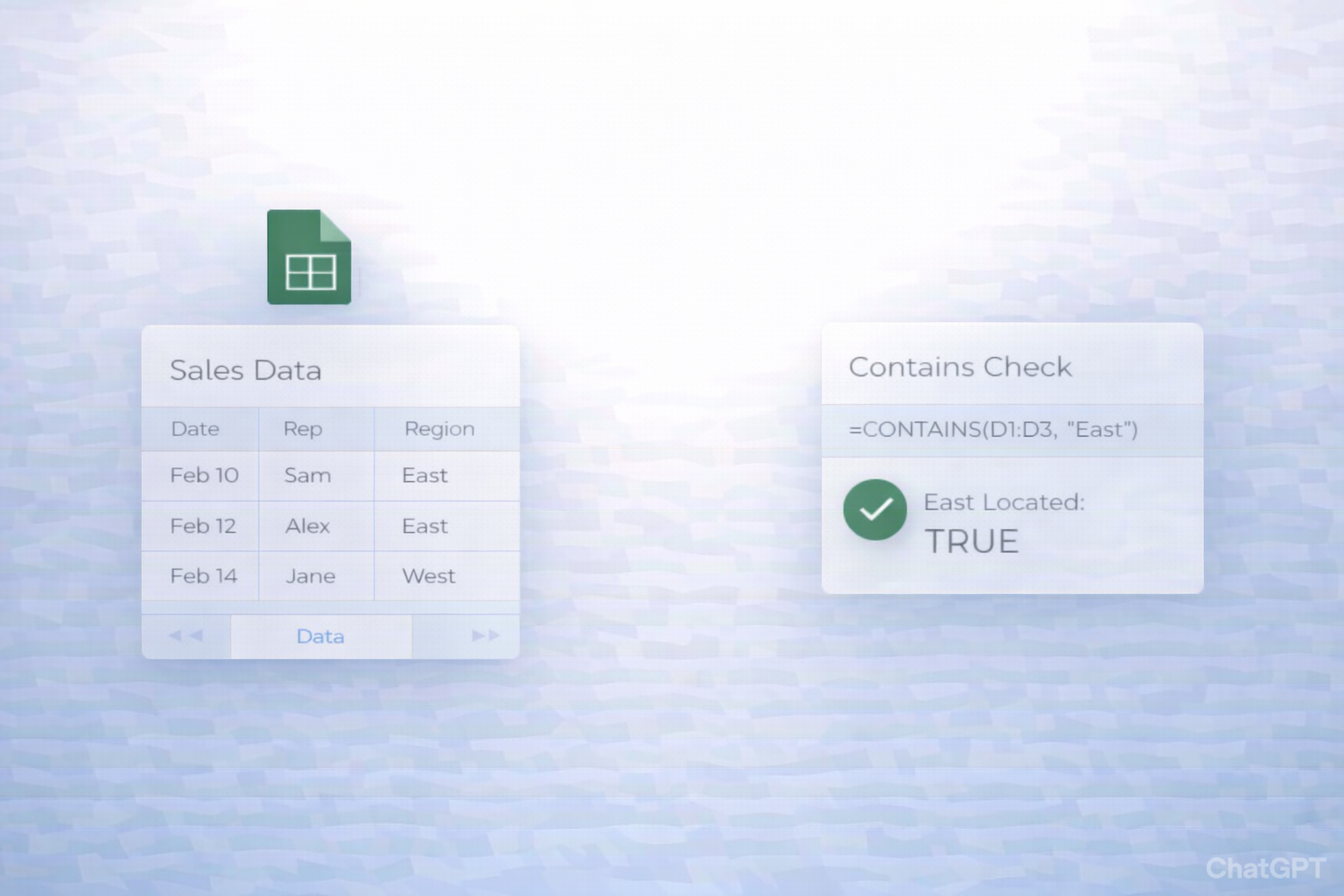
Formula: =REGEXMATCH(B2, "HubSpot")
Returns TRUE if B2 contains "HubSpot", FALSE otherwise. Great for building layered conditions like: =IF(AND(REGEXMATCH(B2, "HubSpot"), REGEXMATCH(C2, "G Suite")), "High-fit", "Other")
Another way, closer to Excel’s style, is SEARCH wrapped in ISNUMBER.
Formula: =ISNUMBER(SEARCH("Tolkien", A2))
Steps:
SEARCH("Tolkien", A2) returns the character position of the match or an error.ISNUMBER(...) converts that into TRUE/FALSE.Docs:
When you want to know how many cells contain a phrase:
Formula: =COUNTIF(D:D, "*G Suite*")
The asterisks are wildcards, meaning "anything before or after".
Docs:
For quick visual analysis:
This is ideal for fast, ad-hoc exploration by sales and marketing teams.
Manual formulas are powerful, but they still rely on humans opening the sheet. Let’s move toward automation with low/no-code tools.
You can visually flag cells that contain certain text the moment someone types it.
A2:A1000).Now any time your team enters that phrase, the cell auto-highlights—no extra work.
Docs:
Turn contains logic into a standard rule column everyone relies on.
=IFS( REGEXMATCH(B2, "demo"), "Demo requested", REGEXMATCH(B2, "refund|cancel"), "Churn risk", TRUE, "Other" )This keeps logic centralized and easy to adjust as messaging and campaigns evolve.
Docs:
While not official Google tools, platforms like Zapier or Make let non-technical teams automate around Google Sheets.
Example: Alert sales when a row "contains" buying intent.
=REGEXMATCH(C2, "book a call|demo").Now every time a prospect types buying language, your team hears about it instantly—no one needs to patrol the sheet.
Official Sheets API/automation overview:
At some point, even no-code automations hit limits. You end up with dozens of sheets, edge cases, and tools that don’t talk cleanly. This is where a Simular AI agent becomes your tireless operations assistant.
Simular Pro (https://www.simular.ai/simular-pro) is a highly capable AI computer agent that can operate across your desktop, browser, and cloud apps just like a human—clicking, typing, filtering, copying, pasting—only 24/7 and without context fatigue.
Story: Imagine your agency pulls company lists from tools like Koala, LinkedIn, and exports from CRMs. You want to know which rows in Google Sheets contain certain tech stack keywords ("HubSpot", "G Suite", "Shopify") and route them to specialists.
How Simular handles it:
=IF(REGEXMATCH(D2, "G Suite"), "G Suite", "-") across thousands of rows.
Pros:
Cons:
Story: A growth lead wants a daily rollup: "How many rows contain ‘trial’, ‘cancel’, or ‘upgrade’ across multiple feedback and support sheets?"
With Simular:
You’ve effectively turned vague text into quantified signals without a human ever touching the formulas.
Pros:
Cons:
Because Simular can automate "nearly everything a human can do" on a computer, you can chain Google Sheets contains logic into full revenue workflows:
With production-grade reliability and transparent execution, you’re not trusting a black box—you’re giving a very fast, very precise assistant the keyboard and mouse while you focus on strategy.


