Oops! Something went wrong while submitting the form.



.svg)
Every month, the same story plays out in growing agencies and online businesses: sales take off, but someone is still trapped in Excel hell, retyping invoice data into QuickBooks late at night. Importing invoices into QuickBooks Online isn’t glamorous work, but it’s the backbone of clean financials, cash flow visibility, and investor-ready reports.
QuickBooks’ native import tools already let you bring in up to 100 invoices at once from a CSV. When you prepare that data in Google Sheets—keeping invoice numbers, dates, customers, and line items organized—you drastically reduce errors and speed up month-end close. Instead of letting your team copy‑paste line by line, you treat Sheets as a structured staging area and QuickBooks as the single source of truth.
Now imagine an AI computer agent that knows this dance by heart. It watches a “Ready to import” tab in Google Sheets, logs into QuickBooks Online like a trained assistant, uploads the file, maps every column, fixes small issues, and confirms the import ran correctly—all while you’re in a client meeting. Delegating this routine import to an AI agent means fewer late nights, fewer fat‑fingered amounts, and a finance back office that quietly runs itself in the background.
Method 1: Enter invoices one by one in QuickBooks Online
This is where most founders start.
Pros: Simple, no setup.
Cons: Painful at scale; highly error‑prone once you pass ~20 invoices per week.
Method 2: Prepare a CSV in Google Sheets and use QuickBooks’ built‑in import
This is the first serious productivity jump.
Invoice numberCustomerInvoice dateDue dateItem amount* are required. For columns you don’t have, choose Not applicable and QuickBooks will use a generic “Sales” item where needed.DD/MM/YYYY).
Pros: 100 invoices per batch; repeatable; Sheet becomes the shared source for Sales + Finance.
Cons: Still manual; you must remember to export and import every time.
Method 3: Use QuickBooks’ sample CSV template
If your format is messy, start from the official template.
Official QBO import documentation:
https://quickbooks.intuit.com/learn-support/en-us/help-article/import-export-data-files/common-questions-importing-data-quickbooks-online/L4OYJRFdj_US_en_US
Pros: Reduces mapping mistakes; safer if you’re new to imports.
Cons: Still batch‑based and manual; someone has to babysit every import.
Once your volumes grow, you want invoice data to flow into QuickBooks without downloading and uploading files every week.
Method 4: Zapier – from Google Sheets rows to QuickBooks invoices
Zapier can watch a Google Sheet and auto‑create invoices.
Now, every time your team (or another system) adds a row to Google Sheets, Zapier pushes an invoice into QBO.
Pros: Near real‑time; no more CSV exports.
Cons: Line‑item heavy setups can be fiddly; error handling is limited unless you build safeguards.
Method 5: Make (Integromat) or similar no‑code platforms
Make gives you more granular control over branching logic.
Typical scenario:
Pros: Great for agencies with more complex data flows and approvals.
Cons: Visual scenarios are powerful but easy to over‑complicate; debugging can be time‑consuming.
Method 6: Specialized import tools (e.g., SaasAnt, DocuClipper)
These tools live between no‑code and full automation:
Pros: Built for accountants; handles messy historical data.
Cons: Extra subscription; still needs a human to orchestrate uploads and review.
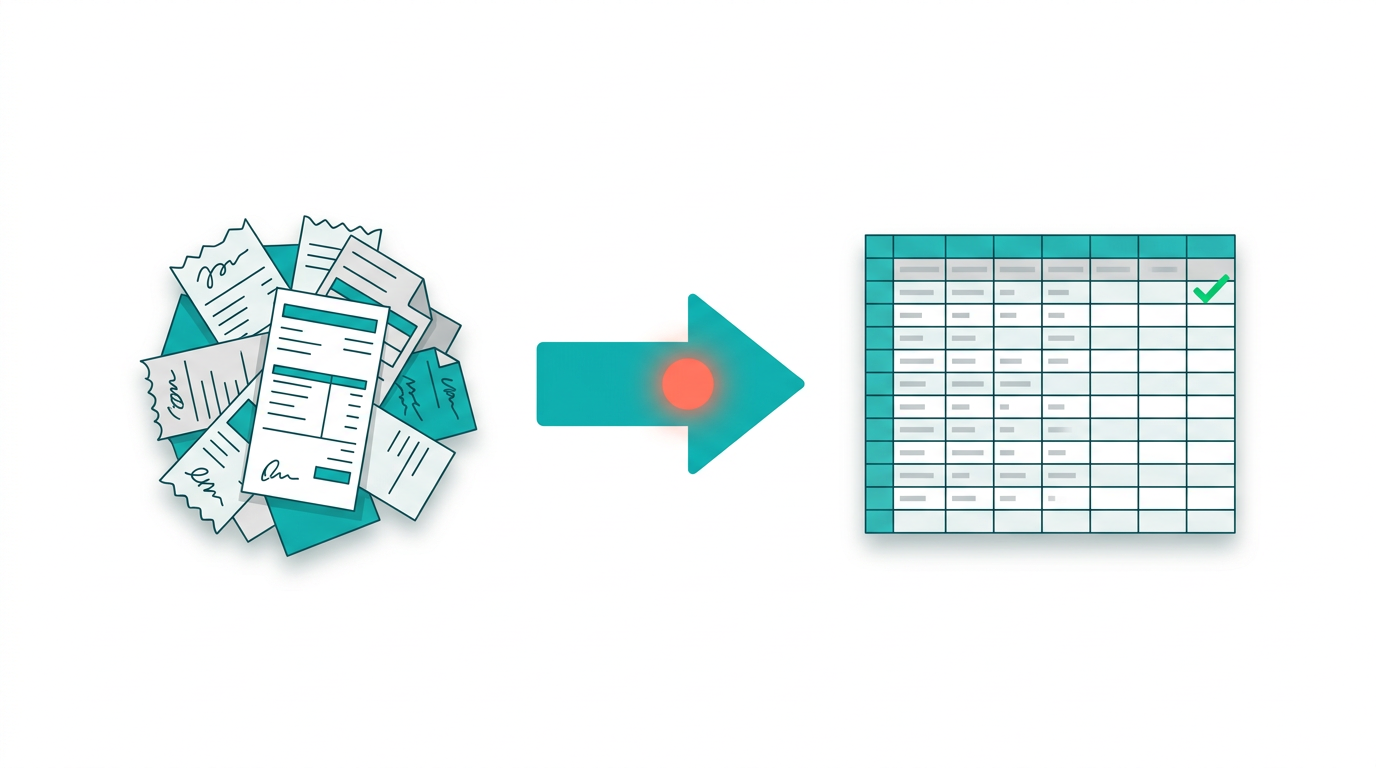
The gap no-code tools can't close: Zapier and Make can push data between Sheets and QuickBooks, but they break when your invoice format changes, when a contractor adds a new expense category, or when a line item needs human judgment (e.g., splitting costs across projects). Sai handles these exceptions because it reads your screen the way you do -- it sees the spreadsheet, interprets column headers, and adapts to layout changes without pre-built integrations.
In practice, Sai opens your Google Sheets invoice log, cross-references each row against QuickBooks customer records, flags mismatches (like a new contractor who doesn't exist in QB yet), creates the missing record, and then pushes the invoice with the correct payment terms. The entire sync takes about 90 seconds per invoice batch, compared to 15-20 minutes of manual copy-paste-verify work.
For a detailed walkthrough of Sai's invoice workflow, see our step-by-step invoice creation guide. We also tested how Sai stacks up against other automation tools: 6 Best Invoice Automation Tools in 2026.
Method 7: AI agent that operates your browser like a trained assistant
With Sai, you spin up an AI agent that can:
Status = Ready.
Pros:
Cons:
Method 8: End‑to‑end recurring automation with Sai and webhooks
You can go a step further and make the whole pipeline autonomous:
Pros:
Cons:
Method 9: Human‑in‑the‑loop review with an AI agent
For founders and agencies who want control without the clicks:
Pros:
Cons:
In practice, most high‑growth teams start in Google Sheets + manual imports, then layer on no‑code automations, and finally graduate to an AI agent once invoice volume makes context‑switching and exception handling too expensive to do by hand.