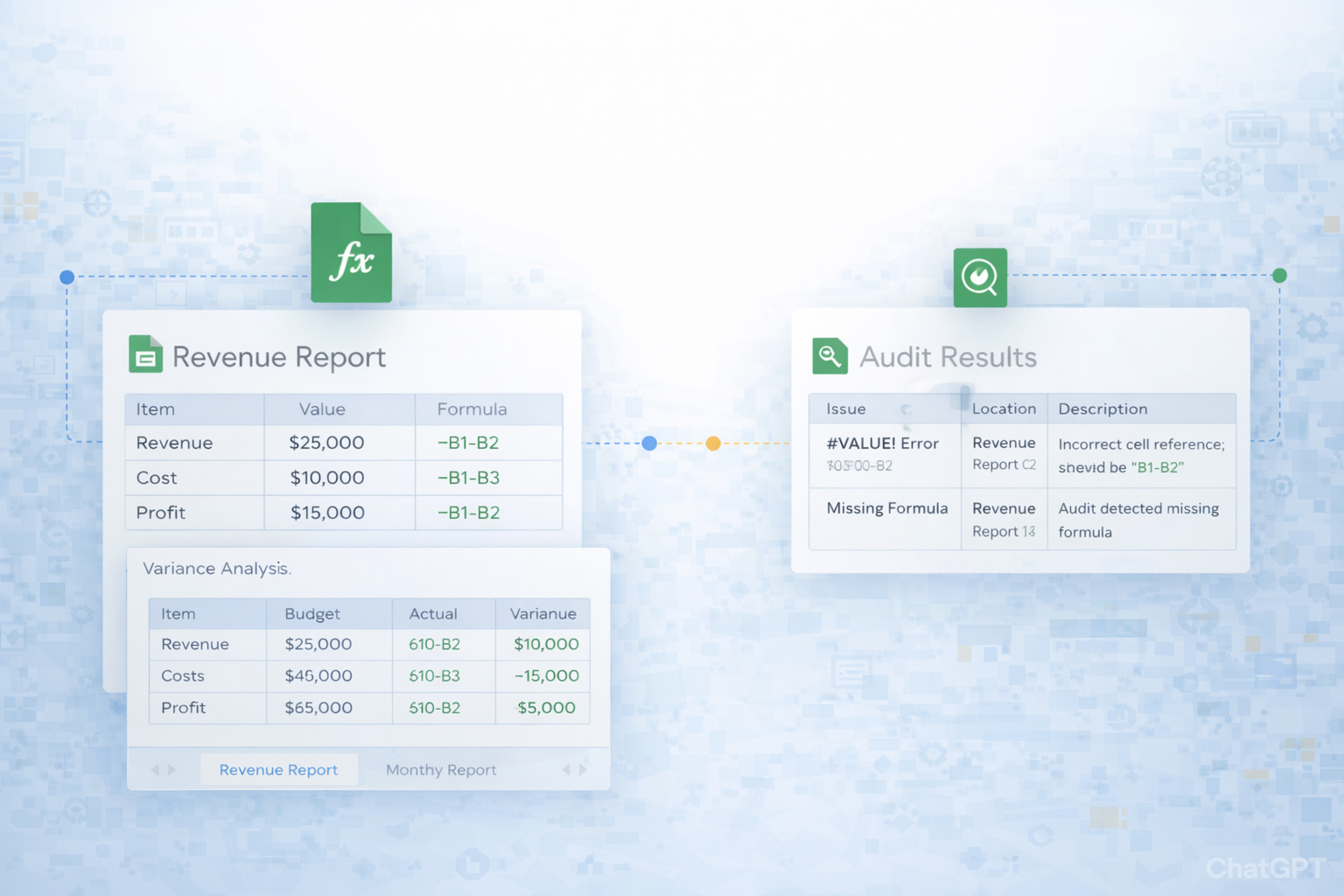
In every business there is a moment when a number in a Google Sheets report looks wrong. A lead count that doubled overnight. A ROAS column that suddenly shows zeros. The real work is not staring at the total, it is tracing the formulas that built it.
Showing formulas in Google Sheets turns the sheet from a static dashboard into a glass box. Instead of guessing, you can see whether someone hard‑typed a value, broke a reference, or dragged a formula too far. Using View → Show → Formulas or the Ctrl + ` shortcut, you reveal the entire logic layer at once, then fix issues with confidence.
This is exactly the kind of repetitive debugging work an AI computer agent should handle. You can teach an agent to open key Sheets, toggle formula view, scan for oddities like broken references or inconsistent ranges, and log what it finds. Instead of a founder or head of ops running late‑night checks before a board call, the agent becomes your tireless spreadsheet auditor, quietly inspecting every formula before you ever see the numbers.
Before you automate anything, you need to master the native tools. Here are practical, step‑by‑step methods your team probably uses today.
View.Show.Formulas.Formulas.This is ideal when you are auditing a sheet on a call with a client or reviewing a teammate's work. It is also described in the official Google Docs Editors Help center: https://support.google.com/docs/.
Ctrl + (backtick) on Windows or Cmd + (backtick) on macOS.You will find this shortcut documented in Google's keyboard shortcuts guide: https://support.google.com/docs/answer/181110.
Sometimes you only care about one cell.
This is slower for large audits but perfect when a single KPI looks off.
Create a lightweight QA ritual for your team:
Ctrl + to show all formulas.Ctrl + again to hide formulas.Baking this into your closing process reduces errors in investor decks and client reports.
When a sheet is huge, combine filters with formula view:
#REF! or certain function names like IMPORTRANGE.
Manual steps work, but leaders do not want to babysit formulas every week. Here is how you can layer simple automations on top of Google Sheets without writing code.
Google Apps Script lives inside Sheets and can be used via pre‑built snippets.
Extensions → Apps Script.Google's Apps Script documentation starts here: https://developers.google.com/apps-script/guides/sheets.
You are not writing complex code; you are mostly configuring and reusing proven patterns.
While there is no native API for "show formulas view", you can still:
This way, the "audit" happens automatically whenever your data changes, not when a human remembers.
Another no‑code technique is governance by template:
View → Show → Formulas, Ctrl + ).Official protection docs: https://support.google.com/docs/answer/1218656.
This does not automate clicks, but it dramatically reduces formula errors and the need for manual audits.
Manual and no‑code approaches are good, but they still assume a human is in the loop every week. An AI computer agent can actually use your computer like a virtual teammate: open Google Sheets, toggle formula view, read what it sees on screen, and then act.
Imagine a Monday morning routine:
View → Show → Formulas menu, or keyboard shortcuts, the same way a human would.#REF! errors, or inconsistent references.Pros:
Cons:
Auditing is only half the story. The real leverage comes when the AI agent also fixes simple issues.
You can:
Pros:
Cons:
For agencies and multi‑brand businesses, the real pain is volume: dozens or hundreds of client dashboards.
An AI computer agent powered by Simular Pro can:
Pros:
Cons:
By combining Google Sheets native features, light no‑code scripts, and a production‑grade AI computer agent, you move from reactive firefighting to a proactive, automated safety net for every crucial number in your business.
When a Google Sheets cell shows the formula instead of the result, it usually means one of three things: the sheet is in Show Formulas mode, the formula was entered as plain text, or the cell is formatted incorrectly.
First, check whether Show Formulas is enabled. Go to View → Show → Formulas and see if it is checked. If it is, click it once to turn it off, or use the Ctrl + ` shortcut again. Your values should reappear.
Second, confirm that your formula begins with an equals sign and is not prefixed by an apostrophe. For example, '=SUM(A1:A10)' will calculate, but ''=SUM(A1:A10)'' (with a leading apostrophe) will be treated as text. Remove the apostrophe and press Enter.
Third, verify the cell format. Select the cell, click Format → Number, and choose Automatic. Text formatting can sometimes force formulas to behave like plain text. After resetting the format, re‑enter the formula so Sheets recalculates it.
To review every formula in a Google Sheets report at once, use the global Show Formulas toggle. Click anywhere in the sheet, then press Ctrl + ` on Windows or Cmd + ` on macOS. Instantly, all cells will display their underlying formulas instead of values.
Alternatively, you can use the menu: go to View → Show → Formulas. The setting applies to the entire sheet, making it perfect for audits before you send a report to a client or investor.
For large workbooks, combine this with filters. Turn on formulas, then add a filter to your header row. Use the filter search box to find specific functions, like VLOOKUP, INDEX, or IMPORTRANGE, or error codes such as #REF!. This lets you hone in on high‑risk logic without combing through every cell.
When you are done, press the shortcut again or uncheck Formulas in the View → Show menu to return to normal values.
Google Sheets provides a single shortcut to toggle formulas on and off: Ctrl + ` on Windows and ChromeOS, or Cmd + ` on macOS. The backtick key is usually found in the top‑left corner of your keyboard, below Escape.
Here is how to use it effectively:
1. Click anywhere in the sheet so it has focus.
2. Press the shortcut once. All cells now show their formulas.
3. Press the shortcut again to return to calculated values.
Because it is a global view setting, you do not need to select any specific range first. Power users often press this shortcut briefly during modeling sessions to double‑check that every new column uses the correct references.
You can confirm and explore more shortcuts in Google’s official help page: https://support.google.com/docs/answer/181110. Sharing this link in your team onboarding docs helps everyone debug Sheets more confidently.
If you want collaborators to use your Google Sheets without exposing every formula, you have a few options.
First, protect key ranges. Select the cells containing sensitive formulas, then choose Data → Protect sheets and ranges. Configure permissions so only you, or a small admin group, can edit them. Others will still see the results but cannot accidentally change the logic.
Second, move proprietary calculations to a hidden helper sheet. Keep your input and output tabs visible, and store complex margin, pricing, or bidding logic on a separate tab. Right‑click the tab and choose Hide sheet. Most users will not touch it, but you can unhide it via View → Hidden sheets whenever needed.
Third, share a value‑only copy. Before sending to external stakeholders, duplicate the file and use Edit → Paste special → Paste values only on critical ranges. This strips formulas completely. The original, formula‑rich workbook stays private, while clients see a clean, static version.
Yes. A modern AI computer agent, such as one powered by Simular Pro, can act like a virtual analyst dedicated to your Google Sheets. Instead of just calling APIs, it can control your desktop and browser, open Sheets, toggle formula view, read what is on screen, and then act.
A typical workflow looks like this:
1. You maintain a control sheet listing URLs of important dashboards and reports.
2. On a schedule, the agent launches, opens each sheet, and uses View → Show → Formulas or the Ctrl + ` shortcut to reveal formulas.
3. It scans for patterns like #REF! errors, formula gaps in the middle of a column, or value overrides where formulas should be.
4. It writes an audit summary to a central log sheet and optionally sends you an email or Slack message.
Because every step is transparent and replayable, you can review its actions, refine its instructions, and incrementally trust it with more of your recurring spreadsheet QA.