

Oops! Something went wrong while submitting the form.


.svg)
Every sales pipeline, campaign report, or ops dashboard hides the same secret: a long list of “if this, then that” rules. Nested IF in Excel or Google Sheets is how we encode those rules into live decisions—who qualifies as an MQL, which deal gets priority, which discount to apply. Done well, nested IF turns messy business judgment into consistent, shareable logic. Done badly, it becomes a brittle wall of parentheses nobody wants to touch.
That’s why nested IF matters: it’s the bridge between human reasoning and automated action inside your spreadsheets. But as your conditions grow—from 3 tiers to 12, from one territory to eight—maintaining those formulas by hand becomes risky and time‑consuming.
This is where an AI agent shines. Instead of a marketer or founder wrestling with formulas late at night, a Simular AI agent can read your rules in plain language, write and refactor the nested IF across Google Sheets and Excel, test edge cases, and keep everything in sync. You still own the logic; the agent owns the repetitive work, so your spreadsheets stay sharp while your team stays focused on closing deals and shipping campaigns.
Before you automate, it helps to understand the basics. Nested IF simply means putting one IF inside another so multiple conditions can be checked in order.
Official docs:
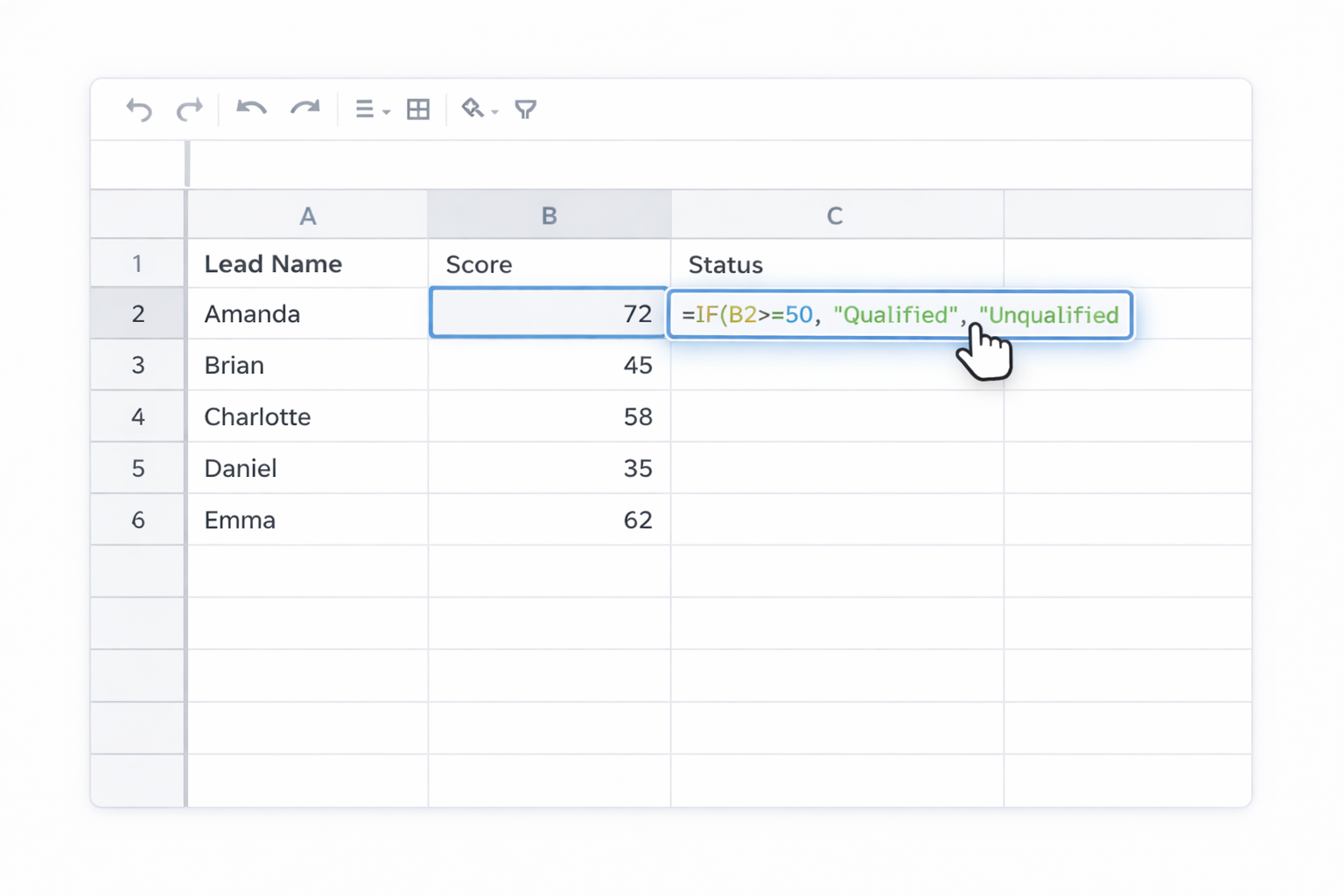
Use this when you only have two outcomes, like “Qualified” vs “Unqualified”.
Excel and Sheets formula: =IF(B2>=50,"Qualified","Unqualified")
Step by step:
Use this when you have several ranges, like commission bands.
Example tiers:
Excel / Sheets formula: =IF(C2>=15000,20%,IF(C2>=10000,15%,IF(C2>=5000,10%,0)))
Steps:
For more patterns, see Microsoft’s examples: https://support.microsoft.com/en-us/office/if-function-nested-formulas-and-avoiding-pitfalls-0b22ff44-f149-44ba-aeb5-4ef99da241c8
Sometimes you need multiple conditions at once, like “High score AND Enterprise”.
Excel and Sheets support AND/OR: =IF(AND(B2>80,C2="Enterprise"),"Route to AE","Nurture")
Steps:
Excel and Google Sheets both support IFS, which removes most nesting.
The previous commission formula becomes: =IFS(C2>=15000,20%,C2>=10000,15%,C2>=5000,10%,TRUE,0)
This is much easier to read and maintain, especially when marketing or sales leaders need to sanity‑check logic.
As your business grows, you’ll want to reduce how often humans touch formulas directly.
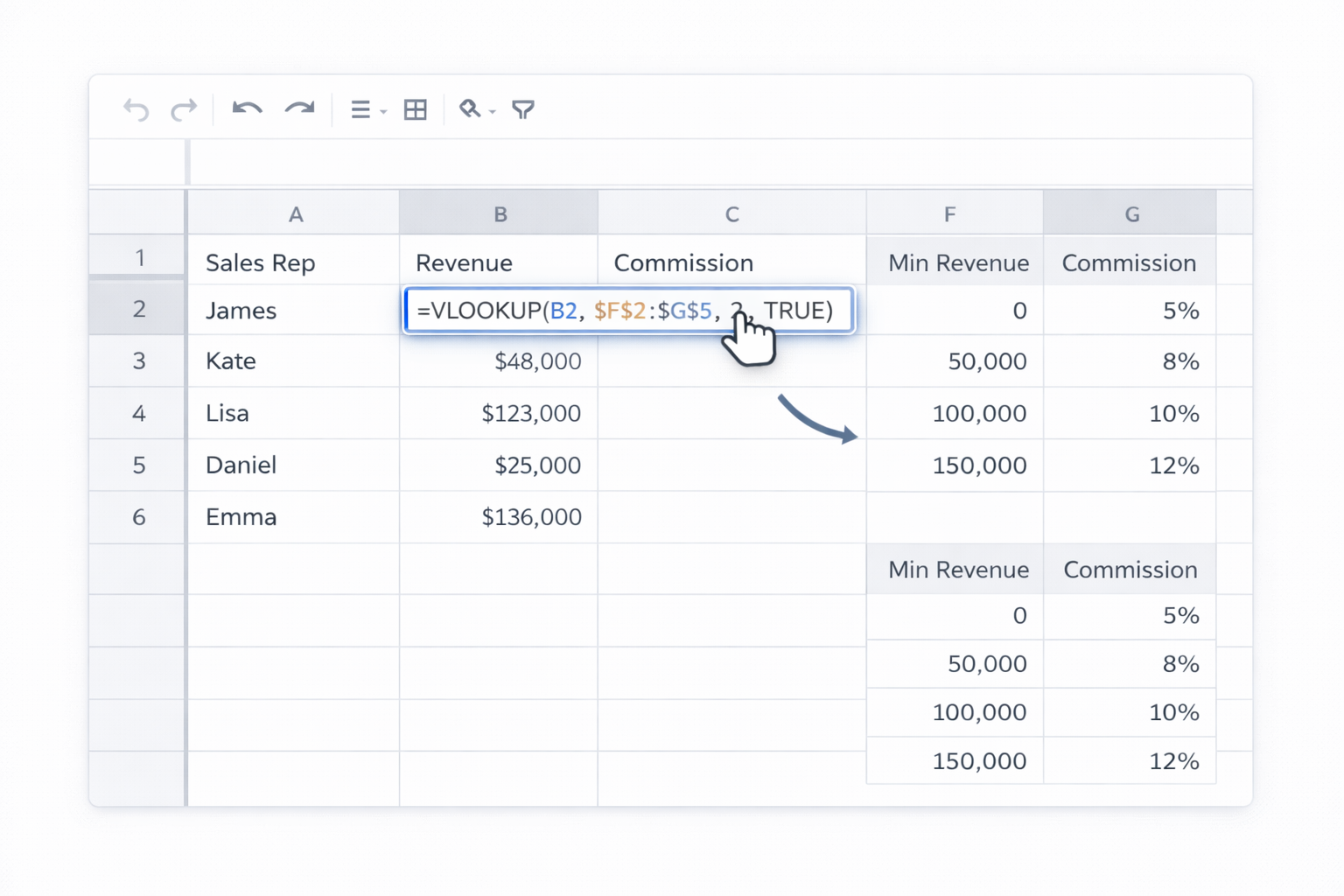
Instead of a giant nested IF, store your tiers in a small table and reference it.
Excel:
Details: https://support.microsoft.com/en-us/office/vlookup-function-0bbc8083-26fe-4963-8ab8-93a18ad188a1
Google Sheets:
Docs: https://support.google.com/docs/answer/3093318
Create a locked template where only input cells are editable.
Excel:
Docs: https://support.microsoft.com/en-us/office/protect-a-worksheet-3179efdb-1285-4d49-a9c3-f4ca36276de6
Google Sheets:
Docs: https://support.google.com/docs/answer/1218656
Tools like Zapier or Make can automate data flows so your nested IF logic is applied consistently.
Example workflow:
Benefit: humans don’t manually paste data, so your logic runs reliably on every record.
At some point, the problem is not writing one nested IF. It’s maintaining dozens of them across client files, markets, and teams. This is where an AI agent like Simular Pro pays off.
Simular Pro: https://www.simular.ai/simular-pro About Simular: https://www.simular.ai/about
Use a Simular AI agent as your in‑house spreadsheet engineer.
How it works:
Pros:
Cons:
Complex nested IFs often break quietly when someone adds a new tier or column. A QA‑focused Simular agent can patrol your spreadsheets.
Workflow:
Pros:
Cons:
If you run an agency or multi‑brand operation, updating logic across 20+ client workbooks is painful. A Simular AI agent can:
Pros:
Cons:
With this stack—manual understanding, no‑code structure, and Simular AI agents for scale—you keep strategic control of your business rules while delegating the repetitive, error‑prone work of building and maintaining nested IF logic.

