Most small teams start budgets in a hurry: a blank Excel sheet, a few copied cells in Google Sheets, and suddenly the entire business is running on a fragile spreadsheet. A structured business budget template in Excel or Google Sheets fixes that. It gives you clear revenue and expense categories, monthly columns, built-in formulas for profit, and space for actuals vs plan. You can layer on Excel tools like variance analysis, charts, and What-If scenarios or use Google Sheets for always-fresh collaboration and commenting. Instead of rebuilding from scratch each quarter, you reuse and refine a single source of financial truth. That means faster decisions, cleaner handoffs to finance, and fewer late-night number checks before a client meeting or board call. When you delegate or automate this work to an AI agent, the story changes again: the agent becomes your tireless finance ops assistant, downloading statements, loading CSVs, updating tabs, and flagging anomalies before you even open the file, so your time goes into steering the business instead of wrestling spreadsheets.
SECTION 1 – Manual ways to build a business budget template
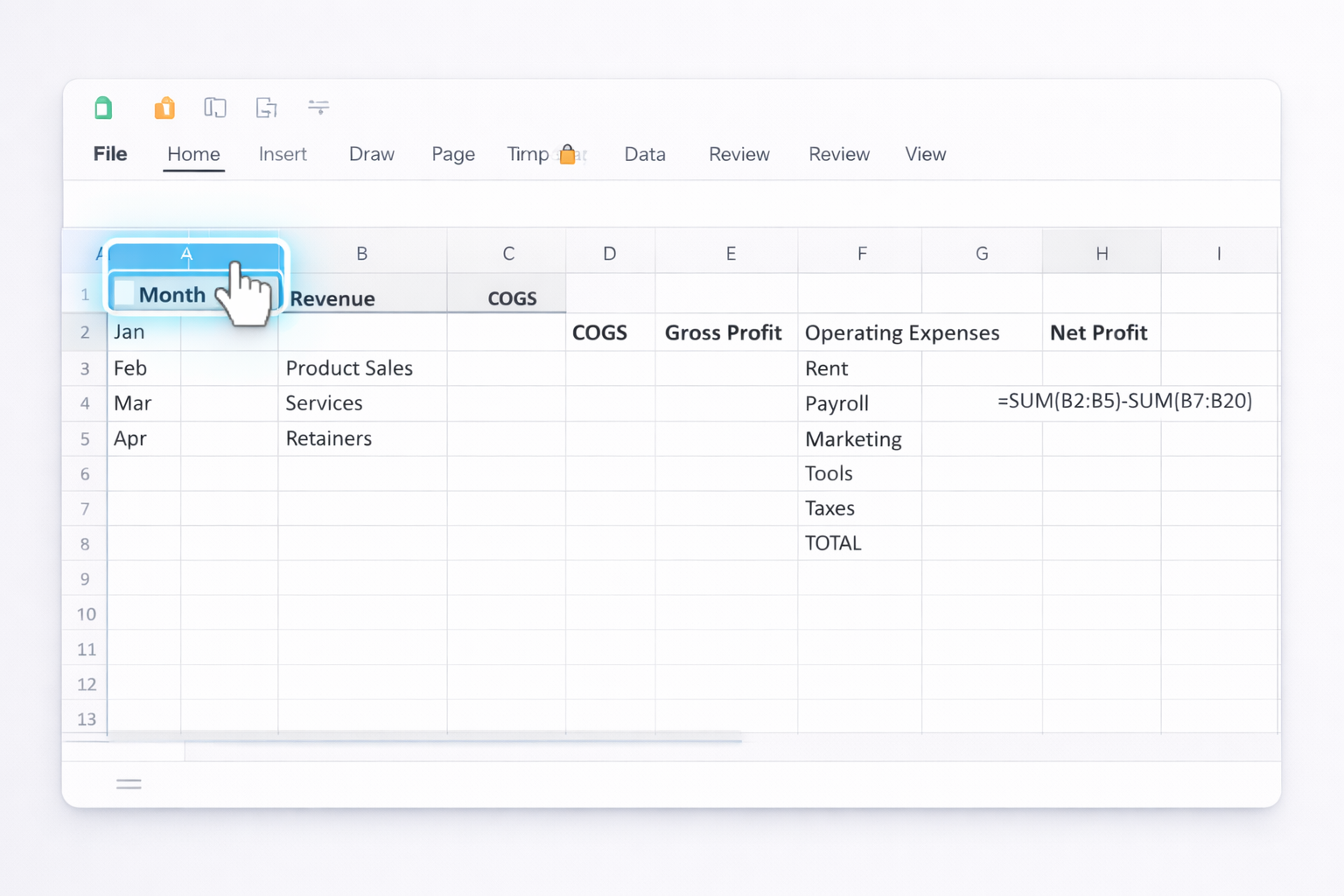
Pros of manual methods: Maximum control over structure; easy to start; no extra tools required.
Cons: Time-consuming updates; error-prone data entry; hard to scale across multiple clients or departments.
SECTION 2 – No-code automation on top of Sheets and Excel
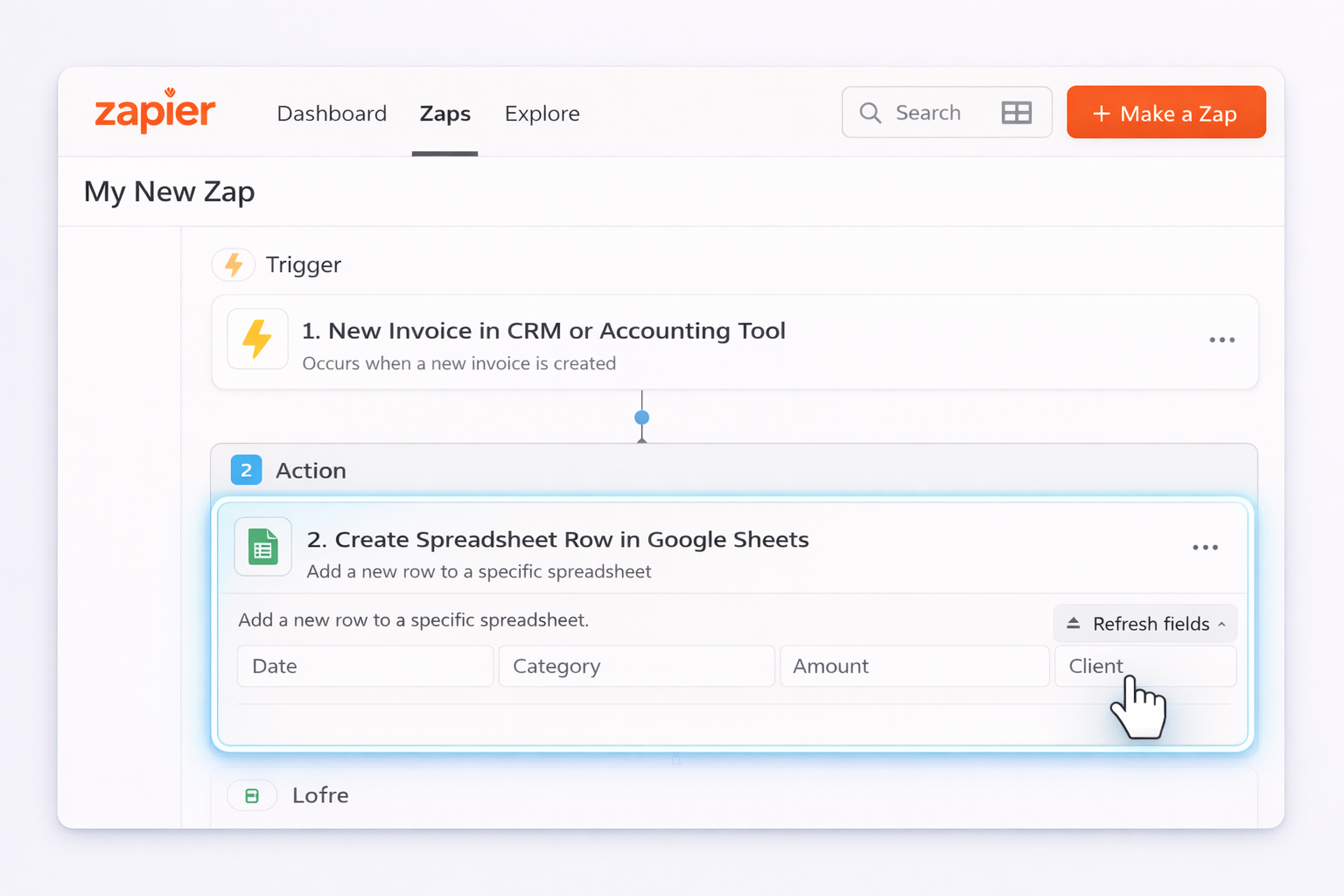
Pros of no-code automation: Major time savings on data entry; fewer mistakes; good for agencies with multiple similar client budgets.
Cons: Still requires you to assemble the workflows; brittle when source systems or column names change; limited to predefined triggers and APIs.
SECTION 3 – Scaling with AI agents (Simular)
Here is where an AI computer agent becomes your quiet finance operator. Unlike typical bots, a Simular AI agent can use your desktop, browser, Google Sheets, and Excel almost like a human would, but it never gets tired.
Start by deciding what decisions your budget must support: cash runway, hiring, marketing spend, client profitability, or all of the above. Then design the layout backwards from those questions. In a new Excel workbook, create a Summary tab with a simple table for each month showing Total Revenue, Total Expenses, and Net Profit, plus key ratios like profit margin. Next, create a Detail tab. In column A list your categories in a logical order: Revenue streams at the top, then Cost of Goods Sold, then Operating Expenses grouped into Payroll, Marketing, Tools, Office, Travel, Other. Across columns, use one column per month. Under each section, leave a Subtotal row using SUM formulas. Link the Summary tab to these subtotals with direct cell references so any change in Detail updates your top-level numbers. Use consistent naming and avoid hard-coding numbers into formulas. Finally, add a Notes column for context on big movements; that narrative becomes invaluable when you revisit the budget later.
Create a structure that supports both plan and reality side by side. In either Google Sheets or Excel, set up columns such as Category, Budget Jan, Actual Jan, Var Jan, Var% Jan, Budget Feb, Actual Feb, and so on. For each month, Var is simply Actual minus Budget and Var% is Var divided by Budget with an IF to avoid divide-by-zero errors. In Excel, add conditional formatting so large negative variances show in red and positive ones in green; in Google Sheets, use Format > Conditional formatting in the same way. To simplify reporting, build a PivotTable (Excel) or pivot table (Sheets) summarizing Actual vs Budget by category or department. Refresh these each month after updating your Actual columns. If your data comes from other systems, standardize category names so every transaction lands in the right row. The key is consistency: same categories, same formulas, and a ritual where, after imports, you scan the largest variances and annotate them in a Notes column so the numbers tell a story.
Free templates in Google Sheets and Excel are a great starting point, but you want to adapt them without breaking their structure. First, make a copy of the original template file and never touch the source. In the copy, change only labels and assumptions first, not formulas. For example, rename revenue lines to match your actual products or services and adjust starting budget numbers. Then audit formulas: click into key total cells and trace which ranges they reference. If you need extra rows, insert them inside the existing ranges so SUM formulas still include them; otherwise, update the ranges manually. In Excel, use Formulas > Show Formulas to see everything at once; in Google Sheets, you can toggle formula view with Ctrl+` (backtick). After customizing, test with a small data set: enter fake numbers, verify that totals, variances, and charts update logically, and only then roll it out to live use. This protects you from silent formula errors that can mislead your decisions.
For teams, Google Sheets and Excel Online are your best friends. In Google Sheets, store the budget in a shared Drive folder, then use Share to give edit access to owners and comment-only access to others. Encourage teammates to use comments on specific cells instead of changing formulas directly; this keeps the logic stable while collecting feedback. Set up a simple change log tab where you manually note big structural edits. In Excel, save the workbook to OneDrive or SharePoint and use the Share button so multiple people can co-author online. Turn on Track Changes or use version history so you can roll back if something breaks. Define clear ownership: one person is the budget owner who approves structural changes; others can add actuals or notes. Finally, bake a review ritual into your calendar: for example, a 30-minute monthly budget review where you screen-share the sheet, discuss major variances, and capture decisions immediately in the file so it stays the single source of truth.
An AI agent, like one built on Simular Pro, can act as your behind-the-scenes finance ops assistant. Instead of you logging into Stripe, your bank, your ad platforms, and your CRM, the agent can follow a scripted routine: open each system, export the latest transaction or spend reports, clean the files, and load them into your Google Sheets or Excel budget template. It can then refresh pivot tables, recalculate variances, and even draft a short summary of key changes. Because Simular agents operate on your actual desktop and browser, they work even when tools do not have clean APIs. You remain in control by reviewing the agent’s transparent execution log: every click, paste, and formula update is visible and editable. Over time, you tune the workflow once and reuse it across multiple clients or business units. The result is that your human team spends less time copying numbers between tabs and more time interpreting what the numbers mean for pricing, hiring, and growth.