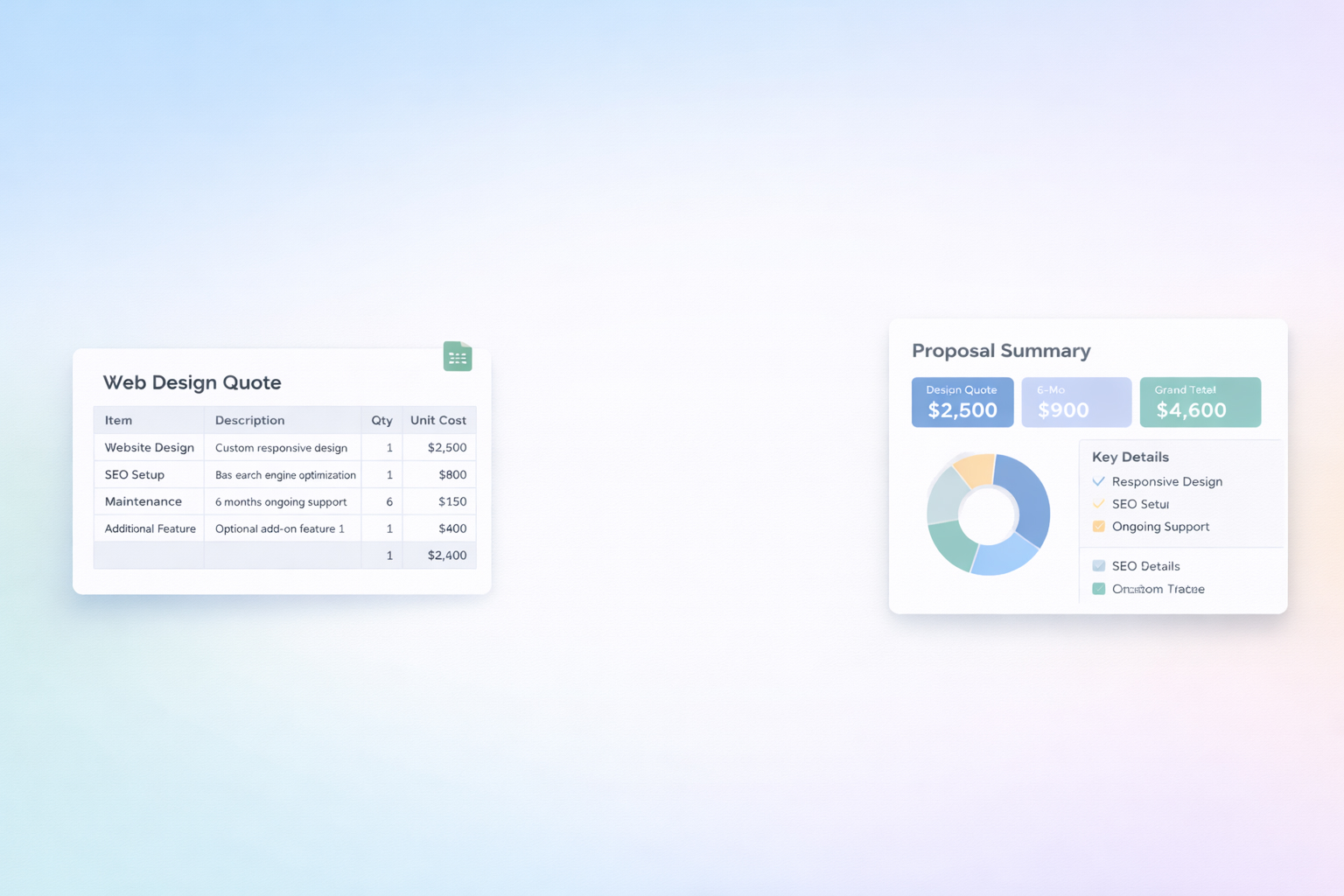
Your quotes are often the first serious moment of truth in a client relationship. A sloppy, slow or inconsistent web design quote quietly tells prospects that their project might be managed the same way. A clear, branded quote template in Google Sheets does the opposite: it anchors your value, explains scope in plain language and shows pricing with zero surprises. Instead of rewriting the same sections, you reuse a proven structure, tweak a few cells and send a polished offer in minutes.
But the real unlock is when you stop being the one who prepares every quote. By delegating the workflow to an AI computer agent, you turn quoting from a creative chore into a reliable system. The agent pulls brief details, selects the right package, updates fees, applies your margins and logs each quote, while you stay focused on strategy and closing the deal, not wrangling spreadsheets.
=C10*D10 (Hours * Rate) and drag it down (learn more: https://support.google.com/docs/answer/46973).=SUM(E10:E30) or your actual range.SUMIF or FILTER.
QUOTE_ClientName_ProjectName_YYYYMMDD.Pros of manual methods
Cons
VLOOKUP or XLOOKUP to pull the right price when a project type is selected (functions overview: https://support.google.com/docs/answer/140784).Now, instead of rethinking prices, your team simply picks options from dropdowns and Sheets calculates everything automatically.
QUERY function to feed selected data into a separate 'Quote View' tab that serves as the quote draft.This removes back‑and‑forth emails and forces clean inputs every time.
Pros of no‑code methods
Cons
This is where an AI agent like Simular Pro becomes your quoting assistant, not just a script.
Because Simular can operate across desktop, browser and cloud tools, it behaves like a meticulous assistant who never forgets the process.
Pros of AI‑driven methods
Cons
Simular Pro records every action it takes in the quoting flow. You can inspect each click and formula change, then refine the instructions: tweak how hours are estimated, change discount logic or adjust language in the summary. Over time, your AI quoting assistant becomes a codified version of your best sales instincts, but available 24/7 and scalable across your whole agency.
Start by thinking like a client, not a designer. A strong web design quote answers three questions fast: what am I getting, when will it be done, and what will it cost?
Structurally, use a clear, repeatable layout in Google Sheets. Top section: your logo, business details, client name, date and a unique quote ID. Next, a short Project Overview in plain language (no jargon): the business goal, who the site is for and the core outcome you are promising. Then add a Scope of Work table with columns for Service, Description, Deliverables, Hours, Rate and Subtotal. Group items into logical phases such as Discovery, Design, Development, Launch and Post‑launch support.
Follow this with a simple Timeline section showing milestones and expected dates. Include a Pricing Summary box that highlights the total investment, any options or add‑ons and payment schedule. Finish with Terms (revisions, change requests, ownership) and a clear Call to Action: how to accept, sign or pay a deposit. Once this skeleton works, turn it into your base template so every new quote follows the same trusted story arc.
Consistency starts with getting pricing out of your head and into a system. In Google Sheets, create a hidden 'Pricing' tab. List your core services (homepage design, inner pages, e‑commerce setup, CMS integration, SEO setup, maintenance) with standard hours and base rates. Add multipliers for complexity levels (simple, standard, advanced), rush fees and partner discounts.
In your quote template, use lookup formulas (VLOOKUP or INDEX/MATCH) to pull those values whenever you select a service and complexity from dropdowns. That way, a junior team member choosing '10 standard pages + basic SEO' automatically gets the same pricing you would have used.
To keep this calibrated, review the Pricing tab monthly. Compare estimated hours against actual hours per project and adjust the standard values. If you use an AI agent like Simular, you can have it read from this same pricing table so all automated quotes stay perfectly aligned with your latest assumptions, instead of drifting from one-off manual edits.
Pick a quote that closed quickly and where the client said yes with minimal friction. This is your starting pattern. Open it in Google Sheets and strip out client‑specific details, replacing them with placeholders like 'Client Company', 'Primary Contact' and 'Project Name'. Generalize the scope descriptions so they describe your standard way of working rather than that one project.
Next, separate content from configuration. Move all your pricing rules, rates and reusable descriptions (e.g., typical deliverables for a brand new site) into separate tabs. Use cell references and formulas to pull them into the front‑facing quote tab. This makes updates painless: when you increase your hourly rate, you only change it once.
Finally, clean up formatting: consistent fonts, colors, headings and spacing. Protect formula cells and the structure so no one accidentally breaks it. Save this file in a clearly labeled folder like 'Sales › Quote Template – Web Design'. From now on, make a copy for each new prospect rather than building from scratch.
You can get surprisingly far without writing code. Start with a column on your main Google Sheets quote log called 'Status' and another for 'Client Email'. When you mark a row as 'Ready to Send', use a no‑code tool like Zapier or Make to watch for that change.
Your automation can then duplicate your quote template tab, fill in the client name, company and project fields from that row, and export it as a PDF. Most tools have built‑in Google Sheets and Gmail integrations, so the same workflow can email the PDF to the client with a prewritten message that uses merge fields like the project name and price.
For a more advanced setup, you can have an AI agent run the whole process on your desktop or browser: open the sheet, format the quote, export PDF, attach it in your email client and log a note in your CRM. This avoids fragile API connections and mirrors what a human assistant would do, but at machine speed.
Treat the AI agent like a smart junior teammate: useful, but always supervised at first. Start by defining a narrow, low‑risk slice of the workflow you want it to own, such as filling in standard line items and calculating totals in your Google Sheets quote template. Record a few ideal runs of you performing the task so the agent can learn the exact steps and tools you use.
Next, set clear boundaries in your instructions: which cells it can edit, which sheets are read‑only, when to stop and ask for human approval (for example, when the total exceeds a threshold or the scope includes custom development). Run the agent on test briefs and compare its output against your own. Adjust pricing tables, formulas or its instructions until you are comfortable.
Only then let it touch live prospects, and even then, keep a human review step for sending. Over time, as the agent proves reliable, you can expand its remit to include pulling data from your CRM, generating summary text and logging quotes back into your pipeline automatically.