Variance analysis is the financial dashboard of your business. It shows, line by line, where your plan and reality drift apart and why. Without a living variance report, budgets turn into wish lists and leaders steer by instinct instead of evidence.
A strong variance report in Google Sheets compares budget, forecast, and actuals, quantifies the gaps, and surfaces the drivers behind them: pricing, volume, channel mix, overhead. That clarity lets you adjust campaigns, headcount, or spend before small leaks turn into a cash crisis.
But assembling that picture manually is slow and brittle. This is where an AI computer agent earns its keep. Once it knows where your data lives and how your sheet is structured, it can fetch fresh actuals, recalculate variances, flag material exceptions, and even draft plain‑English commentary. Delegating the grunt work to an agent means variance insight arrives on time, every time, while your team focuses on decisions, not spreadsheets.
When revenue slips or costs creep up, the story shows up first in your variance report. The catch: building that report consistently is tedious. Let’s walk through three levels of sophistication, from fully manual to fully agentic, so you can choose how far to automate.
These methods are simple, familiar, and a great starting point.
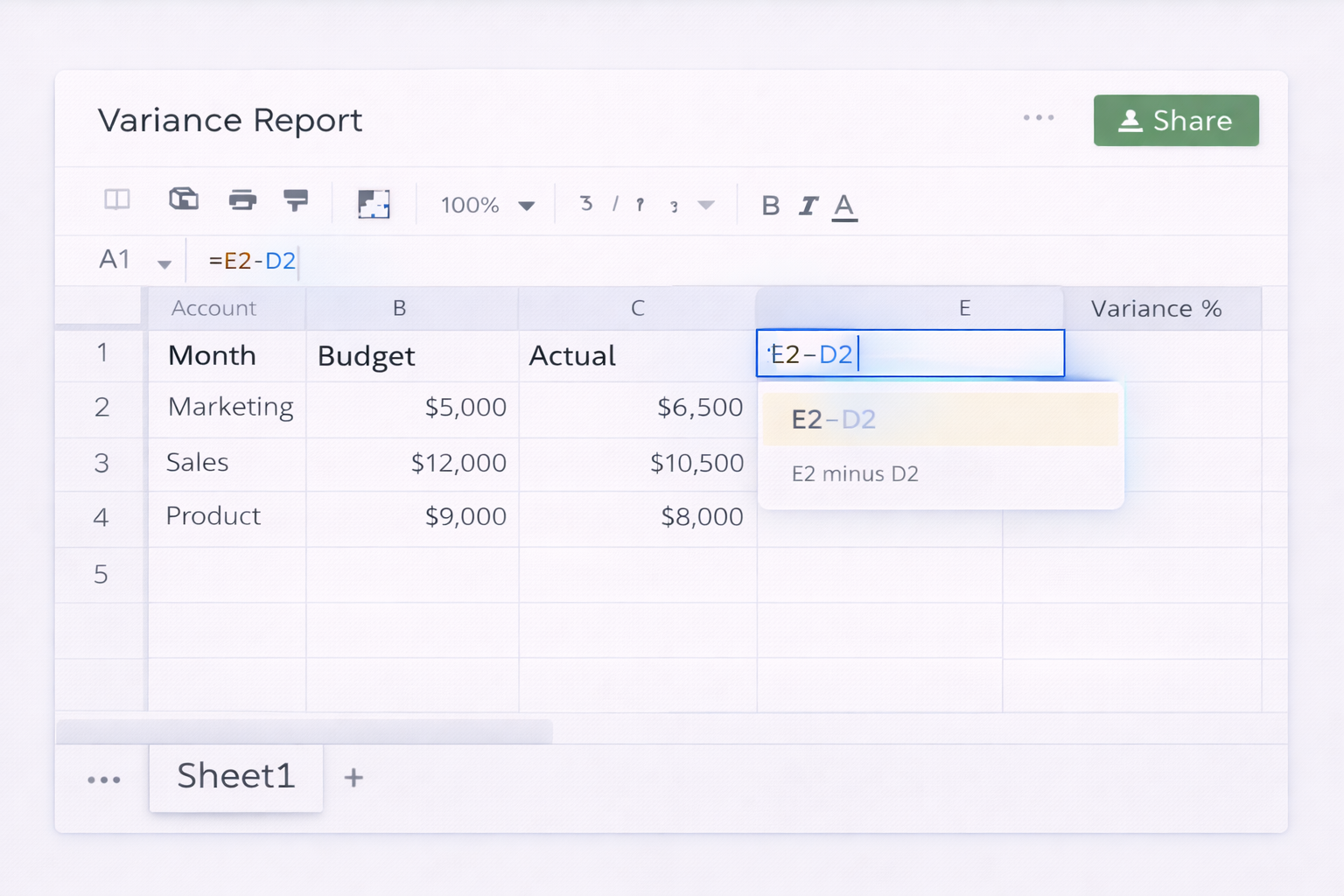
=E2-D2 (Actual minus Budget, adjust columns to your layout).=(E2/D2)-1 and format as percentage.See Google’s docs on formulas here: https://support.google.com/docs/answer/3094282
Walls of numbers don’t drive action; color does.
Official guide: https://support.google.com/docs/answer/78413
Now a quick scan tells you which lines are beating plan and which are bleeding.
Executives and clients often want the 10,000‑foot view.
Google’s chart help: https://support.google.com/docs/answer/63824 Pivot tables: https://support.google.com/docs/answer/1272900
Pros:
Cons:
Once you trust your layout, the next drag is getting fresh data into the sheet and keeping it structured. You can reduce that friction without writing code.
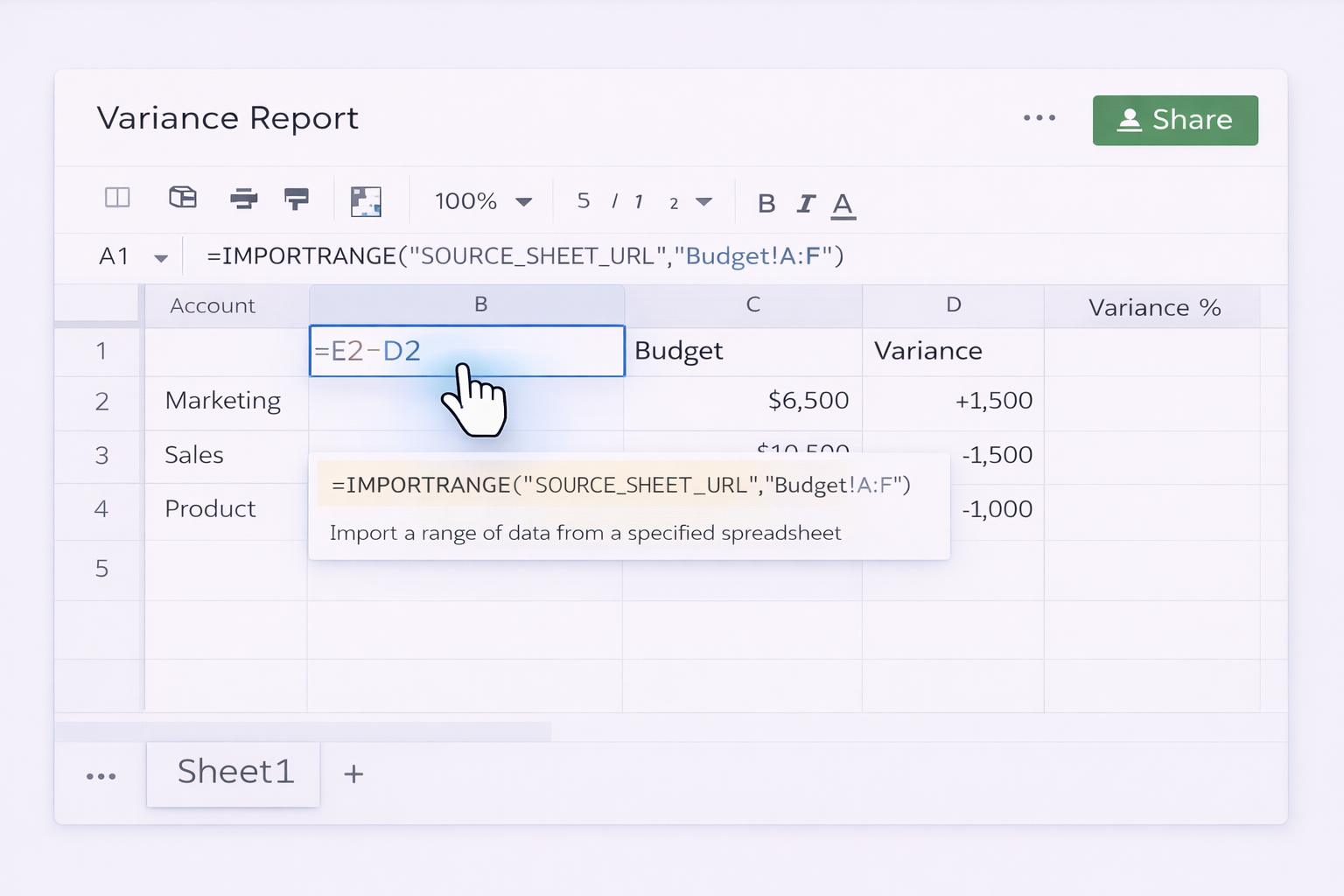
If your budget and actuals live in different spreadsheets:
IMPORTRANGE to pull in source data:=IMPORTRANGE("SOURCE_SHEET_URL","Budget!A:F")VLOOKUP or INDEX/MATCH.Docs on IMPORTRANGE: https://support.google.com/docs/answer/3093340
This keeps everything live: when upstream sheets change, your variance updates.
Tools like Zapier, Make, or native connectors from your CRM/accounting platform can push data into Sheets automatically.
Typical workflow:
SUMIFS, grouped by account and month.
Pros:
Cons:
If you’re comfortable with light scripting, Google Apps Script can:
Apps Script overview: https://developers.google.com/apps-script/guides/sheets
This is still "you coding" rather than delegating, but it’s a big step up from pure manual work.
At some point your variance workflow stops being a single spreadsheet and turns into a complex ritual: logging into multiple tools, exporting files, cleaning data, updating Google Sheets, formatting, and then writing commentary for stakeholders. This is where an AI computer agent shines.
Simular Pro is a production‑grade computer‑use agent that can operate your desktop, browser, and cloud tools much like a human analyst would. It already automates tasks like scraping data into Google Sheets, researching companies, and generating reports. Learn more: https://www.simular.ai/simular-pro
Imagine your month‑end close as a checklist an AI agent executes for you:
Pros:
Cons:
You can also use an AI agent as a variance "sentry" that looks for trouble (or opportunity) before your scheduled reviews.
Example routine:
Because Simular’s actions are inspectable, you can see exactly how it filtered, which cells it read, and what logic it applied.
For agencies managing many clients, an AI agent can:
Run that overnight, and your account managers start the day with fresh variance insight instead of a to‑do list of exports.
Learn more about Simular’s agentic approach: https://www.simular.ai/about
Pros:
Cons:
Start wherever you are: a clean manual Google Sheets layout, a bit of no‑code plumbing, and then a Simular AI agent to execute the repetitive cross‑tool work. Each step buys back more of your team’s time for strategy instead of mechanics.
Start by deciding the questions your variance report must answer: usually “where did we miss plan, by how much, and why?”. Then translate that into a simple, repeatable layout.
In Google Sheets, create a tab called Variance and add columns like Account, Category, Month, Budget, Actual, Variance, Variance %, and Owner. Fill Budget from your planning file, and pull Actuals from your accounting or CRM export.
Use formulas such as `=E2-D2` for Variance and `=(E2/D2)-1` for Variance %. Lock the header row (View → Freeze → 1 row) and apply filters so stakeholders can slice by category or owner. Add conditional formatting to highlight large positive and negative variances, and a final Commentary column where finance, sales, or marketing writes a short explanation. Keep this layout consistent across periods so your AI computer agent or any automation can rely on a stable structure.
First map where your actuals live: accounting system, CRM, ad platforms, or payment processors. Aim to land all raw data in one or more "staging" tabs in Google Sheets, then roll them into your variance tab.
If your tools export CSV, use a repeating process: upload CSVs to Google Drive, then use a raw data tab per source. From there, aggregate by account and period using `SUMIFS` or pivot tables to feed your Variance sheet.
To avoid manual uploads, use no‑code tools (Zapier, Make) so that every new invoice, deal, or ad spend record is appended directly to those raw tabs. Define stable column headers so formulas never break. Once the structure is solid, you can hand the cross‑app navigation to a Simular AI Agent, which can log in, export, and paste data into those staging tabs on a schedule, dramatically shrinking your month‑end workload.
Materiality is about signal vs noise: you want to see variances that matter without drowning in minor blips. Start by segmenting accounts into buckets: revenue, direct costs, marketing spend, overhead.
For large revenue or cost lines, a lower percentage threshold (for example, 5–10%) may be appropriate; for small experimental budgets, you might ignore anything under 20–30%. In Google Sheets, implement this via conditional formatting rules on the Variance % column, and add a helper column such as `Flag` with a formula like `=IF(ABS(F2)>=0.1,"Material","Ignore")`.
Review a few historical months: adjust the threshold until the number of "Material" rows feels reviewable in an hour. Once calibrated, document these rules so your AI computer agent or Simular AI Agent uses the same cutoffs when highlighting exceptions or writing automated commentary, ensuring consistency between human and agent‑driven analysis.
For go‑to‑market teams, variance reports are an ROI spotlight. Instead of just tracking total spend and total pipeline, compare planned vs actual by channel, campaign, or segment.
In Google Sheets, ensure your raw data includes tags such as Channel, Campaign, Creative, and Segment. Then build a marketing variance tab where rows are campaigns and columns include Budgeted Spend, Actual Spend, Budgeted Opportunities, Actual Opportunities, and their variances.
Use `SUMIFS` to aggregate metrics from your ad and CRM tabs. Highlight campaigns where spend is over budget but pipeline is under, or where you are beating plan so strongly that you might want to double down. A Simular AI Agent can refresh these numbers nightly and auto‑generate a paragraph per campaign summarizing performance vs plan. That lets sales and marketing leaders walk into stand‑ups already knowing where the biggest swings are and where to reallocate dollars this week.
Treat your AI agent like a new analyst during onboarding. Start with a narrow, well‑defined slice of the variance workflow: for example, updating one Google Sheets file for one business unit.
First, run the entire process manually and save a "golden" copy of the sheet plus your own commentary. Then let the Simular AI Agent execute the same steps: logging into source systems, pulling data, updating the variance tab, and drafting notes.
Compare cell‑by‑cell on a few critical accounts and periods. If you see discrepancies, adjust the agent’s instructions: clarify which columns to trust, how to handle missing data, and which rounding rules to apply. Because Simular’s execution is transparent, review its action log to spot where it made a different choice than you would.
Once the agent matches your golden copy over several cycles, gradually expand scope (more entities, more tabs) while keeping periodic spot checks in place as a governance habit.